
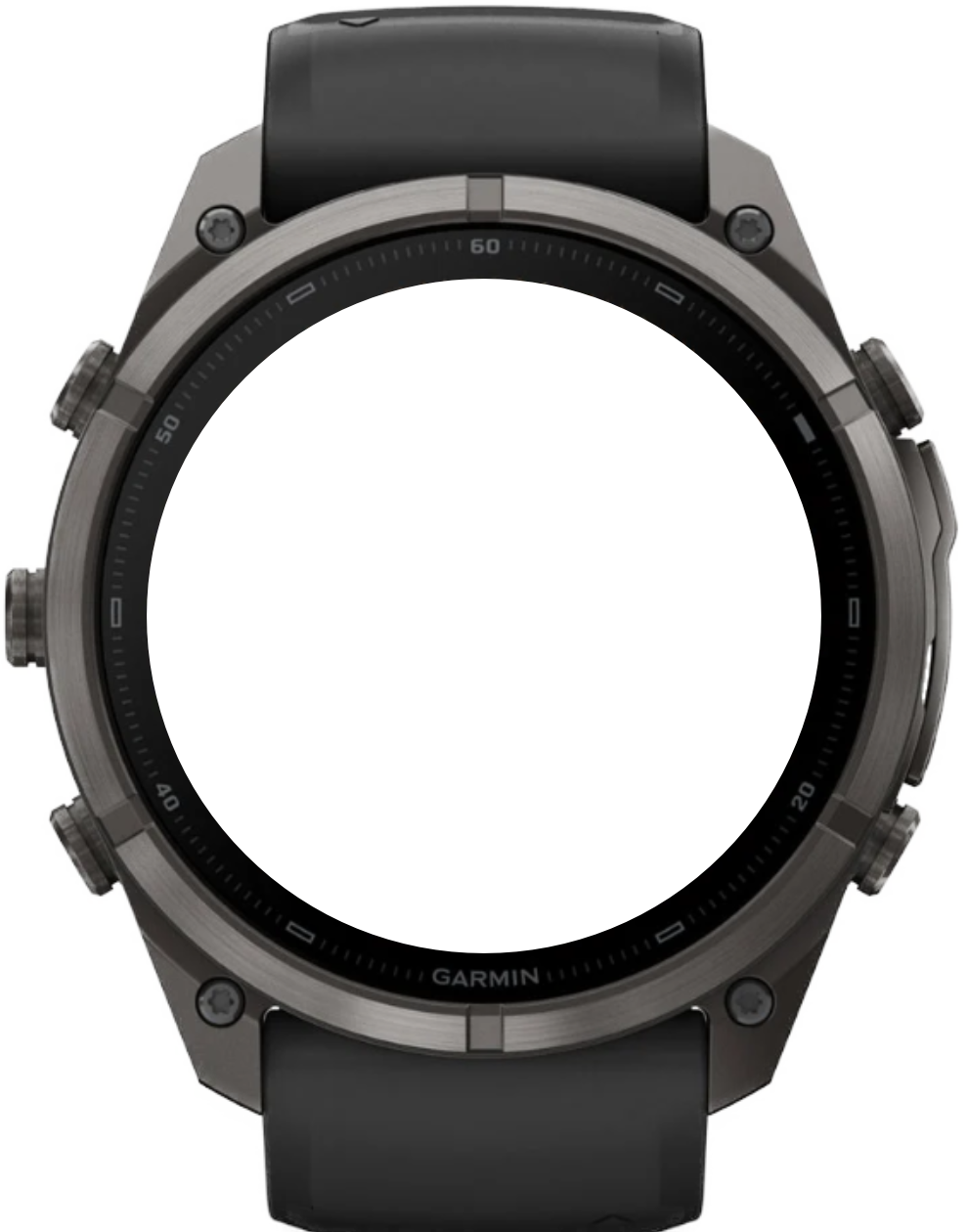
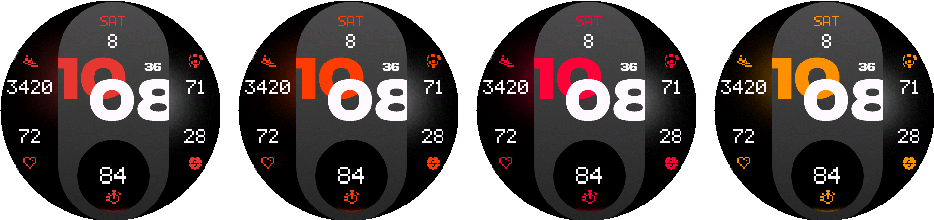
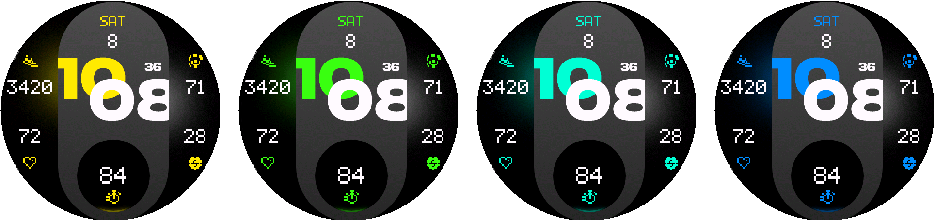
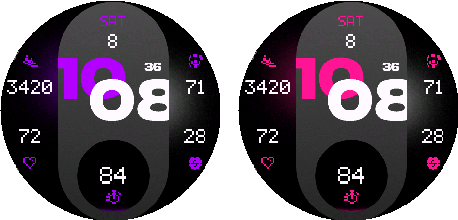
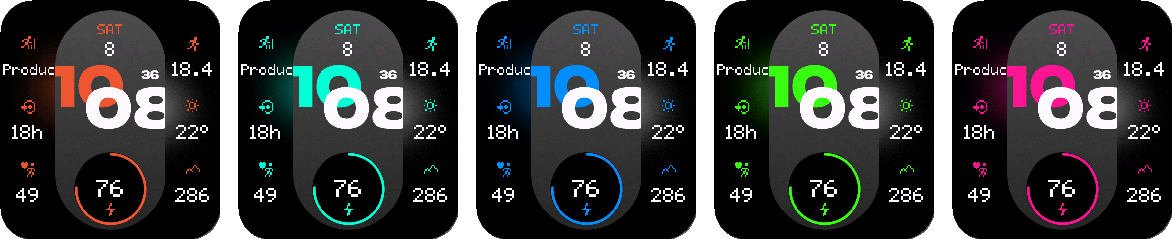
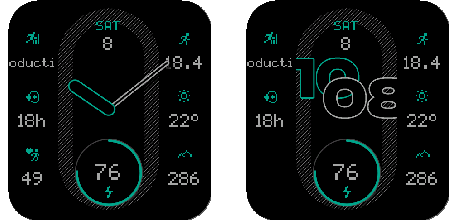
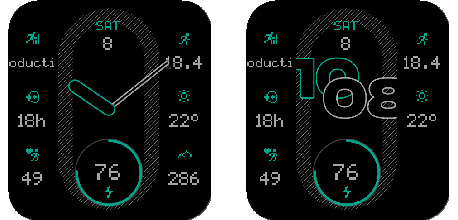
Digital, centered digital, or analog time with 18 accent colors.
← All watch faces
Watch face for Garmin
NXT.01 PRO
Modernist
A clean and modern watch face.
A bold modernist watch face with digital, centered digital, and analog styles, flexible data layouts, touch shortcuts, rich color control, and device-specific support for AMOLED, MIP, and Venu X1.
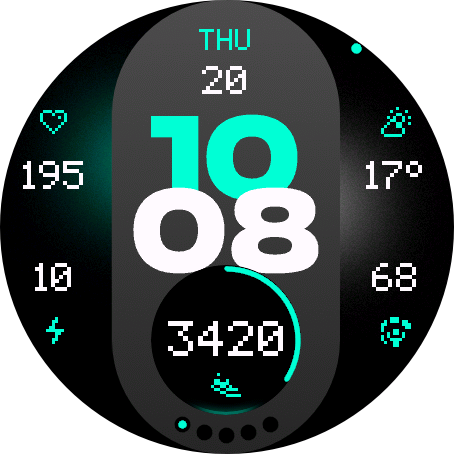
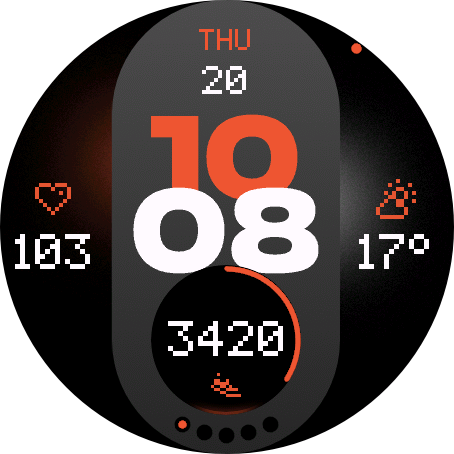
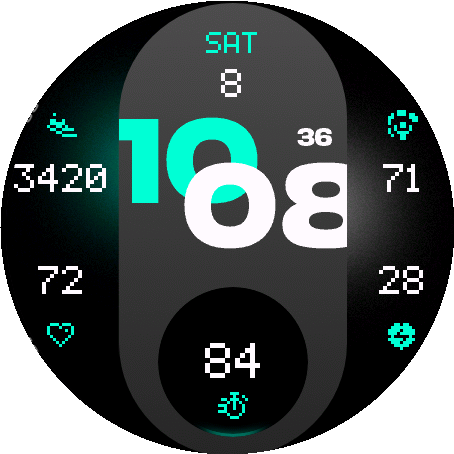
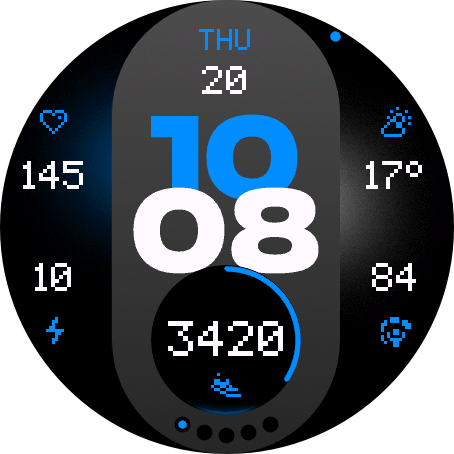
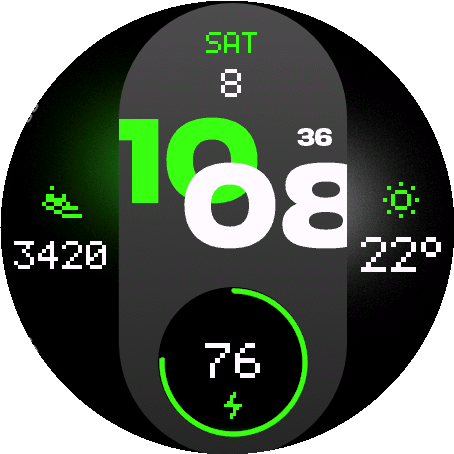
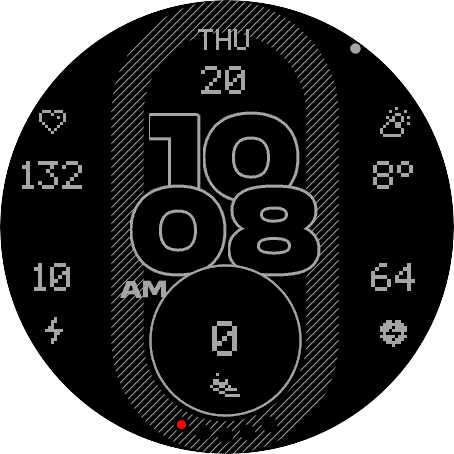
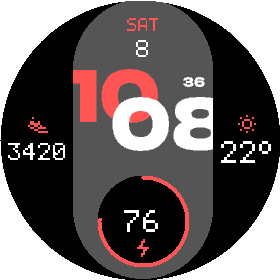
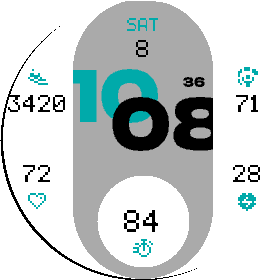
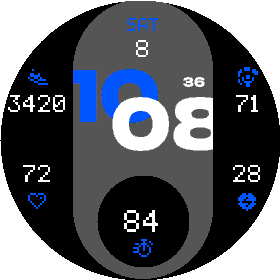
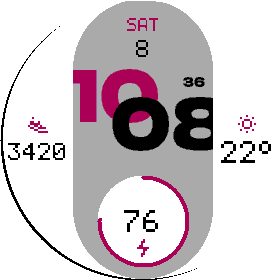
Supported devices80
 Approach® S70 42mmAMOLED · 390 × 390
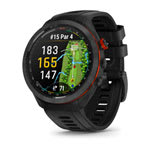 Approach® S70 47mmAMOLED · 454 × 454
 D2™ Air X15AMOLED · 454 × 454
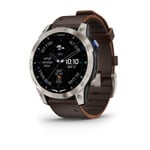 D2™ Mach 1AMOLED · 416 × 416
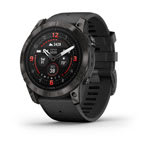 D2™ Mach 1 ProAMOLED · 454 × 454
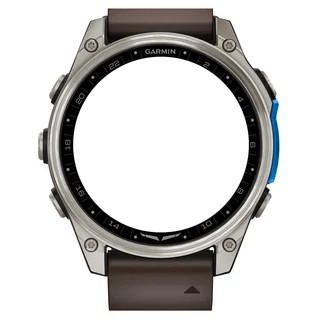 D2™ Mach 2AMOLED · 454 × 454
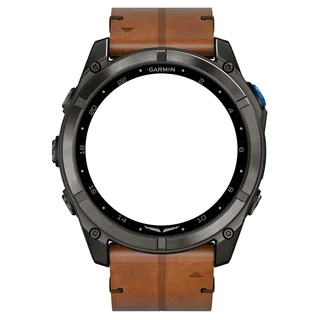 D2™ Mach 2 ProAMOLED · 454 × 454
 Descent™ Mk3 43mmAMOLED · 390 × 390Descent™ Mk3i 43mmAMOLED · 390 × 390
 Descent™ Mk3i 51mmAMOLED · 454 × 454
 Enduro™ 2Memory-in-pixel · 280 × 280
 Enduro™ 3Memory-in-pixel · 280 × 280
 epix™ (Gen 2)AMOLED · 416 × 416
 epix™ Pro (Gen 2) 42mmAMOLED · 390 × 390
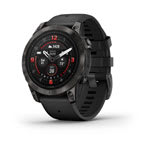 epix™ Pro (Gen 2) 47mmAMOLED · 416 × 416epix™ Pro (Gen 2) 51mmAMOLED · 454 × 454
 fēnix® 7Memory-in-pixel · 260 × 260
 fēnix® 7 ProMemory-in-pixel · 260 × 260
 fēnix® 7 Pro - Solar Edition (no Wi-Fi)Memory-in-pixel · 260 × 260
 fēnix® 7SMemory-in-pixel · 240 × 240
 fēnix® 7S ProMemory-in-pixel · 240 × 240fēnix® 7XMemory-in-pixel · 280 × 280
 fēnix® 7X ProMemory-in-pixel · 280 × 280
 fēnix® 7X Pro - Solar Edition (no Wi-Fi)Memory-in-pixel · 280 × 280
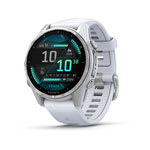 fēnix® 8 43mmAMOLED · 416 × 416
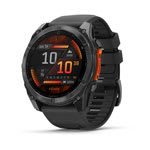 fēnix® 8 47mmAMOLED · 454 × 454fēnix® 8 51mmAMOLED · 454 × 454
 fēnix® 8 Pro 47mmAMOLED · 454 × 454fēnix® 8 Pro 51mmAMOLED · 454 × 454fēnix® 8 Pro MicroLEDAMOLED · 454 × 454
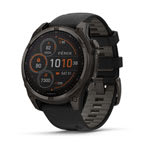 fēnix® 8 Solar 47mmMemory-in-pixel · 260 × 260
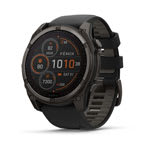 fēnix® 8 Solar 51mmMemory-in-pixel · 280 × 280
 fēnix® 9 43mmAMOLED · 416 × 416
 fēnix® 9 47mmAMOLED · 454 × 454fēnix® 9 51mmAMOLED · 454 × 454
 fēnix® 9 Pro 43mmAMOLED · 416 × 416
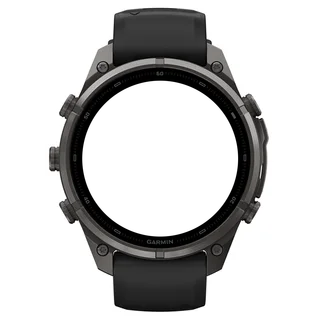 fēnix® 9 Pro 47mmAMOLED · 454 × 454
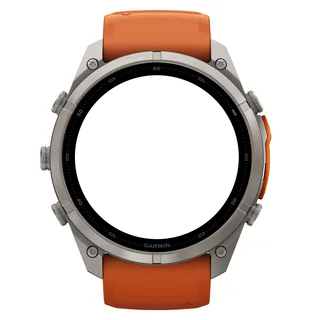 fēnix® 9 Pro 51mmAMOLED · 466 × 466
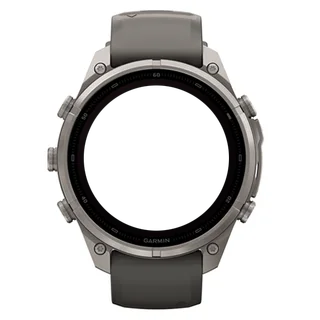 fēnix® 9 Pro Solar 47mmMemory-in-pixel · 260 × 260
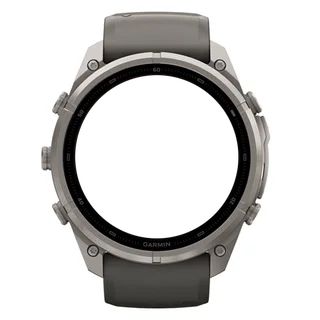 fēnix® 9 Pro Solar 51mmMemory-in-pixel · 280 × 280
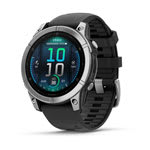 fēnix® EAMOLED · 416 × 416
 Forerunner® 170AMOLED · 390 × 390
 Forerunner® 170 MusicAMOLED · 390 × 390
 Forerunner® 255Memory-in-pixel · 260 × 260
 Forerunner® 255 MusicMemory-in-pixel · 260 × 260
 Forerunner® 265AMOLED · 416 × 416
 Forerunner® 570 42mmAMOLED · 390 × 390
 Forerunner® 570 47mmAMOLED · 454 × 454
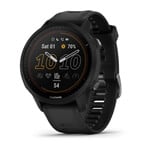 Forerunner® 955Memory-in-pixel · 260 × 260Forerunner® 955 SolarMemory-in-pixel · 260 × 260
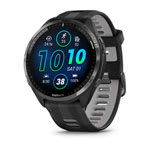 Forerunner® 965AMOLED · 454 × 454
 Forerunner® 970AMOLED · 454 × 454
 Instinct® 3 AMOLED 45mmAMOLED · 390 × 390
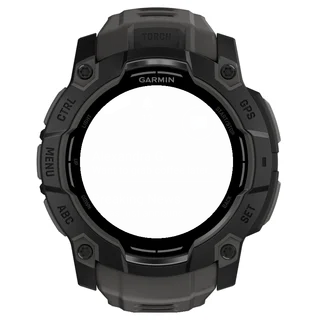 Instinct® 3 AMOLED 50mmAMOLED · 416 × 416
 MARQ® (Gen 2) AdventurerAMOLED · 390 × 390MARQ® (Gen 2) AthleteAMOLED · 390 × 390
 MARQ® (Gen 2) AviatorAMOLED · 390 × 390MARQ® (Gen 2) CaptainAMOLED · 390 × 390MARQ® (Gen 2) Carbon EditionAMOLED · 390 × 390MARQ® (Gen 2) Commander – Carbon EditionAMOLED · 390 × 390MARQ® (Gen 2) GolferAMOLED · 390 × 390quatix® 7Memory-in-pixel · 260 × 260quatix® 7 ProAMOLED · 416 × 416quatix® 7 SapphireAMOLED · 416 × 416quatix® 7X SolarMemory-in-pixel · 280 × 280quatix® 8 47mmAMOLED · 454 × 454quatix® 8 51mmAMOLED · 454 × 454quatix® 8 Pro 47mmAMOLED · 454 × 454quatix® 8 Pro 51mmAMOLED · 454 × 454tactix® 7Memory-in-pixel · 280 × 280tactix® 7 – AMOLED EditionAMOLED · 454 × 454tactix® 8 47mmAMOLED · 454 × 454tactix® 8 51mmAMOLED · 454 × 454tactix® 8 Solar 51mmMemory-in-pixel · 280 × 280
 Venu® 3AMOLED · 454 × 454
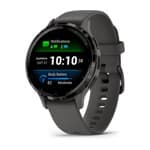 Venu® 3SAMOLED · 390 × 390
 Venu® 4 41mmAMOLED · 390 × 390Venu® 4 45mmAMOLED · 454 × 454
 Venu® X1AMOLED · 448 × 486
 vívoactive® 6AMOLED · 390 × 390
63 data types across up to 6 fields, or 8 on Venu X1.
Monochrome or accent AOD, selectable seconds, battery saver, weather, and touch controls.
User guide
Make it yours
Choose where you want to configure the watch face, then jump directly to any setting.
On the watch
Appearance
Choose the time style and color treatment.
1.1
Style and Hand Shadow
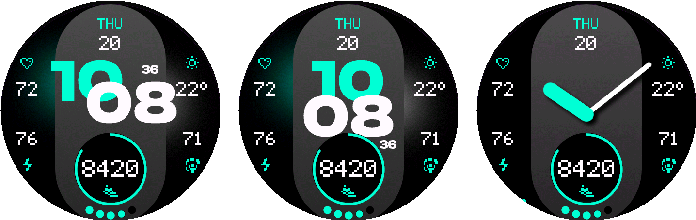
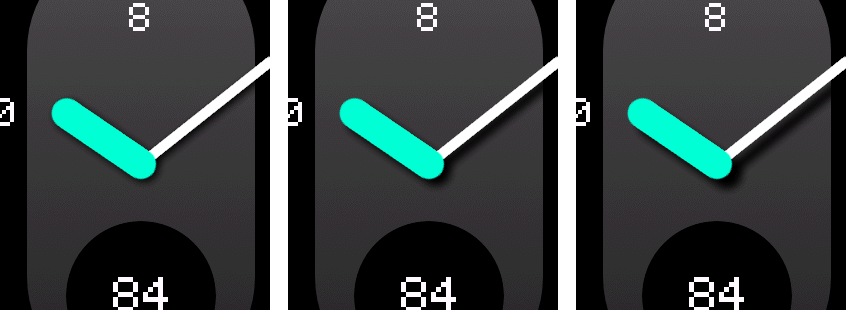
Choose Digital, Digital Centered, or Analog. Analog hands offer three shadow offsets.
1.2
Accent Color
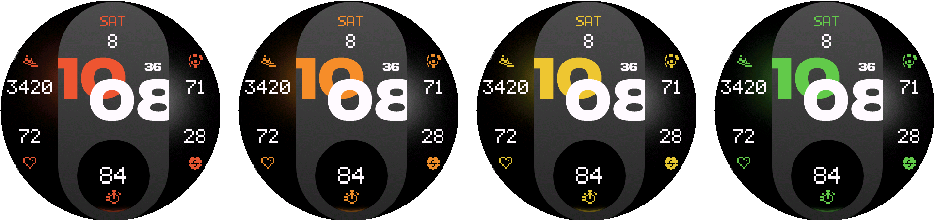
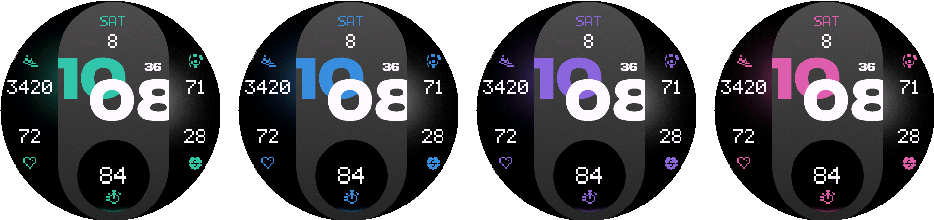
Choose one of 18 accent colors.
1.3
Value + Icon Colors
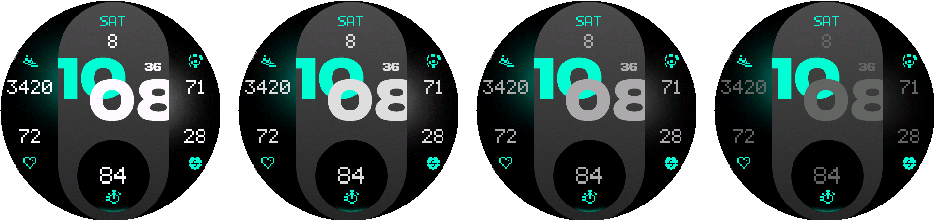
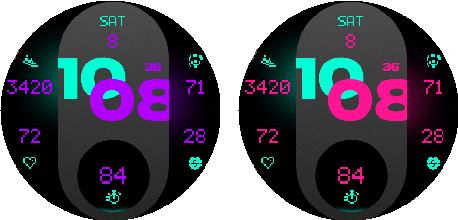
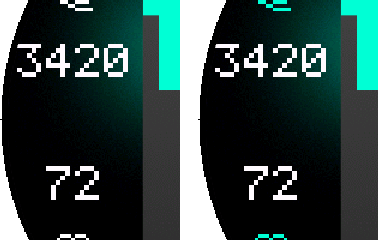
Choose one of 22 value colors and match side icons to the value or accent color.
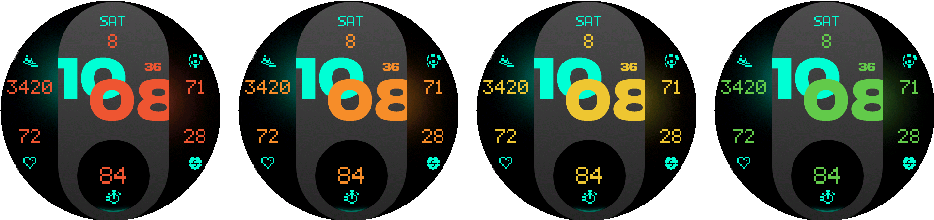
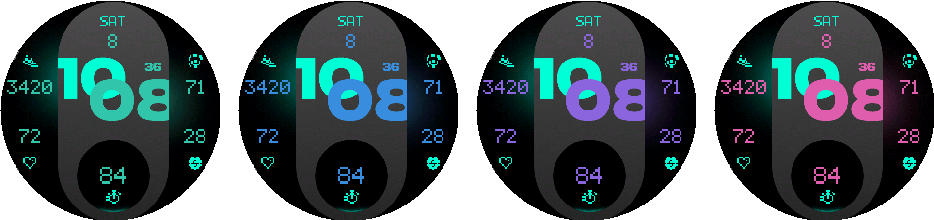
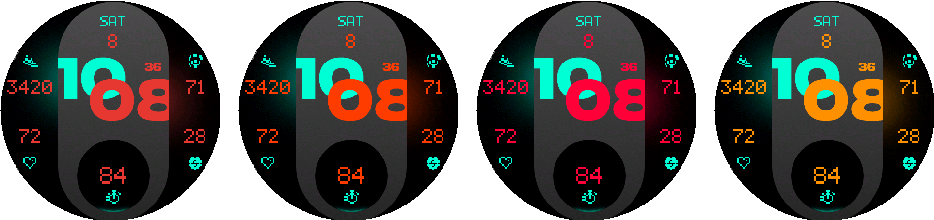
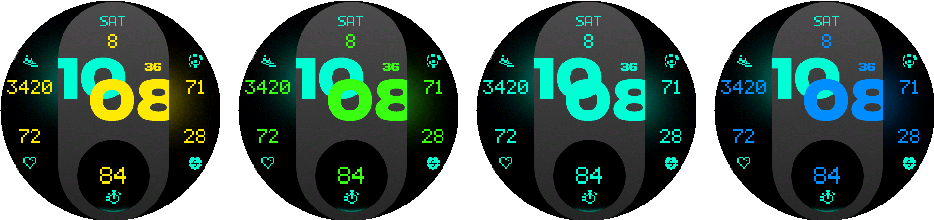
1.4
Bottom Battery Indicator
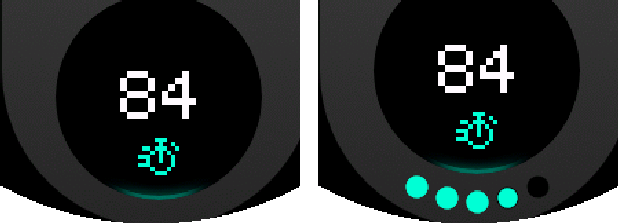
Adds a battery indicator around the bottom data field.
On the watch
Data
Build a layout around the information you use most.
2.1
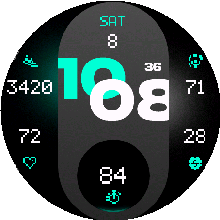
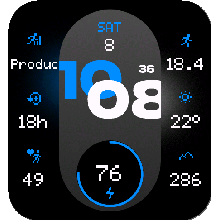
Layouts
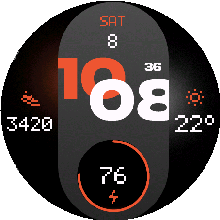
Select 1+1 or 2+2 side fields. Venu X1 also supports 3+3. The top and bottom fields stay independent.
2.2
Data Fields
Every visible position can use any of the 63 data fields below.
Native Watch Face Config on supported watches is for quick setup and may not show every available metric. Use Customize or the phone app for the complete metric list and all configuration options.
Activity: Steps, Steps To Goal, Step Goal Progress, Calories, Active Calories, Active Cal. %, Distance, Floors ascended, Floors descended, Meters Climbed, Meters Descended, Active Day, Active Week, Move Bar.
Health: Heart Rate, Resting HR, Body Battery, Stress, Pulse Ox, Respiration, Sleep Score.
Date & Time: Month, Date, Day, Week Number, Calendar, Time, Seconds, Alt Time Zone 1, Alt Time Zone 2, Sunrise / Sunset, Dawn / Dusk, Remaining Sun / Dark, Moon Phase.
Training: Recovery Time, VO2 Max (Run), VO2 Max (Bike), Training Status, Week Run Dist, Week Bike Dist, Week Run Time, Week Bike Time.
Weather: Weather, Feels Like, Temp. min/max, Precip Chance (Garmin), Humidity, Wind, UV (Garmin), Pressure, Ground Pressure (OWM), Barometric Trend (Garmin), Cloud Cover, Rain (1h) (OWM), Wind Gust (OWM), Visibility, Dew Point (Garmin).
System: Battery, Battery Days, Notifications, Alarm Count, Altitude, Solar Input.
2.3
Touch Launch
Enable touch globally, then assign Auto, a compatible Garmin destination, or an external target to each visible field.
Available destinations depend on the watch and installed Garmin software.
On the watch
Date & Time
Control digital time, date, seconds, AM/PM, and alternate zones.
3.1
Time Format
Show digital hours with or without a leading zero.
3.2
Date Format
Choose one of ten numeric or text date formats.


3.3
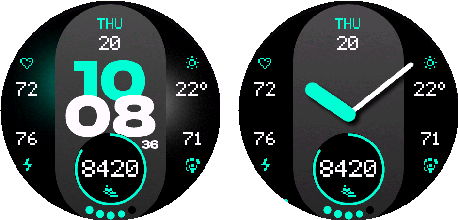
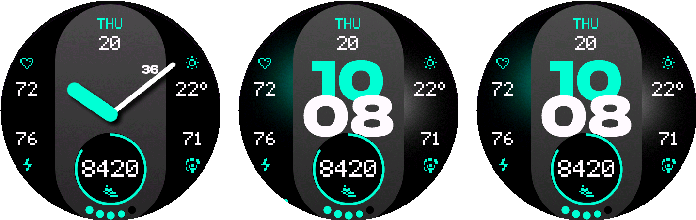
Seconds Type + Format
Seconds Type offers Auto, Force Digital, Force Analog, and Off. Auto follows the selected time style. Digital Seconds Format chooses plain or colon-prefixed seconds.
Digital and analog seconds are hidden in AMOLED AOD.
3.4
AM/PM + Alternate Time Zones
Show AM/PM when applicable and set two alternate time-zone offsets.
On the watch
Weather
Select the provider and manage current data.
4.1
Provider
Use Garmin Weather or OpenWeatherMap. OpenWeatherMap needs an API key and a 15, 30, or 60 minute refresh interval.
4.2
Status + Actions
Weather Status is read-only. Refresh Data requests an update; Clear OWM Cache removes cached observations and retry state.
On the watch
Battery Saver
Set the low-battery threshold and reduced display behavior.
5.1
Trigger
Choose Off, 5%, 10%, 15%, or 20%.
5.2
Minimal AOD / Always-On Seconds
Below the threshold, AMOLED can dim AOD to its minimum level and MIP can turn Always-On Seconds off.
5.3
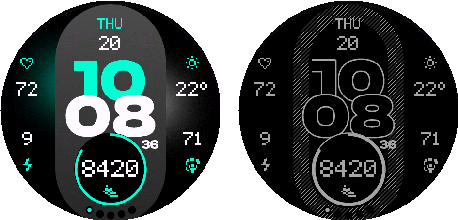
AOD Look with Low Battery
On AMOLED, the active display can use the AOD-style appearance below the threshold.
5.4
AOD Look Brightness
Choose one of five brightness levels for the low-battery AOD-style active display.

On the watch
Reset to Defaults
Restore the original configuration.
6.1
Confirm or Cancel
Confirm restores saved appearance, data, date/time, display, weather, battery, and touch settings.
On the watch
AMOLED
AMOLED-only Always-On Display controls.


7.1
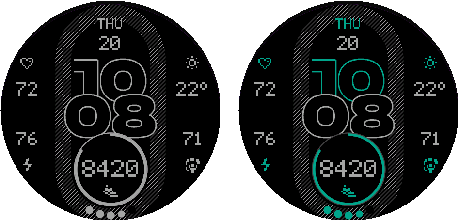
AOD Color Mode
Choose Monochrome or Accent. Monochrome is the default.
7.2
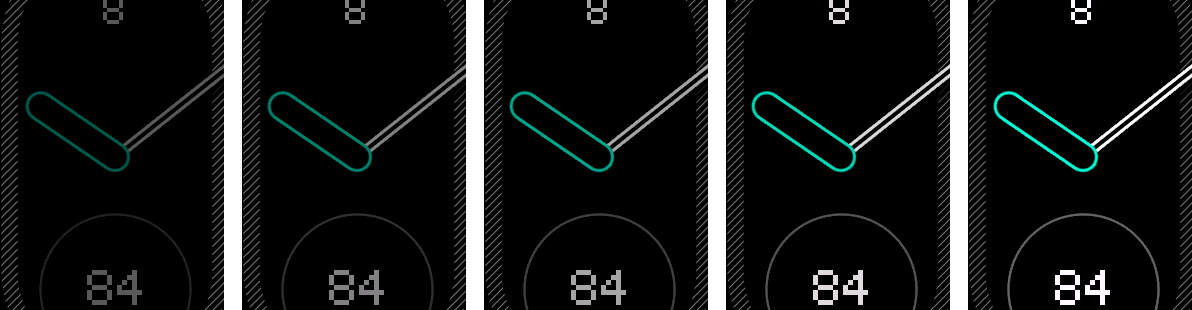
AOD Brightness
Choose one of five Always-On brightness levels.
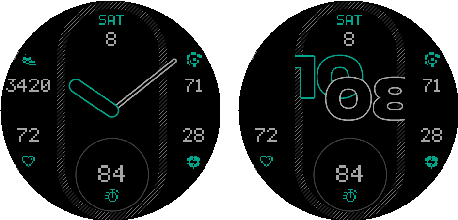
7.3
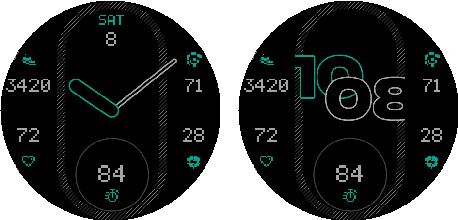
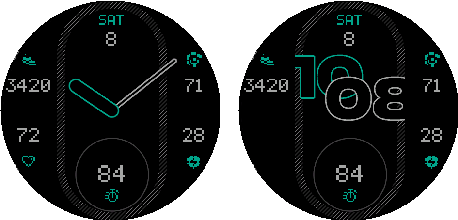
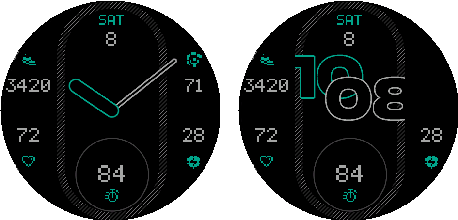
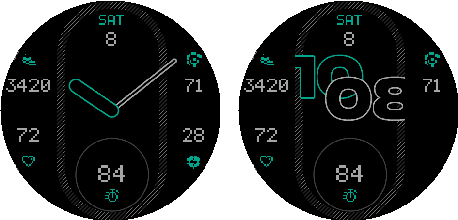
AOD Field Visibility
Show or hide the top, side, and bottom fields independently in Always-On mode.
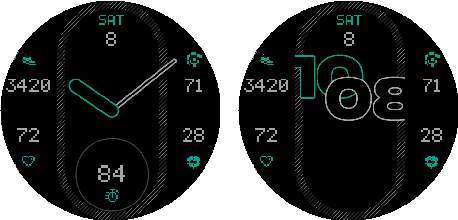
7.4
Pixel Shift + Night Dimming
Pixel Shift reduces static positioning. Night Dimming follows the profile or sunrise/sunset schedule.
On the watch
MIP
MIP-only contrast and continuous-seconds controls.
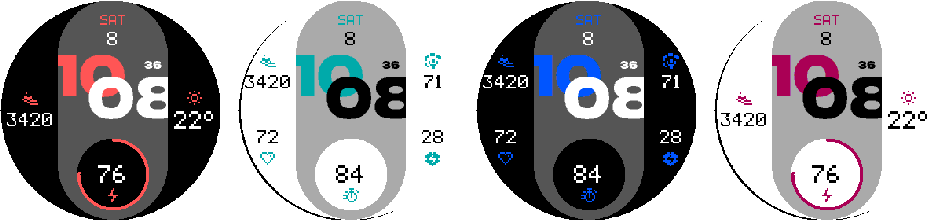


8.1
Dark + Light
Invert the appearance for a dark or light face.
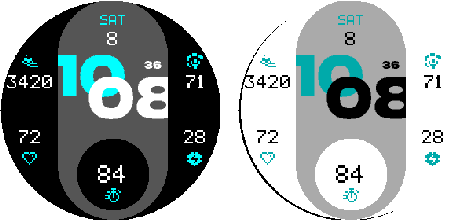
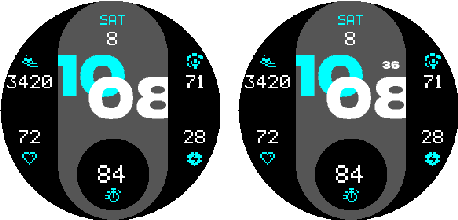
8.2
Always On Seconds
Show or hide continuously updating seconds.
On the watch
Venu X1
Venu X1 adds a third field on each side.
9.1
3+3 Layout
Configure Left 3 and Right 3 data fields and their touch actions.
9.2
Third Fields in AOD
Show or hide the third left and right fields independently in Always-On mode.
In the Connect IQ app
Appearance
Choose the time style and color treatment.
1.1
Style and Hand Shadow
Choose Digital, Digital Centered, or Analog. Analog hands offer three shadow offsets.
1.2
Accent Color
Choose one of 18 accent colors.
1.3
Value + Icon Colors
Choose one of 22 value colors and match side icons to the value or accent color.
1.4
Bottom Battery Indicator
Adds a battery indicator around the bottom data field.
In the Connect IQ app
Data
Build a layout around the information you use most.
2.1
Layouts
Select 1+1 or 2+2 side fields. Venu X1 also supports 3+3. The top and bottom fields stay independent.
2.2
Data Fields
Every visible position can use any of the 63 data fields below.
Native Watch Face Config on supported watches is for quick setup and may not show every available metric. Use Customize or the phone app for the complete metric list and all configuration options.
Activity: Steps, Steps To Goal, Step Goal Progress, Calories, Active Calories, Active Cal. %, Distance, Floors ascended, Floors descended, Meters Climbed, Meters Descended, Active Day, Active Week, Move Bar.
Health: Heart Rate, Resting HR, Body Battery, Stress, Pulse Ox, Respiration, Sleep Score.
Date & Time: Month, Date, Day, Week Number, Calendar, Time, Seconds, Alt Time Zone 1, Alt Time Zone 2, Sunrise / Sunset, Dawn / Dusk, Remaining Sun / Dark, Moon Phase.
Training: Recovery Time, VO2 Max (Run), VO2 Max (Bike), Training Status, Week Run Dist, Week Bike Dist, Week Run Time, Week Bike Time.
Weather: Weather, Feels Like, Temp. min/max, Precip Chance (Garmin), Humidity, Wind, UV (Garmin), Pressure, Ground Pressure (OWM), Barometric Trend (Garmin), Cloud Cover, Rain (1h) (OWM), Wind Gust (OWM), Visibility, Dew Point (Garmin).
System: Battery, Battery Days, Notifications, Alarm Count, Altitude, Solar Input.
2.3
Touch Launch
Enable touch globally, then assign Auto, a compatible Garmin destination, or an external target to each visible field.
Available destinations depend on the watch and installed Garmin software.
In the Connect IQ app
Date & Time
Control digital time, date, seconds, AM/PM, and alternate zones.
3.1
Time Format
Show digital hours with or without a leading zero.
3.2
Date Format
Choose one of ten numeric or text date formats.
3.3
Seconds Type + Format
Seconds Type offers Auto, Force Digital, Force Analog, and Off. Auto follows the selected time style. Digital Seconds Format chooses plain or colon-prefixed seconds.
Digital and analog seconds are hidden in AMOLED AOD.
3.4
AM/PM + Alternate Time Zones
Show AM/PM when applicable and set two alternate time-zone offsets.
In the Connect IQ app
Weather
Select the provider and configure OpenWeatherMap.
4.1
Provider
Use Garmin Weather or OpenWeatherMap.
4.2
OpenWeatherMap
Enter the API key and select a 15, 30, or 60 minute refresh interval.
In the Connect IQ app
Battery Saver
Set the low-battery threshold and reduced display behavior.
5.1
Trigger
Choose Off, 5%, 10%, 15%, or 20%.
5.2
Minimal AOD / Always-On Seconds
Below the threshold, AMOLED can dim AOD to its minimum level and MIP can turn Always-On Seconds off.
5.3
AOD Look with Low Battery
On AMOLED, the active display can use the AOD-style appearance below the threshold.
5.4
AOD Look Brightness
Choose one of five brightness levels for the low-battery AOD-style active display.
In the Connect IQ app
AMOLED
AMOLED-only Always-On Display controls.
6.1
AOD Color Mode
Choose Monochrome or Accent. Monochrome is the default.
6.2
AOD Brightness
Choose one of five Always-On brightness levels.
6.3
AOD Field Visibility
Show or hide the top, side, and bottom fields independently in Always-On mode.
6.4
Pixel Shift + Night Dimming
Pixel Shift reduces static positioning. Night Dimming follows the profile or sunrise/sunset schedule.
In the Connect IQ app
MIP
MIP-only contrast and continuous-seconds controls.
7.1
Dark + Light
Invert the appearance for a dark or light face.
7.2
Always On Seconds
Show or hide continuously updating seconds.
In the Connect IQ app
Venu X1
Venu X1 adds a third field on each side.
8.1
3+3 Layout
Configure Left 3 and Right 3 data fields and their touch actions.
8.2
Third Fields in AOD
Show or hide the third left and right fields independently in Always-On mode.
Configure the watch face from Garmin Connect IQ or directly on a compatible watch. Device-specific settings are grouped at the end of the guide.
The TRIAL version marks settings and data fields available only in PRO, and not in LITE, with (PRO).