
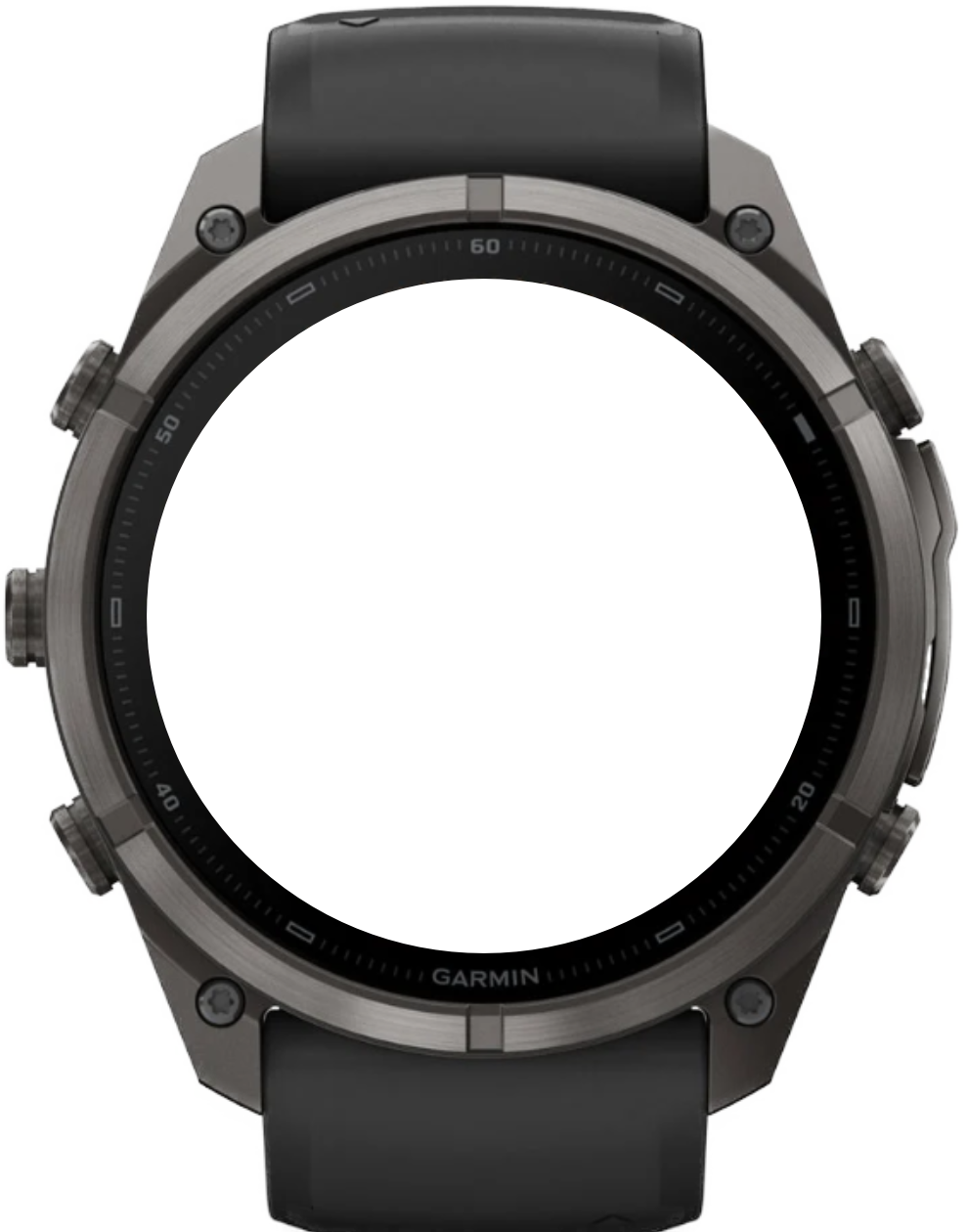
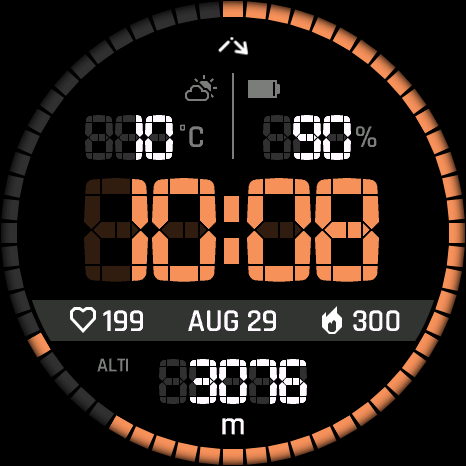
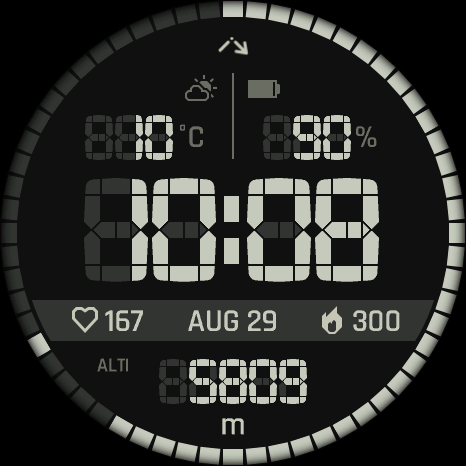
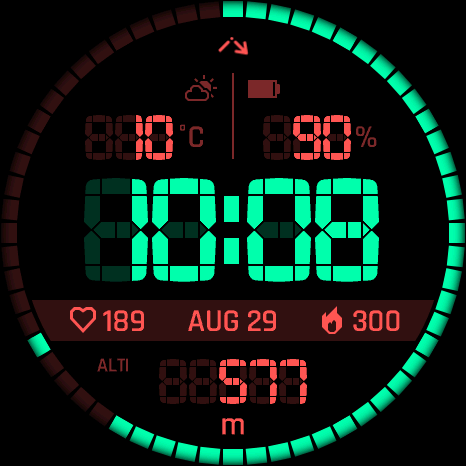
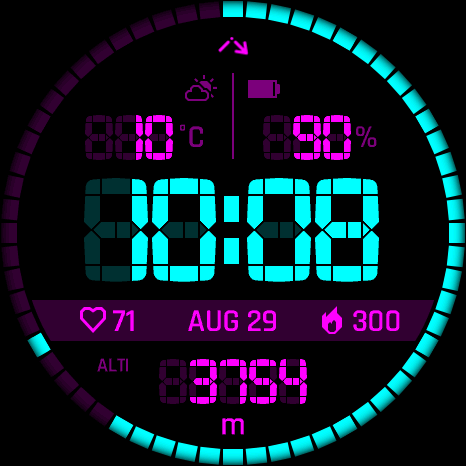
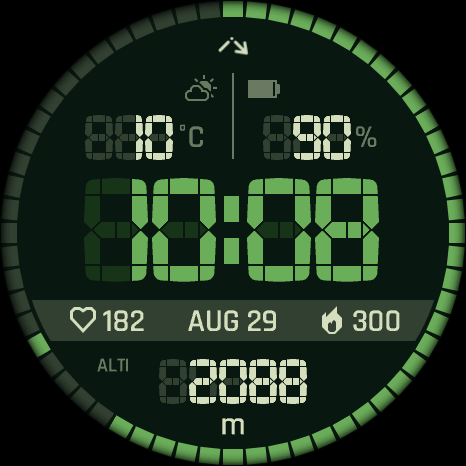
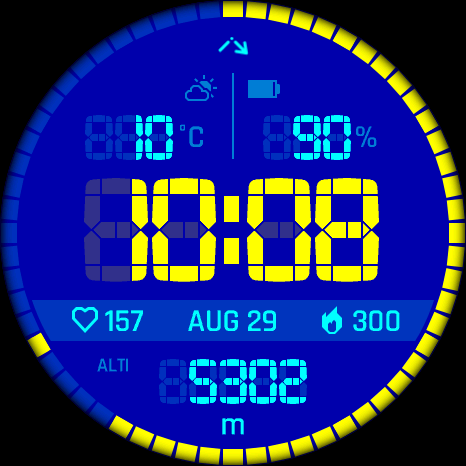
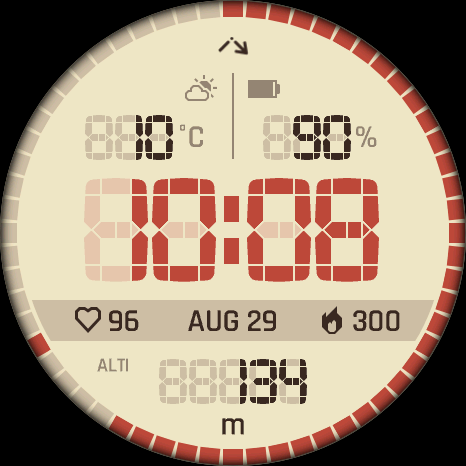
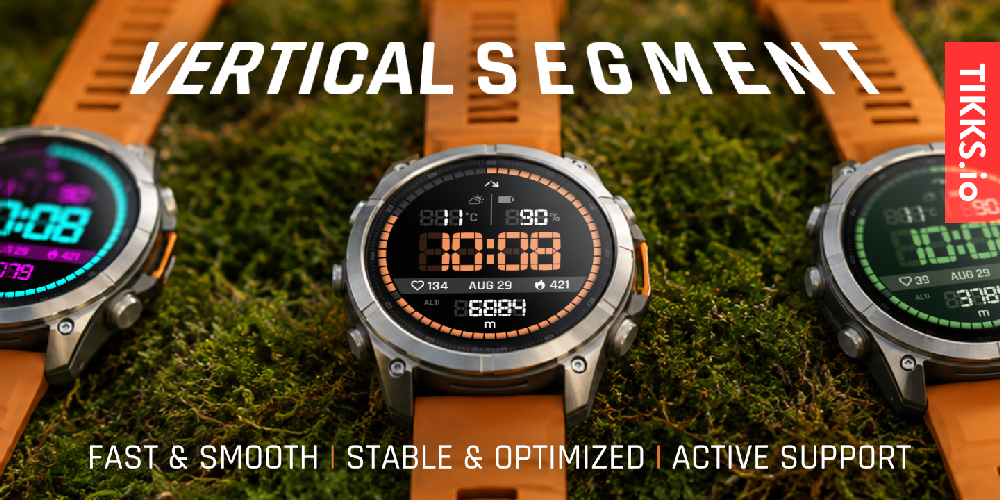
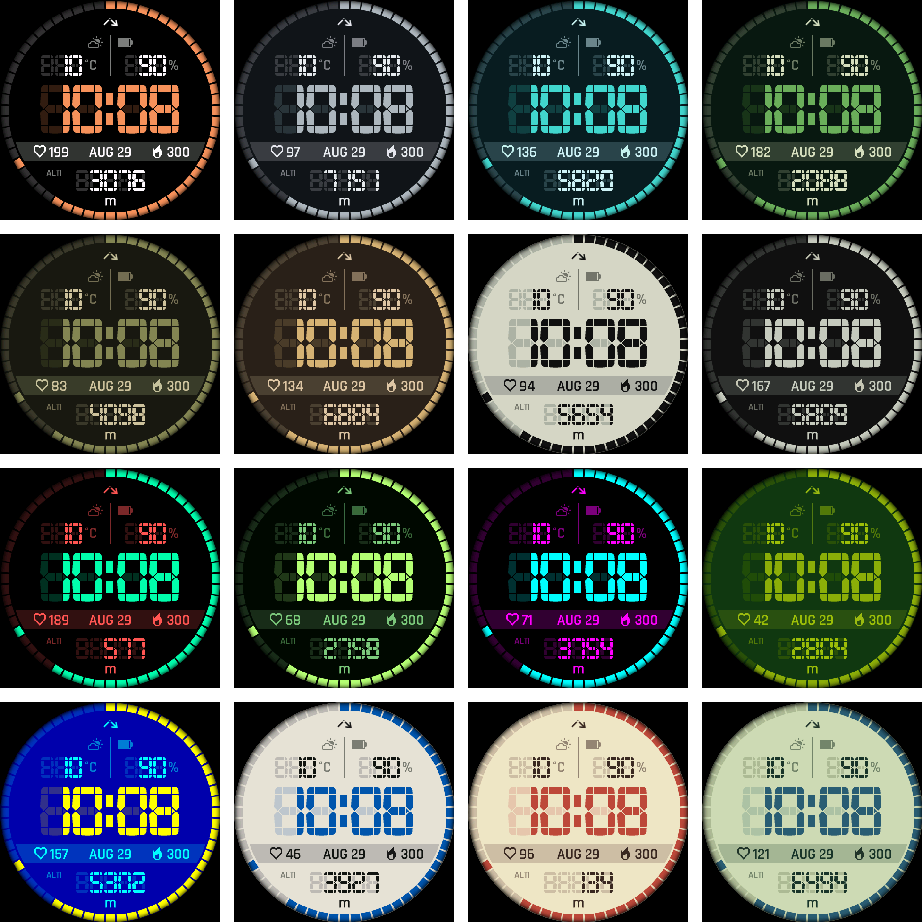
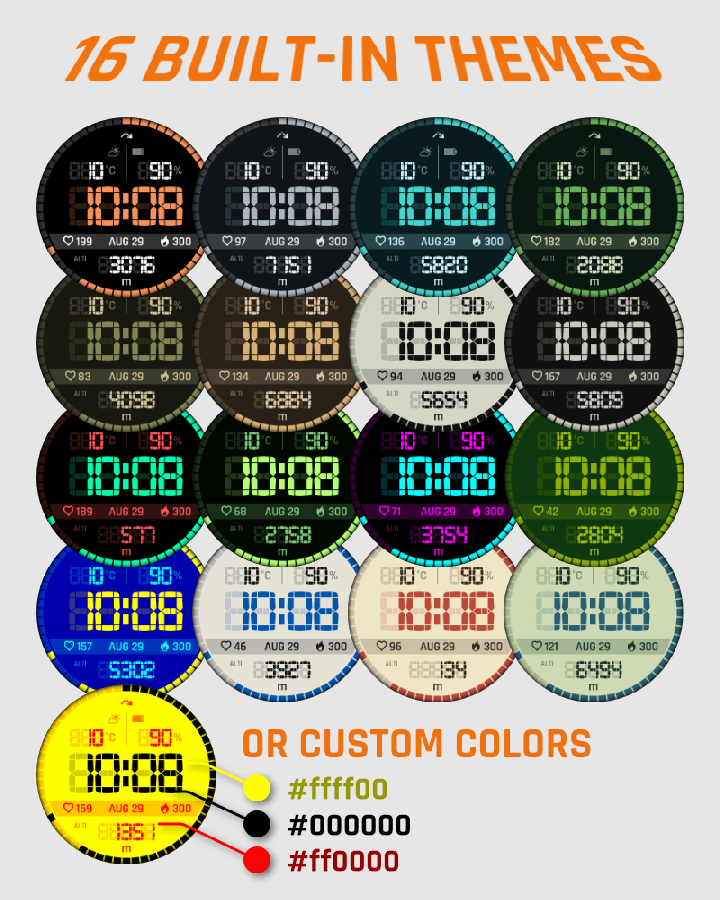
16 built-in themes, independent custom background, text, and accent colors, plus a selectable mid-row font.
← All watch faces
Watch face for Garmin
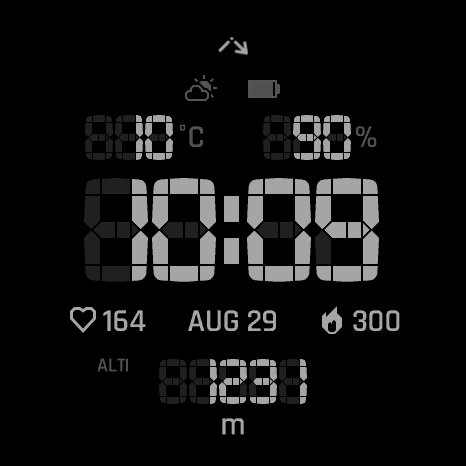
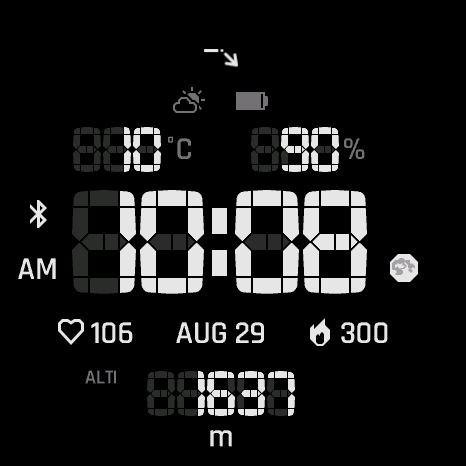
Vertical Segment
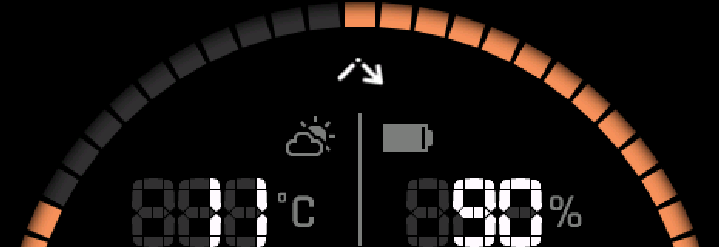
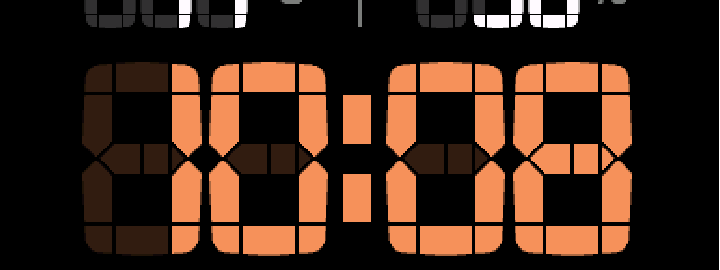
Time, built from segments.
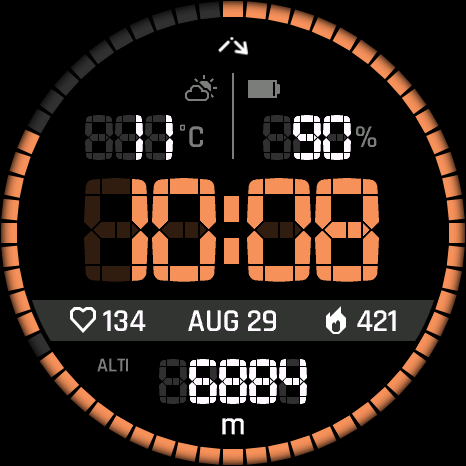
The unique retro-inspired look of the Suunto Vertical 2 90th Anniversary Limited Edition comes to Garmin watches.
Supported devices86
 Approach® S50AMOLED · 390 × 390
 Approach® S70 42mmAMOLED · 390 × 390
 Approach® S70 47mmAMOLED · 454 × 454
 D2™ Air X15AMOLED · 454 × 454
 D2™ Mach 1AMOLED · 416 × 416
 D2™ Mach 1 ProAMOLED · 454 × 454
 D2™ Mach 2AMOLED · 454 × 454
 D2™ Mach 2 ProAMOLED · 454 × 454
 Descent™ G2AMOLED · 390 × 390
 Descent™ Mk3 43mmAMOLED · 390 × 390Descent™ Mk3i 43mmAMOLED · 390 × 390
 Descent™ Mk3i 51mmAMOLED · 454 × 454
 Enduro™ 2Memory-in-pixel · 280 × 280
 Enduro™ 3Memory-in-pixel · 280 × 280
 epix™ (Gen 2)AMOLED · 416 × 416
 epix™ Pro (Gen 2) 42mmAMOLED · 390 × 390
 epix™ Pro (Gen 2) 47mmAMOLED · 416 × 416epix™ Pro (Gen 2) 51mmAMOLED · 454 × 454
 fēnix® 7Memory-in-pixel · 260 × 260
 fēnix® 7 ProMemory-in-pixel · 260 × 260
 fēnix® 7 Pro - Solar Edition (no Wi-Fi)Memory-in-pixel · 260 × 260
 fēnix® 7SMemory-in-pixel · 240 × 240
 fēnix® 7S ProMemory-in-pixel · 240 × 240fēnix® 7XMemory-in-pixel · 280 × 280
 fēnix® 7X ProMemory-in-pixel · 280 × 280
 fēnix® 7X Pro - Solar Edition (no Wi-Fi)Memory-in-pixel · 280 × 280
 fēnix® 8 43mmAMOLED · 416 × 416
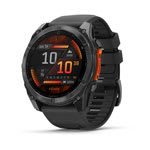 fēnix® 8 47mmAMOLED · 454 × 454fēnix® 8 51mmAMOLED · 454 × 454
 fēnix® 8 Pro 47mmAMOLED · 454 × 454fēnix® 8 Pro 51mmAMOLED · 454 × 454fēnix® 8 Pro MicroLEDAMOLED · 454 × 454
 fēnix® 8 Solar 47mmMemory-in-pixel · 260 × 260
 fēnix® 8 Solar 51mmMemory-in-pixel · 280 × 280
 fēnix® 9 43mmAMOLED · 416 × 416
 fēnix® 9 47mmAMOLED · 454 × 454fēnix® 9 51mmAMOLED · 454 × 454
 fēnix® 9 Pro 43mmAMOLED · 416 × 416
 fēnix® 9 Pro 47mmAMOLED · 454 × 454
 fēnix® 9 Pro 51mmAMOLED · 466 × 466
 fēnix® 9 Pro Solar 47mmMemory-in-pixel · 260 × 260
 fēnix® 9 Pro Solar 51mmMemory-in-pixel · 280 × 280
 fēnix® EAMOLED · 416 × 416
 Forerunner® 70AMOLED · 390 × 390
 Forerunner® 165AMOLED · 390 × 390
 Forerunner® 165 MusicAMOLED · 390 × 390
 Forerunner® 170AMOLED · 390 × 390
 Forerunner® 170 MusicAMOLED · 390 × 390
 Forerunner® 255Memory-in-pixel · 260 × 260
 Forerunner® 255 MusicMemory-in-pixel · 260 × 260
 Forerunner® 265AMOLED · 416 × 416
 Forerunner® 570 42mmAMOLED · 390 × 390
 Forerunner® 570 47mmAMOLED · 454 × 454
 Forerunner® 955Memory-in-pixel · 260 × 260Forerunner® 955 SolarMemory-in-pixel · 260 × 260
 Forerunner® 965AMOLED · 454 × 454
 Forerunner® 970AMOLED · 454 × 454
 Instinct® 3 AMOLED 45mmAMOLED · 390 × 390
 Instinct® 3 AMOLED 50mmAMOLED · 416 × 416
 MARQ® (Gen 2) AdventurerAMOLED · 390 × 390MARQ® (Gen 2) AthleteAMOLED · 390 × 390
 MARQ® (Gen 2) AviatorAMOLED · 390 × 390MARQ® (Gen 2) CaptainAMOLED · 390 × 390MARQ® (Gen 2) Carbon EditionAMOLED · 390 × 390MARQ® (Gen 2) Commander – Carbon EditionAMOLED · 390 × 390MARQ® (Gen 2) GolferAMOLED · 390 × 390quatix® 7Memory-in-pixel · 260 × 260quatix® 7 ProAMOLED · 416 × 416quatix® 7 SapphireAMOLED · 416 × 416quatix® 7X SolarMemory-in-pixel · 280 × 280quatix® 8 47mmAMOLED · 454 × 454quatix® 8 51mmAMOLED · 454 × 454quatix® 8 Pro 47mmAMOLED · 454 × 454quatix® 8 Pro 51mmAMOLED · 454 × 454tactix® 7Memory-in-pixel · 280 × 280tactix® 7 – AMOLED EditionAMOLED · 454 × 454tactix® 8 47mmAMOLED · 454 × 454tactix® 8 51mmAMOLED · 454 × 454tactix® 8 Solar 51mmMemory-in-pixel · 280 × 280
 Venu® 3AMOLED · 454 × 454
 Venu® 3SAMOLED · 390 × 390
 Venu® 4 41mmAMOLED · 390 × 390Venu® 4 45mmAMOLED · 454 × 454
 Venu® X1AMOLED · 448 × 486
 vívoactive® 5AMOLED · 390 × 390
 vívoactive® 6AMOLED · 390 × 390
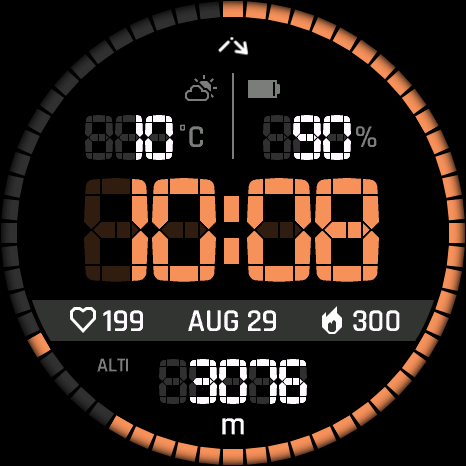
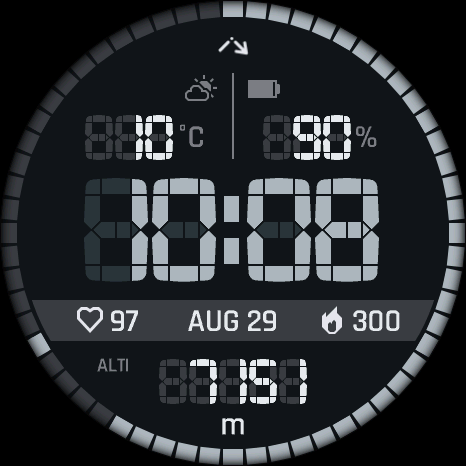
64 data types across 6 position-aware fields, 4 side-information positions, and a 60-segment progress bezel.
Full or Minimal AMOLED AOD, MIP low-power support, touch shortcuts, weather, custom goals, and battery-aware dimming.
User guide
Make it yours
Choose where you want to configure the watch face, then jump directly to any setting.
On the watch
Appearance
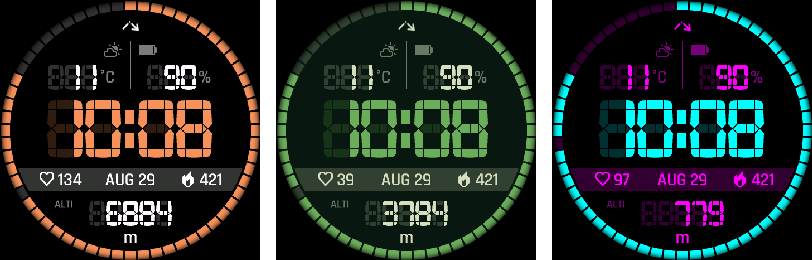
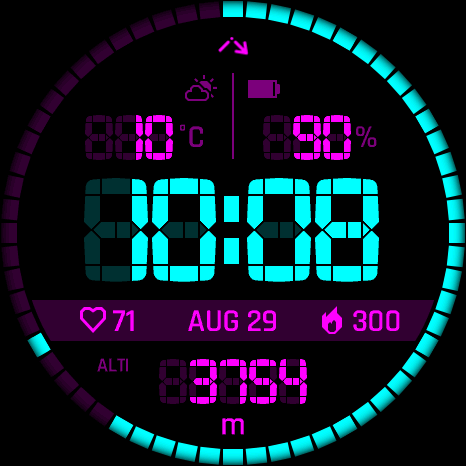
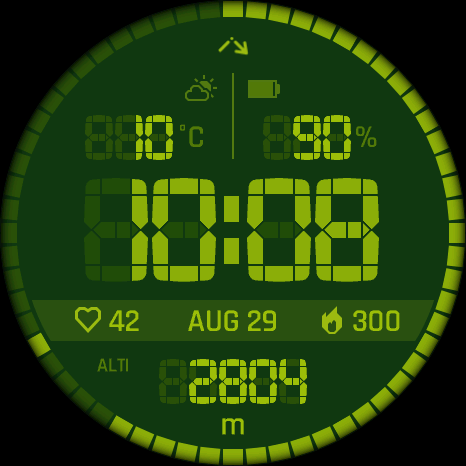
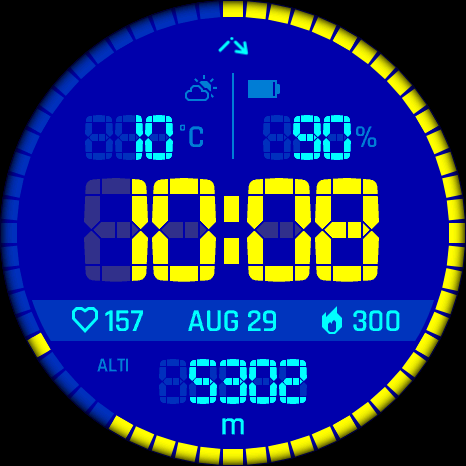
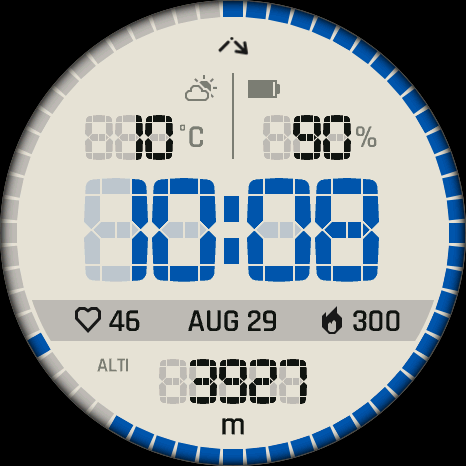
Choose a built-in palette or construct your own while retaining the segmented layout.
1.1
Theme
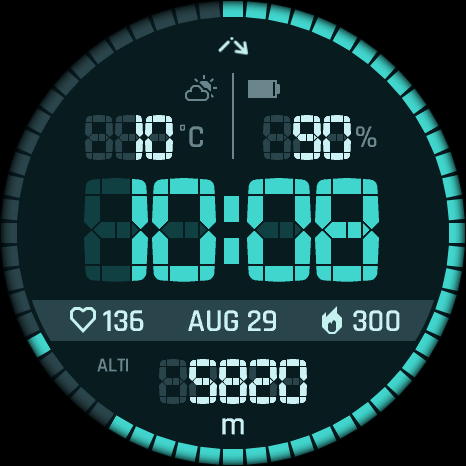
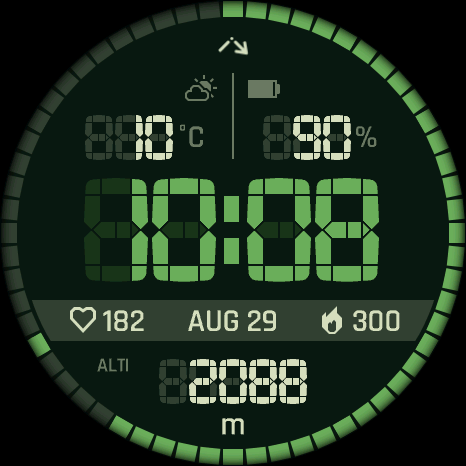
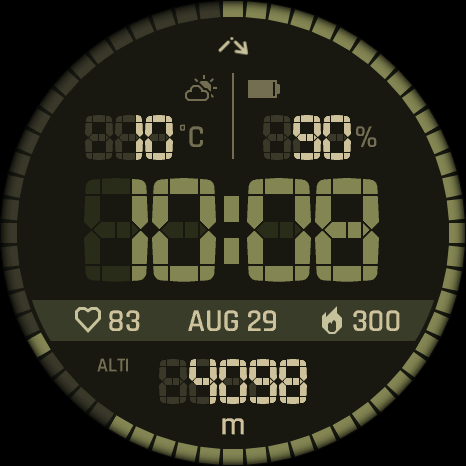
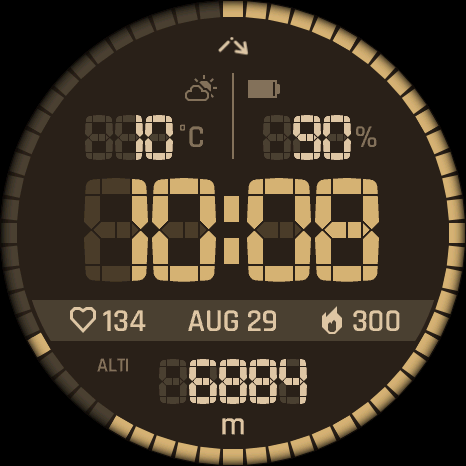
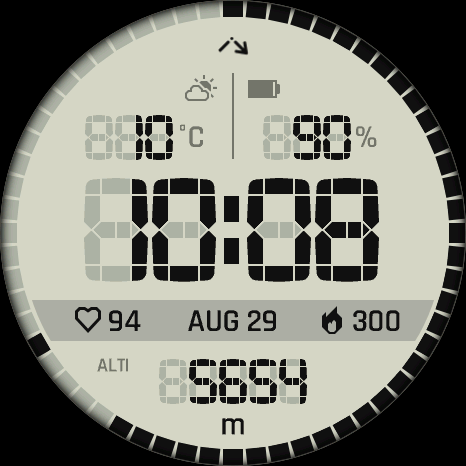
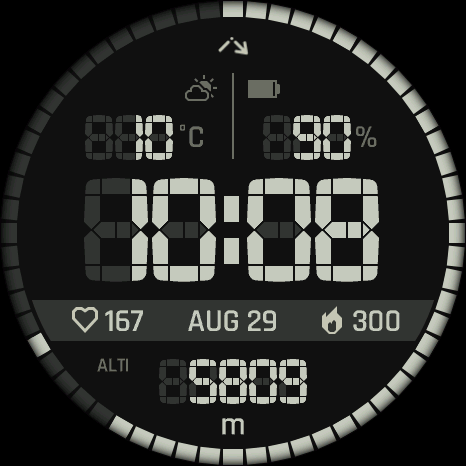
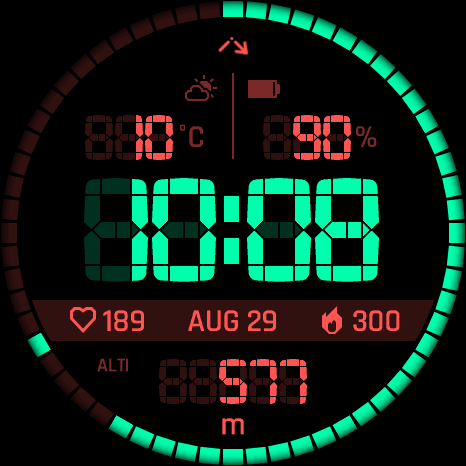
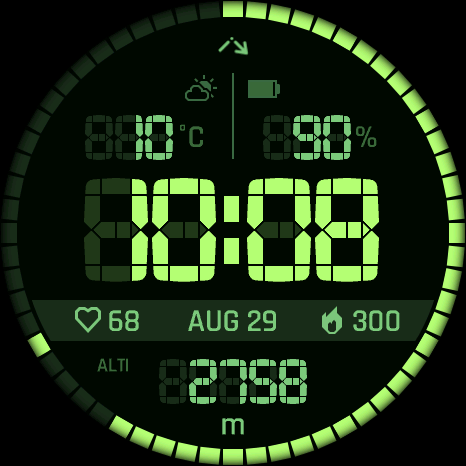
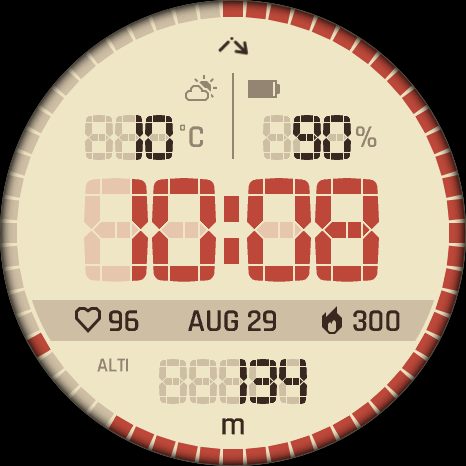
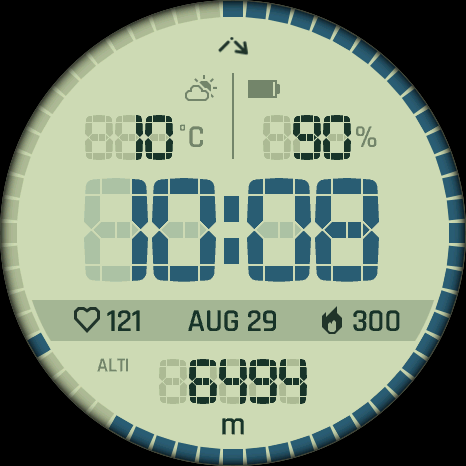
Choose Original, Silver, Arctic Cyan, Forest, Khaki, Coyote, Monochrome, Monochrome Inverse, Night Neon, Night Vision, Cyberpunk, Gameboy, Norton, Paper, Retro Cream, or Retro Mint.
MIP devices keep the same theme names and saved IDs but use high-contrast palettes adapted to native display colors.
1.2
Custom Colors
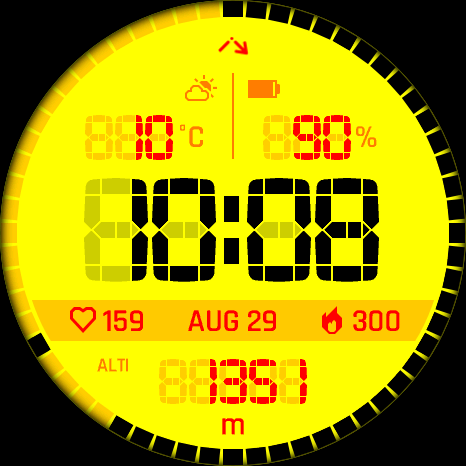
Enable background, text, and accent overrides independently and enter each color as six hexadecimal RRGGBB characters.
Custom colors are available in Connect IQ settings. MIP devices quantize them to supported native colors.
1.3
Mid-row Font
Choose Default for the designed Rajdhani font or System for the localized device XTiny font.
1.4
Alternative Progress Bar
On AMOLED devices, replace the plain 60-segment bezel mask with the numbered alternative mask.
The option affects the active face only. Both Instinct 3 AMOLED sizes use device-tuned progress masks.
On the watch
Date & Time
Configure the main clock, date, seconds, alternate zones, and related formatting.
2.1
Time Formats
Main Time Format offers 9:05 or 09:05. Data Time Format adds Military, which renders 24-hour time without a colon, for example 2105.
AM/PM in Data Fields applies only when the watch uses 12-hour time.
2.2
Date Format
Choose 5.7., 05.07., 5/7, 05/07, 7/5, 07/05, 5 JUL, JUL 5, WED 5, or 5 WED.
2.3
Colon & Seconds
Main Clock Colon offers Blinking, Always On, or Always Off. Seconds Field Format offers 36 or :36. Bezel Seconds controls the separate one-segment seconds marker.
When Seconds is selected for Bezel Progress, the separate marker is suppressed. Second 0 lights the first segment and second 59 lights all 60.
Side Seconds are always two digits without a colon.
2.4
Alternate Time Zones
Set two independent offsets from UTC−12:00 through UTC+14:00 in 30-minute increments, then assign either zone to a compatible field.
Alternate-zone fields display only local clock time, without a date or UTC suffix.
On the watch
Data Fields & Bezel Progress
Assign six position-aware values and a bounded metric to the 60-segment bezel.
3.1
Six Data Positions
Configure Top Left, Top Right, Mid Left, Mid Center, Mid Right, and Bottom independently.
Mid positions accept all 64 fields and show inline icons plus complete units. Top excludes Month, Date, Day, Calendar, Moon Phase, Training Status, and Temp. min/max. Bottom excludes Calendar, Moon Phase, Training Status, and Temp. min/max.
Unavailable or unrepresentable values show -- instead of silently disappearing. Overflowing active mid-row text scrolls after a one-second pause.
Activity: Steps, Steps To Goal, Step Goal Progress, Calories, Active Calories, Active Cal. %, Distance, Floors ascended, Floors descended, Meters Climbed, Meters Descended, Active Day, Active Week, and Move Bar.
Health: Heart Rate, Resting HR, Body Battery, Stress, Pulse Ox, Respiration, and Sleep Score.
Date & Time: Month, Date, Day, Week Number, Year, Calendar, Time, Seconds, Alt Time Zone 1, Alt Time Zone 2, Sunrise / Sunset, Dawn / Dusk, Remaining Sun / Dark, and Moon Phase.
Training: Recovery Time, VO2 Max (Run), VO2 Max (Bike), Training Status, Week Run Dist, Week Bike Dist, Week Run Time, and Week Bike Time.
Weather: Weather, Feels Like, Temp. min/max, Precip Chance (Garmin), Humidity, Wind, UV (Garmin), Pressure, Ground Pressure (OWM), Barometric Trend (Garmin), Cloud Cover, Rain (1h) (OWM), Wind Gust (OWM), Visibility, and Dew Point (Garmin).
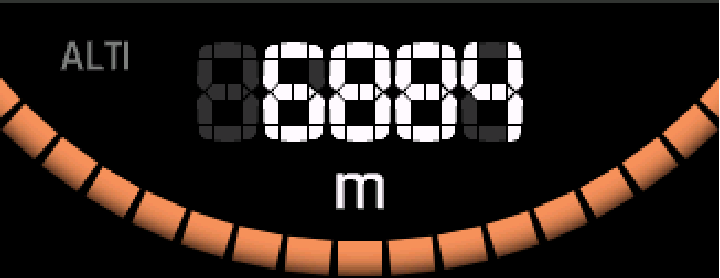
System: Battery, Battery Days, Notifications, Alarm Count, Altitude, and Solar Input.

3.2
Bezel Progress
Choose one of 28 metrics with a meaningful goal, percentage, or bounded state.
Bezel Progress offers Steps, Steps To Goal, Step Goal Progress, Calories, Active Calories, Active Cal. %, Distance, Floors ascended, Floors descended, Meters Climbed, Meters Descended, Active Day, Active Week, Move Bar, Body Battery, Stress, Pulse Ox, Sleep Score, Seconds, Week Run Dist, Week Bike Dist, Week Run Time, Week Bike Time, Precip Chance, Humidity, Cloud Cover, Battery, and Solar Input.
Unbounded values such as pressure, altitude, VO2 max, recovery time, and Battery Days are intentionally excluded.
3.3
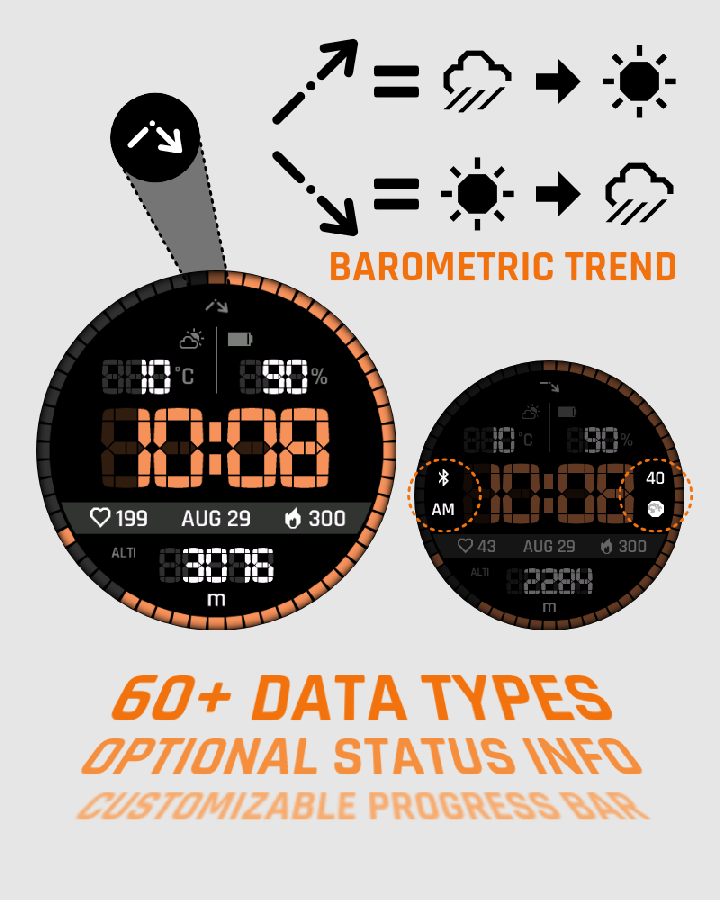
Six-hour Barometric Trend
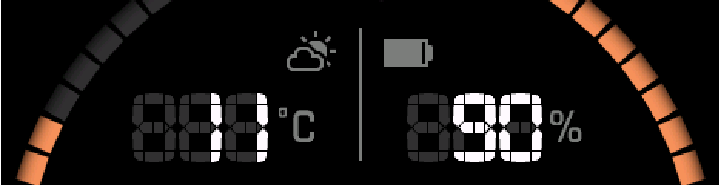
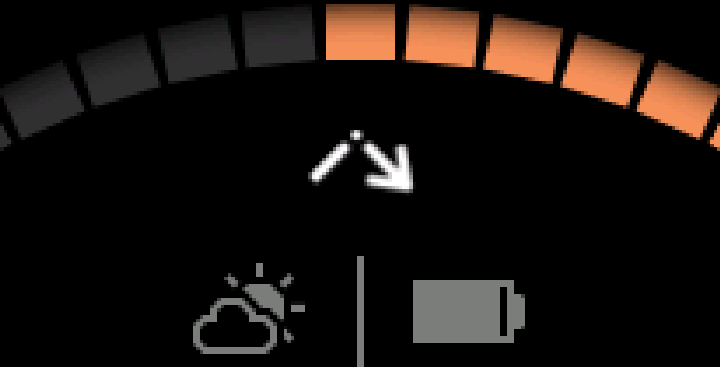
The always-visible top-center symbol summarizes pressure movement as an older three-hour segment followed by the most recent three-hour segment.
A segment points down after a drop greater than 2 hPa, stays level from −2 through +2 hPa, and points up after a rise greater than 2 hPa. It is a pressure tendency, not a forecast.
The recent segment needs about three hours of Garmin pressure history; the older segment needs about six hours. Missing history is shown subdued.
On the watch
Side Information
Use four small positions around the main clock for status that does not consume a data field.
4.1
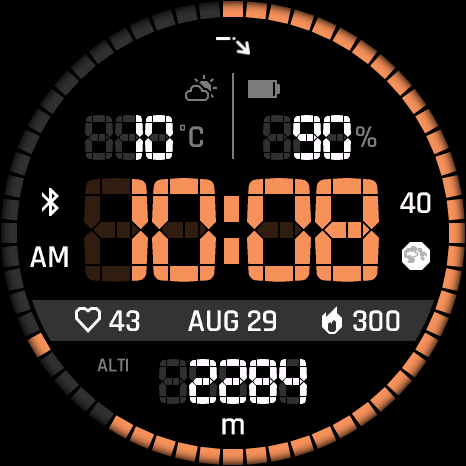
Four Side Positions
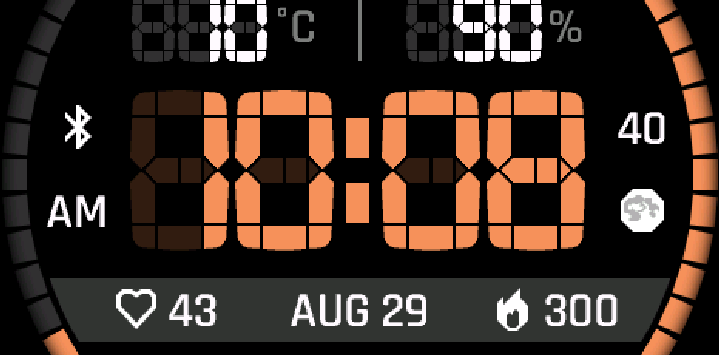
Left Upper, Left Lower, Right Upper, and Right Lower each offer Nothing, Seconds, AM/PM, Connection, Notifications, Alarms, or Moon Phase.
Connection prioritizes LTE, Wi-Fi, then Bluetooth. Connection Only When Disconnected hides a healthy connection but retains a disconnected warning.
Dim Side Information mixes background and text colors 50/50. Moon Phase remains legible and is not dimmed.
Full AMOLED AOD retains non-seconds side information; Minimal AOD and all low-power modes suppress Side Seconds.
On the watch
Touch & Complications
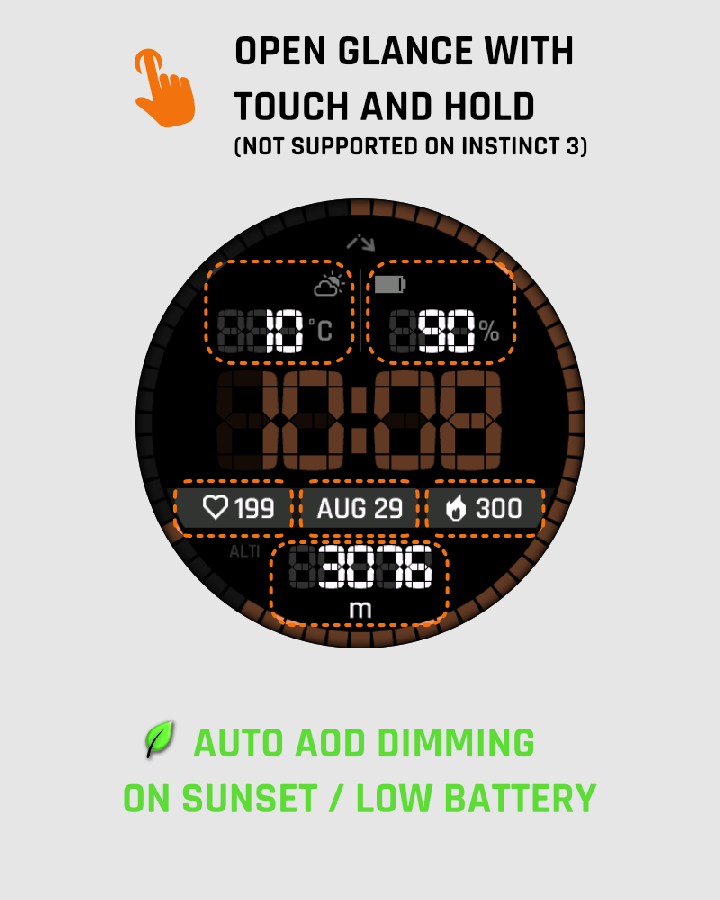
Launch Garmin glances or complications by touching and holding a configured field.
5.1
Touch Launch
Enable Touch Launch and choose a target independently for each of the six data positions.
Auto opens the Garmin glance associated with the displayed metric when available.
Auto, Battery, Steps, Calories, Floors ascended, Intensity Minutes, Date, Weekday & Date, Weather, one-, two-, or three-day forecast, Calendar, Sunrise, Sunset, Altitude, Sea Level Pressure, Notifications, Heart Rate, weekly run/bike distance, Recovery Time, Stress, Body Battery, both VO2 Max values, Training Status, race predictors and race paces for 5K/10K/half marathon/marathon, Pulse Ox, Respiration, Solar Input, Temperature, Temp. min/max, Wheelchair Pushes, Last Golf Round Score, Sleep Score, or an external complication selected on the watch.
Touch controls are unavailable on Instinct 3 AMOLED.
5.2
Launch Complication on Watch
Each real data slot can open a picker containing 42 Garmin system complication types plus labeled third-party complications discovered on the watch.
Bezel Progress has no touch target. External complication identifiers are retained by Reset Defaults.
On the watch
Always-On Display & Battery
Tune AMOLED low-power presentation or MIP partial updates without changing the active layout.
6.1
AMOLED AOD Layout
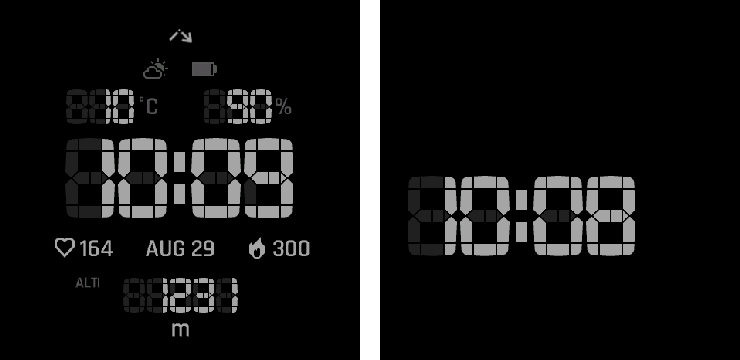
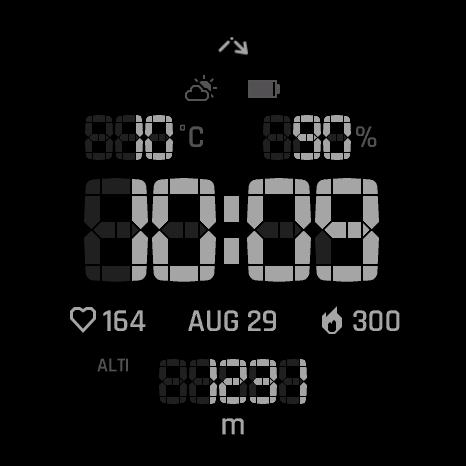
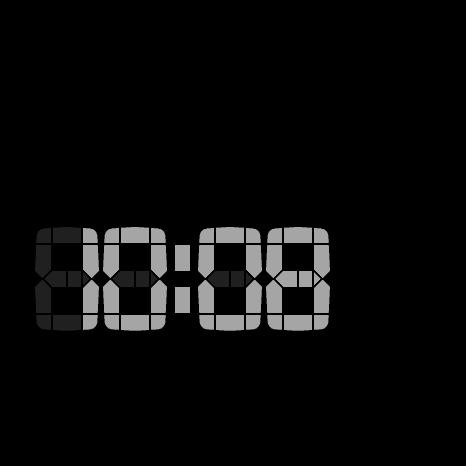
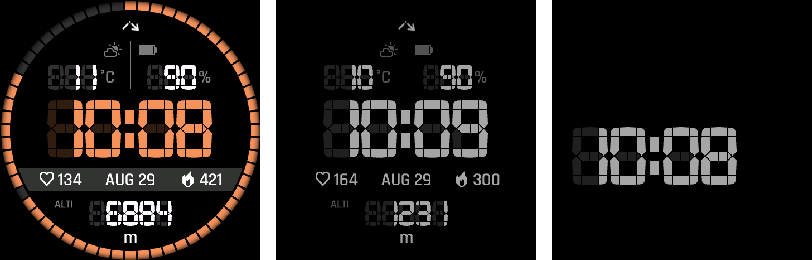
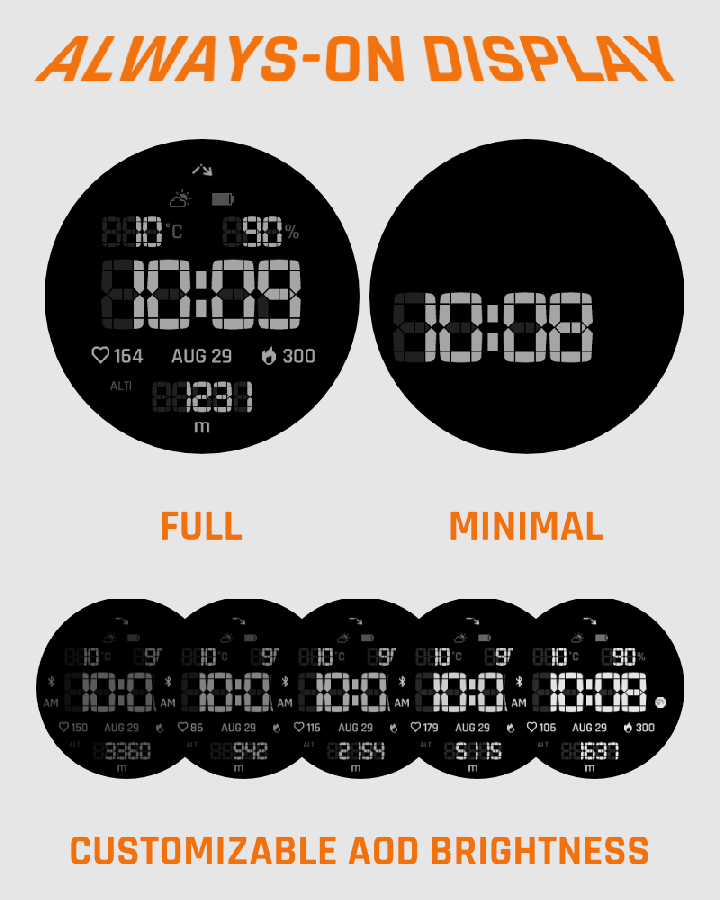
Full is the default and retains all six configured fields, the barometric-trend indicator, and non-seconds side information. Minimal shows only the digital time.
AOD never draws the static bezel, mid row, center divider, progress, or seconds marker. It is monochrome by default. A previously saved Colored AOD palette remains only for upgrade compatibility and is removed by Reset Defaults.
6.2
AOD Brightness
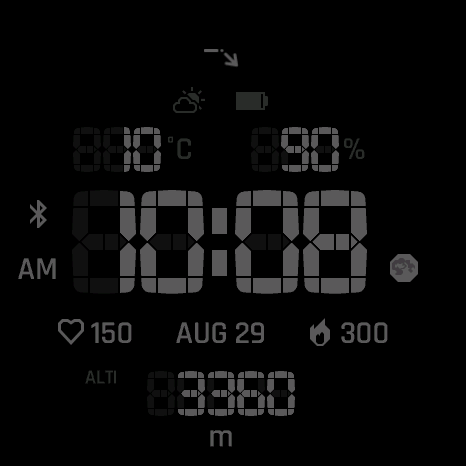
Choose Very Low (35%), Low (50%), Medium (65%), High (80%), or Very High (90%). Medium is the default.

6.3
Pixel Shift
On AMOLED, shift low-power content between the center and eight clipping-safe positions once per minute.
6.4
AOD Night Dimming
Choose Profile Sleep / Wake, Profile Sleep / Wake −2h, Sunrise / Sunset, or Never.
Sunrise / Sunset is the default. An active dimming window forces Very Low AOD brightness.
6.5
Low Battery Trigger
Choose Off, 5%, 10%, 15%, or 20%. The default is 5%.
At or below the trigger, AMOLED forces Very Low AOD brightness. On MIP, Battery Saver suppresses partial updates.
6.6
Always-On Seconds on MIP
Allow low-power partial updates for the seconds marker or Seconds selected as Bezel Progress.
This setting is MIP-only. AMOLED instead exposes the AOD controls above.
On the watch
Weather
Choose the weather source and maintain cached data directly on the watch.
7.1
Weather Source
Choose Garmin Weather or OpenWeatherMap.
7.2
Status, Refresh & Clear
View OpenWeatherMap status, refresh displayed data, or clear the OWM cache and retry state.
On the watch
Custom Goals
Review the eleven targets used by compatible progress metrics.
8.1
Read-only on Watch
The watch displays every current target; edit values in Connect IQ.
Total Calories 1500; Active Calories 300; Distance 5.0 km; Active Day 20 min.
Floors Down 5; Meters Up 50 m; Meters Down 50 m.
Weekly Run 15.0 km; Weekly Bike 50.0 km; Weekly Run Time 120 min; Weekly Bike Time 180 min.
These goals drive compatible Bezel Progress metrics. Edit them in Connect IQ; the watch menu shows them read-only.
On the watch
System, Guide & Reset
Refresh values, open this guide, identify the installed version, or restore defaults.
9.1
Refresh Data
Invalidate displayed values, request fresh data, and redraw the face.
9.2
User Guide
Open the Vertical Segment web guide from the watch menu.
9.3
Version
The installed app version is read-only.
9.4
Reset Defaults
Choose Confirm Reset to restore all visible settings in one batch.
Reset retains the OWM API key, cached weather, and saved external-complication identifiers.
On the watch
Device Notes
Vertical Segment adapts its graphics and low-power path to AMOLED and MIP products.
10.1
Display Families
fēnix 9 Pro 51mm uses native 466 × 466 artwork. Instinct 3 AMOLED uses a separate graphics branch and device-tuned progress masks. MIP uses display-specific palettes and partial updates.
The retained Venu X1 448 × 486 layout is temporarily disabled in this release.
The fēnix 9 Pro Solar models use the MIP path at 260 × 260 and 280 × 280.
In the Connect IQ app
Appearance
Choose a built-in palette or construct your own while retaining the segmented layout.
1.1
Theme
Choose Original, Silver, Arctic Cyan, Forest, Khaki, Coyote, Monochrome, Monochrome Inverse, Night Neon, Night Vision, Cyberpunk, Gameboy, Norton, Paper, Retro Cream, or Retro Mint.
MIP devices keep the same theme names and saved IDs but use high-contrast palettes adapted to native display colors.
1.2
Custom Colors
Enable background, text, and accent overrides independently and enter each color as six hexadecimal RRGGBB characters.
Custom colors are available in Connect IQ settings. MIP devices quantize them to supported native colors.
1.3
Mid-row Font
Choose Default for the designed Rajdhani font or System for the localized device XTiny font.
1.4
Alternative Progress Bar
On AMOLED devices, replace the plain 60-segment bezel mask with the numbered alternative mask.
The option affects the active face only. Both Instinct 3 AMOLED sizes use device-tuned progress masks.
In the Connect IQ app
Date & Time
Configure the main clock, date, seconds, alternate zones, and related formatting.
2.1
Time Formats
Main Time Format offers 9:05 or 09:05. Data Time Format adds Military, which renders 24-hour time without a colon, for example 2105.
AM/PM in Data Fields applies only when the watch uses 12-hour time.
2.2
Date Format
Choose 5.7., 05.07., 5/7, 05/07, 7/5, 07/05, 5 JUL, JUL 5, WED 5, or 5 WED.
2.3
Colon & Seconds
Main Clock Colon offers Blinking, Always On, or Always Off. Seconds Field Format offers 36 or :36. Bezel Seconds controls the separate one-segment seconds marker.
When Seconds is selected for Bezel Progress, the separate marker is suppressed. Second 0 lights the first segment and second 59 lights all 60.
Side Seconds are always two digits without a colon.
2.4
Alternate Time Zones
Set two independent offsets from UTC−12:00 through UTC+14:00 in 30-minute increments, then assign either zone to a compatible field.
Alternate-zone fields display only local clock time, without a date or UTC suffix.
In the Connect IQ app
Data Fields & Bezel Progress
Assign six position-aware values and a bounded metric to the 60-segment bezel.
3.1
Six Data Positions
Configure Top Left, Top Right, Mid Left, Mid Center, Mid Right, and Bottom independently.
Mid positions accept all 64 fields and show inline icons plus complete units. Top excludes Month, Date, Day, Calendar, Moon Phase, Training Status, and Temp. min/max. Bottom excludes Calendar, Moon Phase, Training Status, and Temp. min/max.
Unavailable or unrepresentable values show -- instead of silently disappearing. Overflowing active mid-row text scrolls after a one-second pause.
Activity: Steps, Steps To Goal, Step Goal Progress, Calories, Active Calories, Active Cal. %, Distance, Floors ascended, Floors descended, Meters Climbed, Meters Descended, Active Day, Active Week, and Move Bar.
Health: Heart Rate, Resting HR, Body Battery, Stress, Pulse Ox, Respiration, and Sleep Score.
Date & Time: Month, Date, Day, Week Number, Year, Calendar, Time, Seconds, Alt Time Zone 1, Alt Time Zone 2, Sunrise / Sunset, Dawn / Dusk, Remaining Sun / Dark, and Moon Phase.
Training: Recovery Time, VO2 Max (Run), VO2 Max (Bike), Training Status, Week Run Dist, Week Bike Dist, Week Run Time, and Week Bike Time.
Weather: Weather, Feels Like, Temp. min/max, Precip Chance (Garmin), Humidity, Wind, UV (Garmin), Pressure, Ground Pressure (OWM), Barometric Trend (Garmin), Cloud Cover, Rain (1h) (OWM), Wind Gust (OWM), Visibility, and Dew Point (Garmin).
System: Battery, Battery Days, Notifications, Alarm Count, Altitude, and Solar Input.
3.2
Bezel Progress
Choose one of 28 metrics with a meaningful goal, percentage, or bounded state.
Bezel Progress offers Steps, Steps To Goal, Step Goal Progress, Calories, Active Calories, Active Cal. %, Distance, Floors ascended, Floors descended, Meters Climbed, Meters Descended, Active Day, Active Week, Move Bar, Body Battery, Stress, Pulse Ox, Sleep Score, Seconds, Week Run Dist, Week Bike Dist, Week Run Time, Week Bike Time, Precip Chance, Humidity, Cloud Cover, Battery, and Solar Input.
Unbounded values such as pressure, altitude, VO2 max, recovery time, and Battery Days are intentionally excluded.
3.3
Six-hour Barometric Trend
The always-visible top-center symbol summarizes pressure movement as an older three-hour segment followed by the most recent three-hour segment.
A segment points down after a drop greater than 2 hPa, stays level from −2 through +2 hPa, and points up after a rise greater than 2 hPa. It is a pressure tendency, not a forecast.
The recent segment needs about three hours of Garmin pressure history; the older segment needs about six hours. Missing history is shown subdued.
In the Connect IQ app
Side Information
Use four small positions around the main clock for status that does not consume a data field.
4.1
Four Side Positions
Left Upper, Left Lower, Right Upper, and Right Lower each offer Nothing, Seconds, AM/PM, Connection, Notifications, Alarms, or Moon Phase.
Connection prioritizes LTE, Wi-Fi, then Bluetooth. Connection Only When Disconnected hides a healthy connection but retains a disconnected warning.
Dim Side Information mixes background and text colors 50/50. Moon Phase remains legible and is not dimmed.
Full AMOLED AOD retains non-seconds side information; Minimal AOD and all low-power modes suppress Side Seconds.
In the Connect IQ app
Touch & Complications
Launch Garmin glances or complications by touching and holding a configured field.
5.1
Touch Launch
Enable Touch Launch and choose a target independently for each of the six data positions.
Auto opens the Garmin glance associated with the displayed metric when available.
Auto, Battery, Steps, Calories, Floors ascended, Intensity Minutes, Date, Weekday & Date, Weather, one-, two-, or three-day forecast, Calendar, Sunrise, Sunset, Altitude, Sea Level Pressure, Notifications, Heart Rate, weekly run/bike distance, Recovery Time, Stress, Body Battery, both VO2 Max values, Training Status, race predictors and race paces for 5K/10K/half marathon/marathon, Pulse Ox, Respiration, Solar Input, Temperature, Temp. min/max, Wheelchair Pushes, Last Golf Round Score, Sleep Score, or an external complication selected on the watch.
Touch controls are unavailable on Instinct 3 AMOLED.
5.2
Launch Complication on Watch
Each real data slot can open a picker containing 42 Garmin system complication types plus labeled third-party complications discovered on the watch.
Bezel Progress has no touch target. External complication identifiers are retained by Reset Defaults.
In the Connect IQ app
Always-On Display & Battery
Tune AMOLED low-power presentation or MIP partial updates without changing the active layout.
6.1
AMOLED AOD Layout
Full is the default and retains all six configured fields, the barometric-trend indicator, and non-seconds side information. Minimal shows only the digital time.
AOD never draws the static bezel, mid row, center divider, progress, or seconds marker. It is monochrome by default. A previously saved Colored AOD palette remains only for upgrade compatibility and is removed by Reset Defaults.
6.2
AOD Brightness
Choose Very Low (35%), Low (50%), Medium (65%), High (80%), or Very High (90%). Medium is the default.
6.3
Pixel Shift
On AMOLED, shift low-power content between the center and eight clipping-safe positions once per minute.
6.4
AOD Night Dimming
Choose Profile Sleep / Wake, Profile Sleep / Wake −2h, Sunrise / Sunset, or Never.
Sunrise / Sunset is the default. An active dimming window forces Very Low AOD brightness.
6.5
Low Battery Trigger
Choose Off, 5%, 10%, 15%, or 20%. The default is 5%.
At or below the trigger, AMOLED forces Very Low AOD brightness. On MIP, Battery Saver suppresses partial updates.
6.6
Always-On Seconds on MIP
Allow low-power partial updates for the seconds marker or Seconds selected as Bezel Progress.
This setting is MIP-only. AMOLED instead exposes the AOD controls above.
In the Connect IQ app
Weather
Choose a weather provider and configure OpenWeatherMap in Connect IQ.
7.1
Weather Source
Choose Garmin Weather or OpenWeatherMap.
7.2
OWM API Key
Enter your personal OpenWeatherMap API key.
7.3
OWM Refresh
Choose a 15-, 30-, or 60-minute refresh interval.
In the Connect IQ app
Custom Goals
Set the eleven targets used by compatible progress metrics.
8.1
Eleven Goal Values
Configure calorie, distance, active-time, floor, elevation, and weekly run/bike goals.
Total Calories 1500; Active Calories 300; Distance 5.0 km; Active Day 20 min.
Floors Down 5; Meters Up 50 m; Meters Down 50 m.
Weekly Run 15.0 km; Weekly Bike 50.0 km; Weekly Run Time 120 min; Weekly Bike Time 180 min.
These goals drive compatible Bezel Progress metrics. Edit them in Connect IQ; the watch menu shows them read-only.
In the Connect IQ app
System & Version
Reference the installed version and understand reset behavior.
9.1
App Version
The installed app version is read-only.
9.2
Reset Defaults on Watch
The watch menu restores all visible settings while retaining the OWM API key, cached weather, and external-complication identifiers.
In the Connect IQ app
Device Notes
Vertical Segment adapts its graphics and low-power path to AMOLED and MIP products.
10.1
Display Families
fēnix 9 Pro 51mm uses native 466 × 466 artwork. Instinct 3 AMOLED uses a separate graphics branch and device-tuned progress masks. MIP uses display-specific palettes and partial updates.
The retained Venu X1 448 × 486 layout is temporarily disabled in this release.
The fēnix 9 Pro Solar models use the MIP path at 260 × 260 and 280 × 280.
Configure Vertical Segment from Garmin Connect IQ or directly on a compatible watch. The guide covers every phone setting, the organized watch menu, supported data fields, touch actions, low-power behavior, weather, custom goals, and reset.