
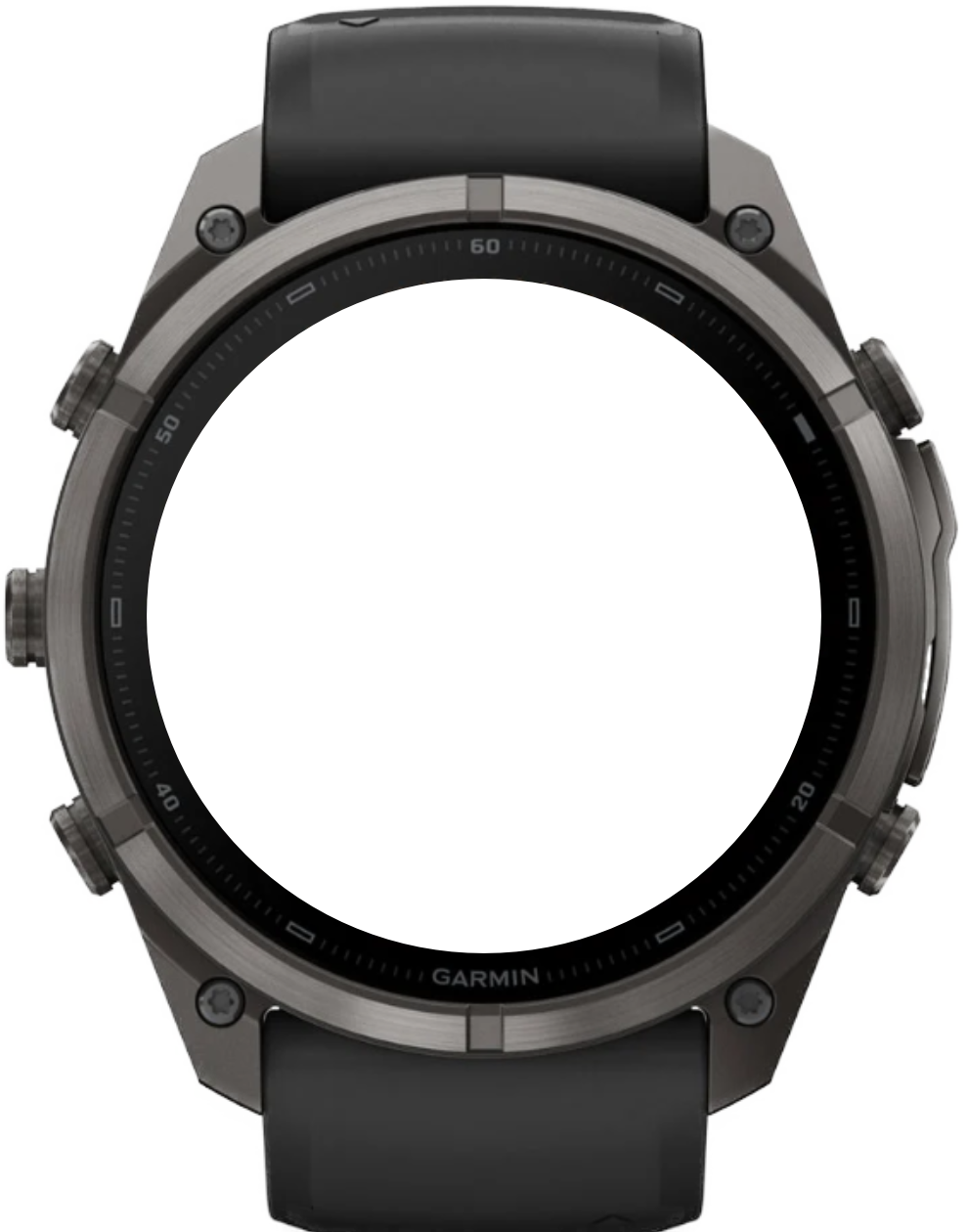
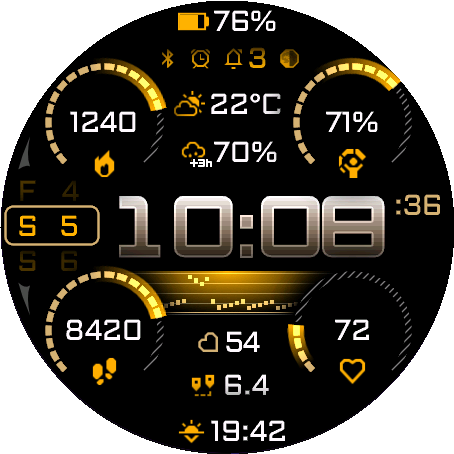
8 configurable positions with 96 metrics for linear fields and 47 progress-compatible choices for the 4 circular fields.
← All watch faces
Watch face for Garmin
Uncharted PRO
Your data, at a glance.
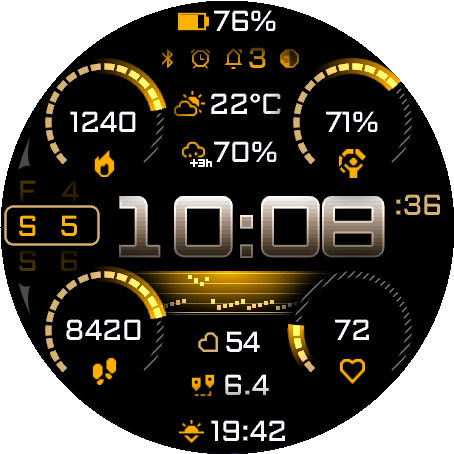
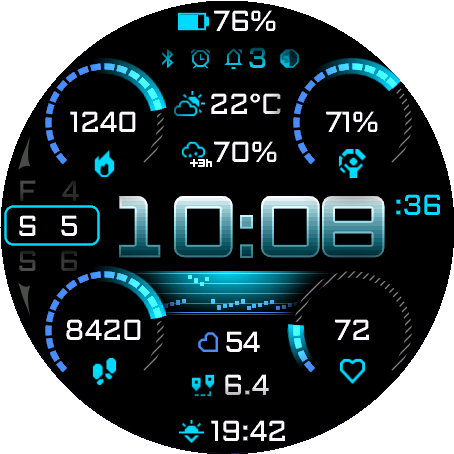
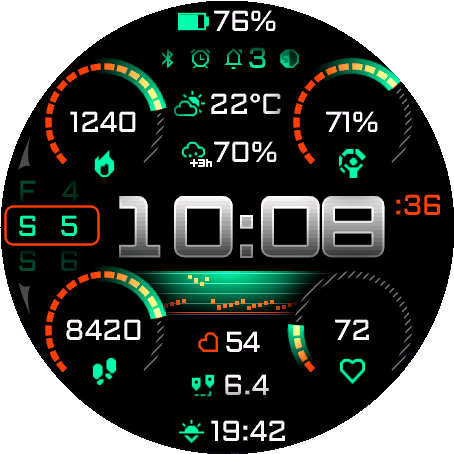
High-density AMOLED dashboard with configurable data, goals and statistics, including Week, 7 Day and 7-Day Average views, activity and health charts, and Smart and Upcoming Weather for relevant information at a glance.
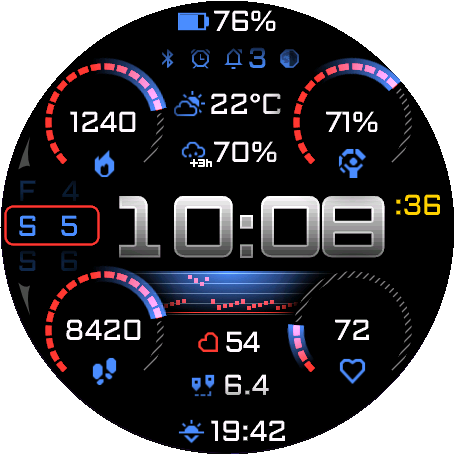
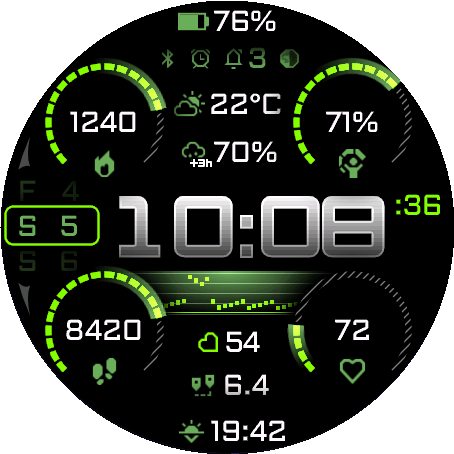
Supported devices64
 Approach® S50AMOLED · 390 × 390
 Approach® S70 42mmAMOLED · 390 × 390
 Approach® S70 47mmAMOLED · 454 × 454
 D2™ Air X15AMOLED · 454 × 454
 D2™ Mach 1AMOLED · 416 × 416
 D2™ Mach 1 ProAMOLED · 454 × 454
 D2™ Mach 2AMOLED · 454 × 454
 D2™ Mach 2 ProAMOLED · 454 × 454
 Descent™ G2AMOLED · 390 × 390
 Descent™ Mk3 43mmAMOLED · 390 × 390Descent™ Mk3i 43mmAMOLED · 390 × 390
 Descent™ Mk3i 51mmAMOLED · 454 × 454
 epix™ (Gen 2)AMOLED · 416 × 416
 epix™ Pro (Gen 2) 42mmAMOLED · 390 × 390
 epix™ Pro (Gen 2) 47mmAMOLED · 416 × 416epix™ Pro (Gen 2) 51mmAMOLED · 454 × 454
 fēnix® 8 43mmAMOLED · 416 × 416
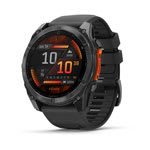 fēnix® 8 47mmAMOLED · 454 × 454fēnix® 8 51mmAMOLED · 454 × 454
 fēnix® 8 Pro 47mmAMOLED · 454 × 454fēnix® 8 Pro 51mmAMOLED · 454 × 454fēnix® 8 Pro MicroLEDAMOLED · 454 × 454
 fēnix® 9 43mmAMOLED · 416 × 416
 fēnix® 9 47mmAMOLED · 454 × 454fēnix® 9 51mmAMOLED · 454 × 454
 fēnix® 9 Pro 43mmAMOLED · 416 × 416
 fēnix® 9 Pro 47mmAMOLED · 454 × 454
 fēnix® 9 Pro 51mmAMOLED · 466 × 466
 fēnix® EAMOLED · 416 × 416
 Forerunner® 70AMOLED · 390 × 390
 Forerunner® 165AMOLED · 390 × 390
 Forerunner® 165 MusicAMOLED · 390 × 390
 Forerunner® 170AMOLED · 390 × 390
 Forerunner® 170 MusicAMOLED · 390 × 390
 Forerunner® 265AMOLED · 416 × 416
 Forerunner® 570 42mmAMOLED · 390 × 390
 Forerunner® 570 47mmAMOLED · 454 × 454
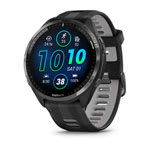 Forerunner® 965AMOLED · 454 × 454
 Forerunner® 970AMOLED · 454 × 454
 Instinct® 3 AMOLED 45mmAMOLED · 390 × 390
 Instinct® 3 AMOLED 50mmAMOLED · 416 × 416
 MARQ® (Gen 2) AdventurerAMOLED · 390 × 390MARQ® (Gen 2) AthleteAMOLED · 390 × 390
 MARQ® (Gen 2) AviatorAMOLED · 390 × 390MARQ® (Gen 2) CaptainAMOLED · 390 × 390MARQ® (Gen 2) Carbon EditionAMOLED · 390 × 390MARQ® (Gen 2) Commander – Carbon EditionAMOLED · 390 × 390MARQ® (Gen 2) GolferAMOLED · 390 × 390quatix® 7 ProAMOLED · 416 × 416quatix® 7 SapphireAMOLED · 416 × 416quatix® 8 47mmAMOLED · 454 × 454quatix® 8 51mmAMOLED · 454 × 454quatix® 8 Pro 47mmAMOLED · 454 × 454quatix® 8 Pro 51mmAMOLED · 454 × 454tactix® 7 – AMOLED EditionAMOLED · 454 × 454tactix® 8 47mmAMOLED · 454 × 454tactix® 8 51mmAMOLED · 454 × 454
 Venu® 3AMOLED · 454 × 454
 Venu® 3SAMOLED · 390 × 390
 Venu® 4 41mmAMOLED · 390 × 390Venu® 4 45mmAMOLED · 454 × 454
 Venu® X1AMOLED · 448 × 486
 vívoactive® 5AMOLED · 390 × 390
 vívoactive® 6AMOLED · 390 × 390
Independent clock and interface colors, activity and health charts, and hourly Steps history with restart recovery and estimated missing intervals.
Full, Reduced, and Minimal AMOLED AOD, automatic touch shortcuts, and configurable Upcoming and Smart Weather.
User guide
Make it yours
Choose where you want to configure the watch face, then jump directly to any setting.
On the watch
FAQ — start here
Chart history, unavailable values, Steps estimation, weather, and AOD.
1.1
Why does a chart fill gradually after a restart?
Non-Steps charts use Garmin sensor history. After a device restart, the available window may begin empty and fill as new samples are collected.
Restarting only the watch face does not erase Garmin sensor history. Hourly Steps history uses its own saved checkpoint.
Week covers Monday through today. 7 Day covers today and the previous six days. Incomplete required days produce -- for history-backed totals or averages.
Locally accumulated elevation gain/loss history starts at installation and cannot reconstruct earlier days.
1.2
What does -- mean?
The selected value is unavailable, unsupported on the device, or missing required history. It does not mean zero.
Check whether the measurement is available in Garmin on the watch. Golf, sleep, and training metrics require a corresponding recorded Garmin value.
The chart and current value are independent, so bars can remain visible while the current value is --.
Barometric Trend needs separated pressure samples: at least 2 hours 45 minutes between two usable samples for the current change, and another similarly separated older sample for the full two-part icon.
1.3
What should I check when weather or other Garmin data is missing?
Weather can be missing when Garmin has no data for the area, the watch has no usable location, or data cannot be transferred to the watch.
To update the location, start an outdoor activity, remain outside until GPS is ready, then return to the watch face with the watch connected to Garmin Connect. Weather may take several minutes to appear.
Weather is read when the watch face becomes active and every 15 minutes afterward. System → Refresh data requests an immediate read; unavailable Garmin weather or forecast data remains --.
Upcoming Weather shows a qualifying change or the selected fallback. Current Weather uses current conditions; the other modes prefer applicable future data.
1.4
Why did my chart range change when I selected Steps?
Steps supports only 24h and 7d. Selecting Steps with a shorter range automatically changes and saves the range as 24h, on the watch and when phone settings are applied.
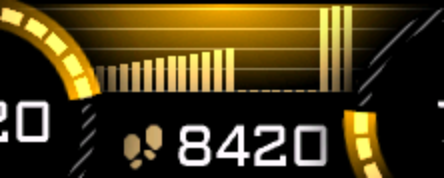
24h shows hourly step increments, including the current partial hour. 7d shows daily progress against each day’s step goal.
The 7d option is only effective for Steps; other chart metrics use 24h if 7d is selected.
The number below either Steps chart is today’s total, not the sum of the visible hourly bars.
1.5
Are missing Steps bars measured or estimated?
Hourly Steps collection continues while another chart metric or Chart Off is selected. Missing intervals are estimated linearly from changes in the daily step counter.
A first daily estimate starts at the planned wake time in your Garmin profile. Missing or invalid wake time, or steps already recorded before wake time, makes the estimate start at local midnight.
Midnight resets the daily counter. Yesterday’s missing tail is estimated from its final total; today starts separately from zero.
After longer inactivity, the visible part of yesterday can be estimated from its daily total and wake anchor. Missing or inconsistent daily totals leave that part unknown until a later retry succeeds.
The planned wake time is not a detected wake event. Estimated hourly timing is approximate; Garmin does not expose retrospective intraday Steps history for this chart.
1.6
Does hourly Steps history survive a restart?
A valid saved checkpoint is restored and the missing remainder is estimated when the required data becomes available.
Changed history is saved when the face is hidden or stops normally, with a backup checkpoint at most every 30 minutes during normal updates.
An abrupt termination or long suspension can lose the exact timing since the last successful save. The resulting gap can be estimated; it is not a recovered measurement.
Invalid or missing saved history falls back to estimation. The 7d chart uses Garmin daily history independently of the hourly ring.
1.7
Why do the chart, arcs, or seconds disappear in AOD?
Reduced AOD hides the chart, progress indicators, decorative frame, and status icons. Minimal AOD also hides all nine configured fields. Full AOD retains the information layout.
Seconds and animation are absent in every AOD layout. The Comet glow and decorative chart overlay are also omitted, including in Full AOD.
The main clock becomes an outline. Day and Night brightness are configured independently from the colored/monochrome AOD appearance.
On the watch
Appearance
Set the clock, interface colors, data font, and progress style.
2.1
Colors and custom HEX colors
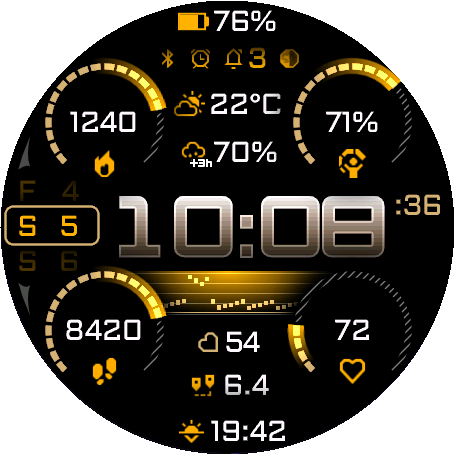
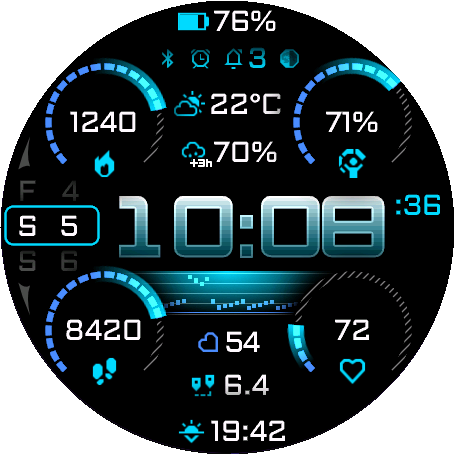
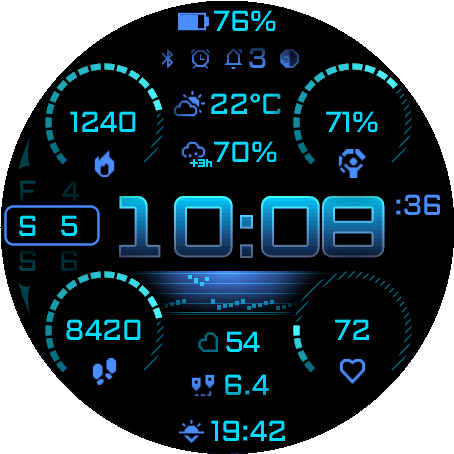
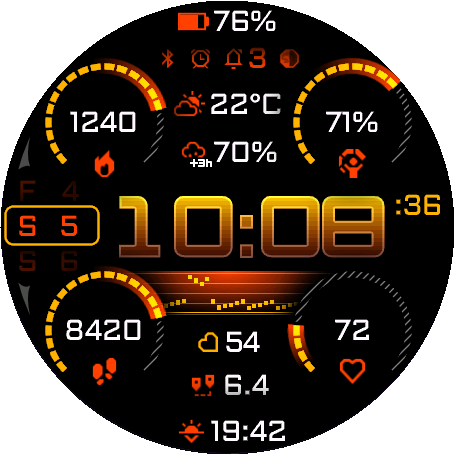
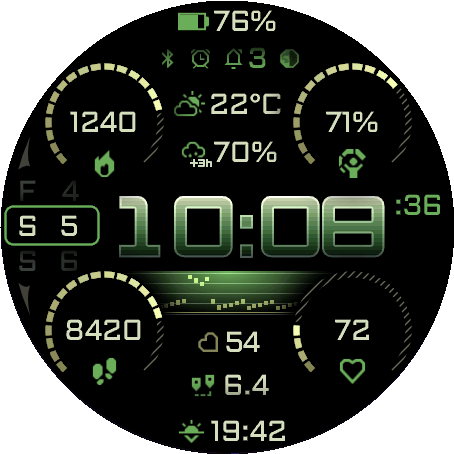
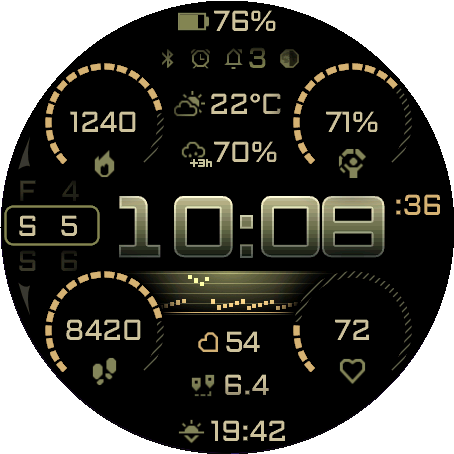
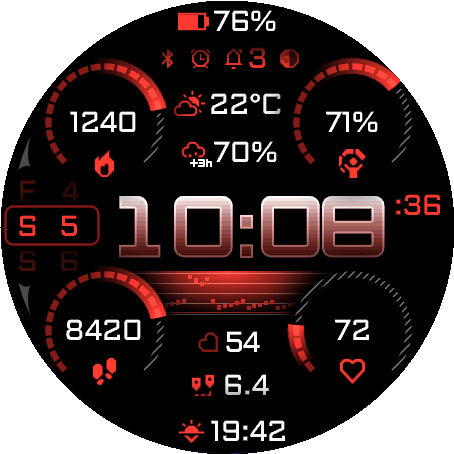
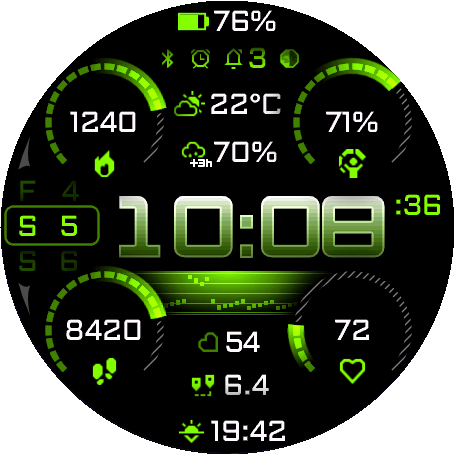
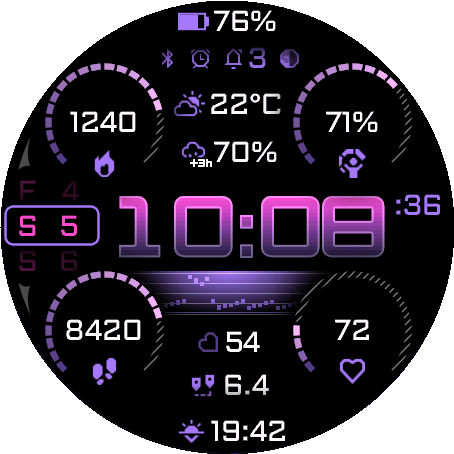
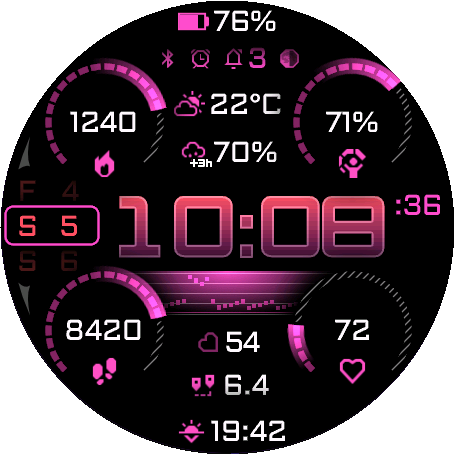
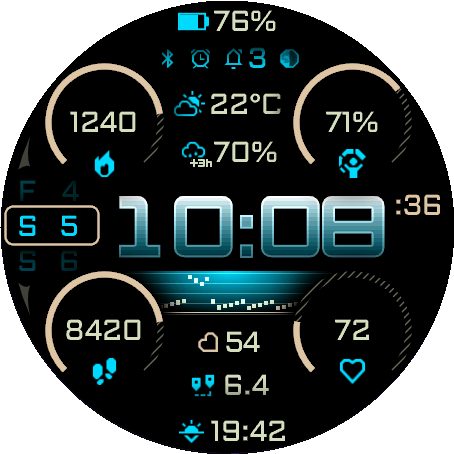
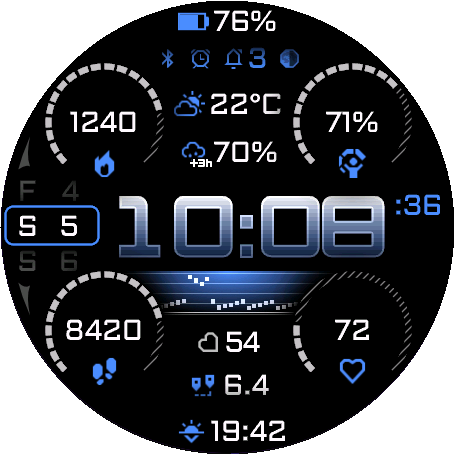
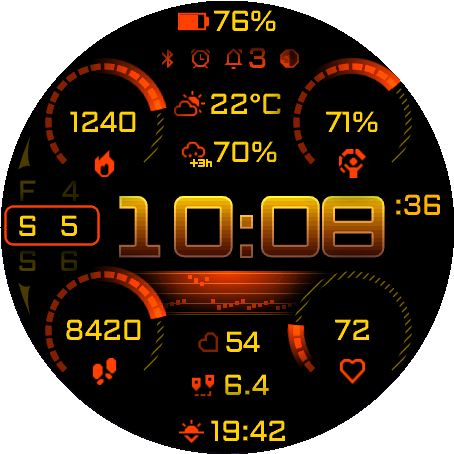
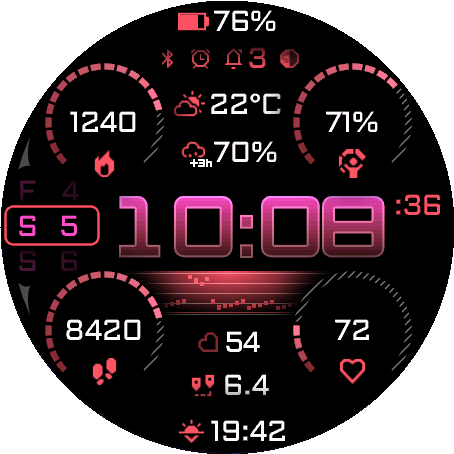
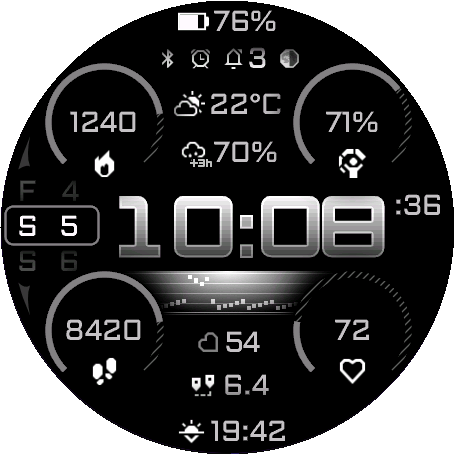
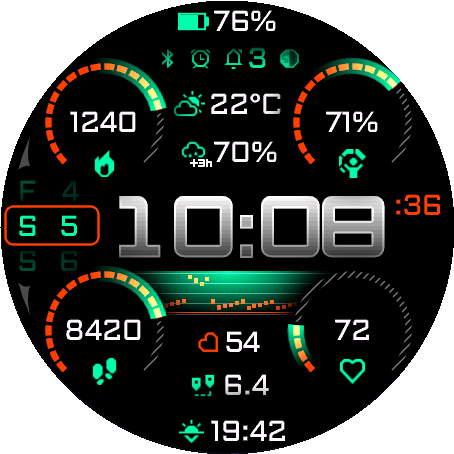
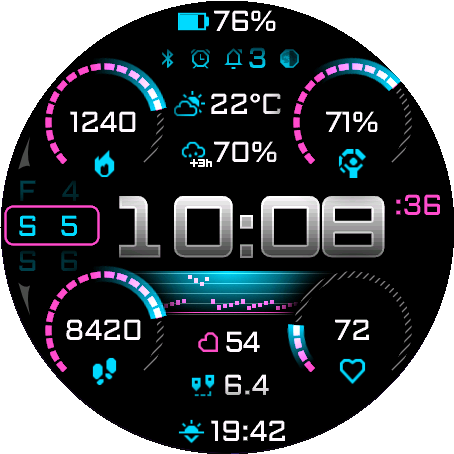
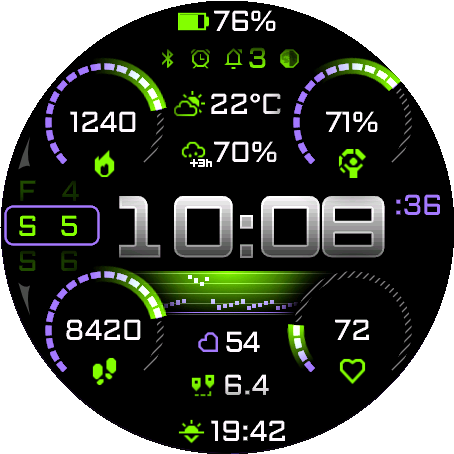
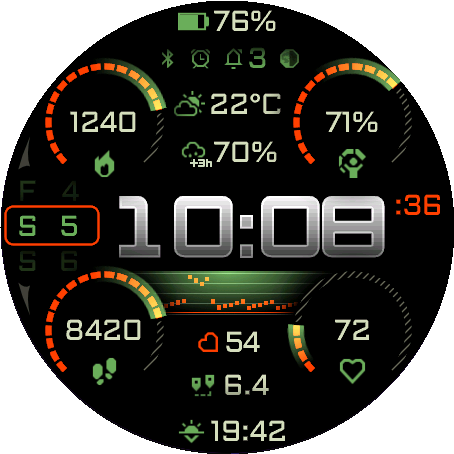
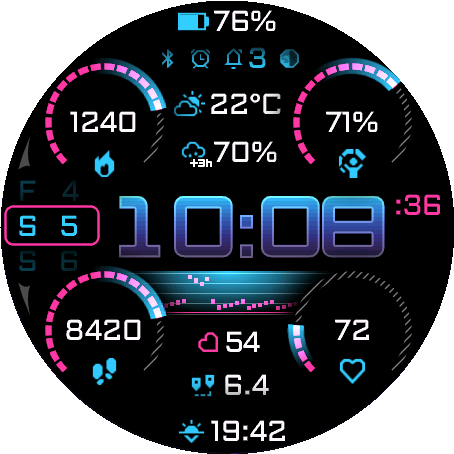
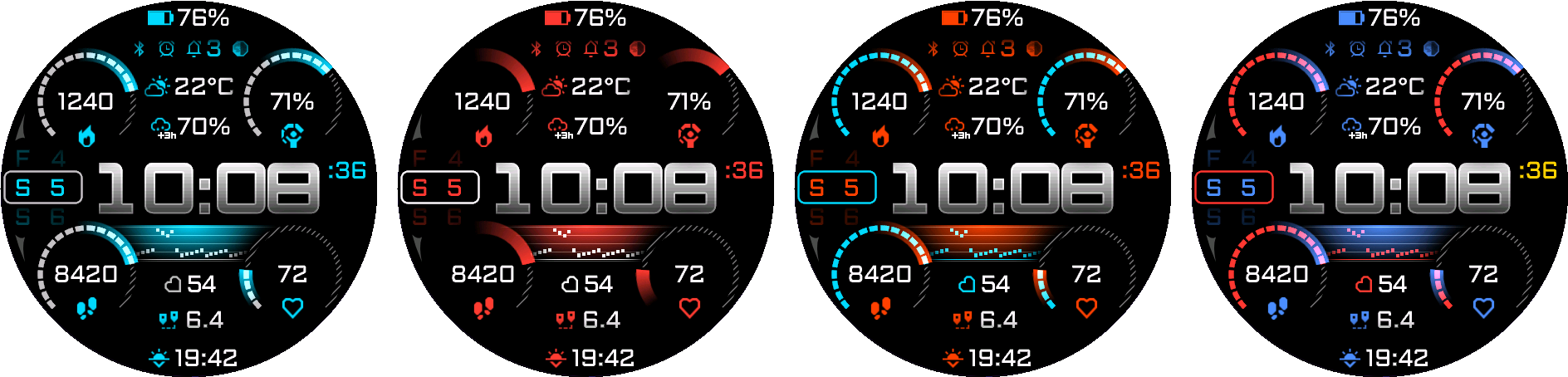
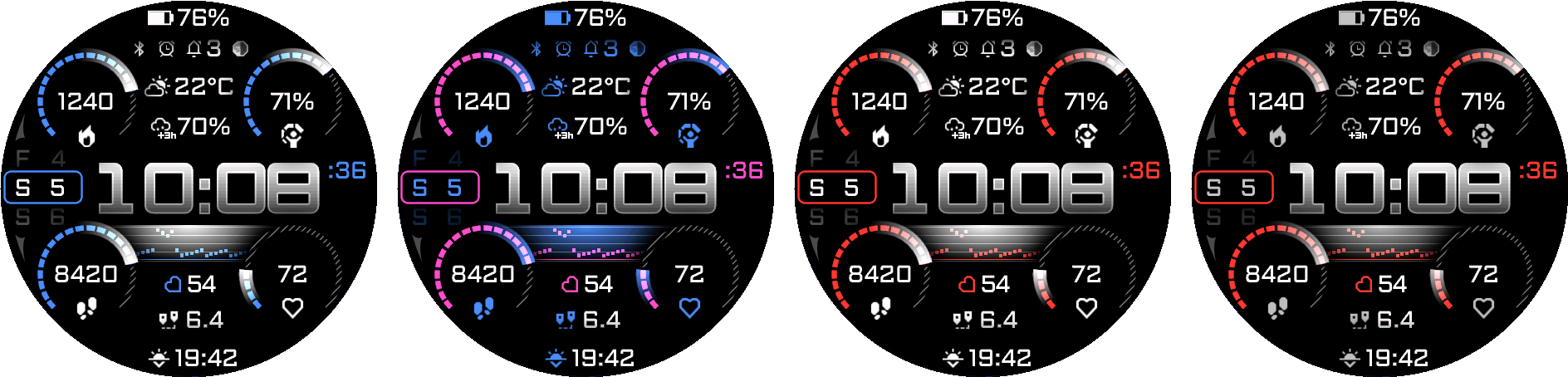
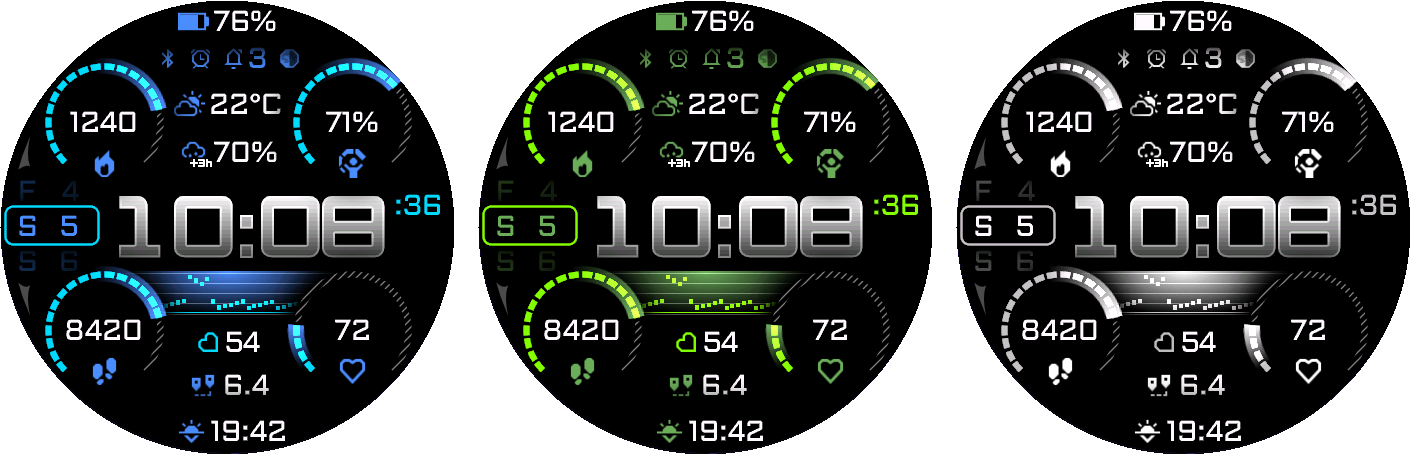
Choose Text, Primary, Secondary, Clock Gradient Top, Clock Gradient Bottom, Seconds, Date, and Date Frame independently. The background stays black.
The shared palette contains 49 choices, including darker colors, Forest, Khaki, Coyote, and two custom HEX colors.
Enter custom colors in phone settings as six RRGGBB hexadecimal digits, optionally beginning with #. Select Custom HEX color 1 or 2 in any color role that should use it.
Invalid custom values use a fallback color. Yesterday and tomorrow use a dimmed Date color.
Gallery names label example color combinations, not selectable presets.
2.2
Progress Style
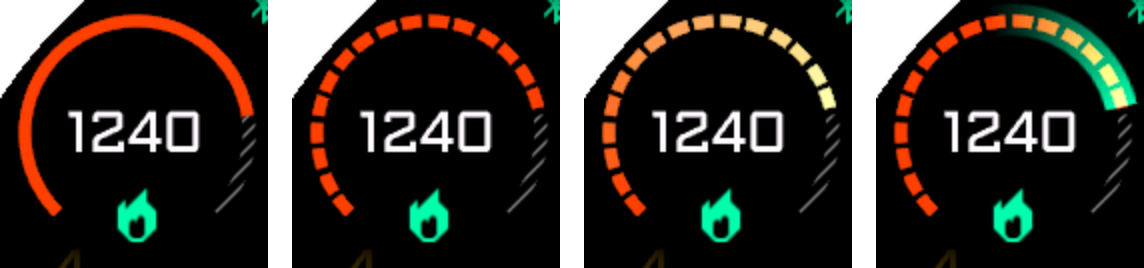
Choose Simple, Segments, Gradient Segments, or Comet where supported.
Simple uses one continuous Secondary-color arc. Segments uses complete segments; Gradient Segments adds a Secondary-to-Primary-influenced ramp. Comet adds a glow at the active segment head.
The inactive remainder is a continuous track. Enhanced-graphics devices use a Text-color texture at 50% intensity; non-enhanced devices use a solid 30% gray track.
Non-enhanced devices offer Simple, Segments, and Gradient Segments. Comet decoration is hidden in every AOD layout and while Simplify Graphics is active.
Primary and Secondary progress colors use full RGB, so white remains visible.
Steps can exceed the daily goal while the completed progress arc stays full. Long circular values use compact count formatting, such as 10.2k.
2.3
Frame and chart overlays
The frame follows the native layout for each supported display size.
On enhanced-graphics devices, the chart overlay is tinted with Primary color and composed additively. The frame decoration is tinted from Date color at 30% intensity.
On non-enhanced devices, the frame keeps its original RGB colors while Floyd–Steinberg dithering reduces only its alpha channel to fully transparent or opaque pixels. These devices omit the decorative chart overlay.
Chart and Comet overlays are omitted in every AOD layout and when low-battery Simplify Graphics is active.
2.4
Data Font
Data Font affects non-clock text: Default uses Aldrich and System uses the device’s small font. The clock uses Elevon.

On the watch
Data fields and touch
Nine positions are configurable in the same order on phone and watch.
3.1
Choose a position
Progress fields come first: Upper Left, Upper Right, Lower Left, and Lower Right. Center fields follow: Top Center, Upper Center 1, Upper Center 2, Lower Center, and Bottom Center.
All five center positions offer the complete catalog of 100 metrics. The four circular positions offer the curated 51 metrics with a supported progress scale.
Top Center replaces the former fixed battery position and defaults to Battery. It has the same horizontal space as Bottom Center before marquee starts, so values such as Sunrise / Sunset and Last Round fit normally.
Activity, Health, Time, Training, Weather, and System categories organize the watch selector. Move through the permitted choices in a category and press Back to commit the pending selection.
3.2
Available data families
Select activity counters and goals; current, Week, 7 Day, and average totals; health and training values; time, date and solar information; weather and forecasts; or system status.
Activity includes Steps, calories, distance, floors, elevation gain/loss, intensity minutes and Move Bar, with historical variants where offered.
Health includes heart rate, resting heart rate, Body Battery, stress, Pulse Ox, respiration and sleep score. Training includes recovery, VO2 Max, training status, running and cycling values, and Last Round.
Running and cycling time each offer Week, 7 Day, and 7-Day Average. Week runs from local Monday through now; 7 Day includes today and the previous six local calendar days; 7-Day Average divides that total by seven.
Run and bike time count complete saved activities whose start falls inside the selected calendar window. Their distance counterparts come from Garmin weekly-distance complications and can differ.
Time includes alternate zones, calendar values, sunrise/sunset, dawn/dusk and moon phase. Weather includes Current, Upcoming, Smart and daily forecasts. System includes battery, notifications, alarms, altitude and solar input.
3.3
Touch launch
Enable Touch launch to open the relevant Garmin glance from a supported touchscreen region.
Top Center and the other fields open the glance matching their selected metric. The date rail opens Calendar, and the chart opens the glance matching its metric.
Launch actions follow the selected fields automatically. Alarm Count has no launch action.
Instinct 3 uses physical controls and does not expose these touch regions.
On the watch
Chart
Choose the plotted metric, style, range, and value below the Heart Rate chart.
4.1
Chart Metric
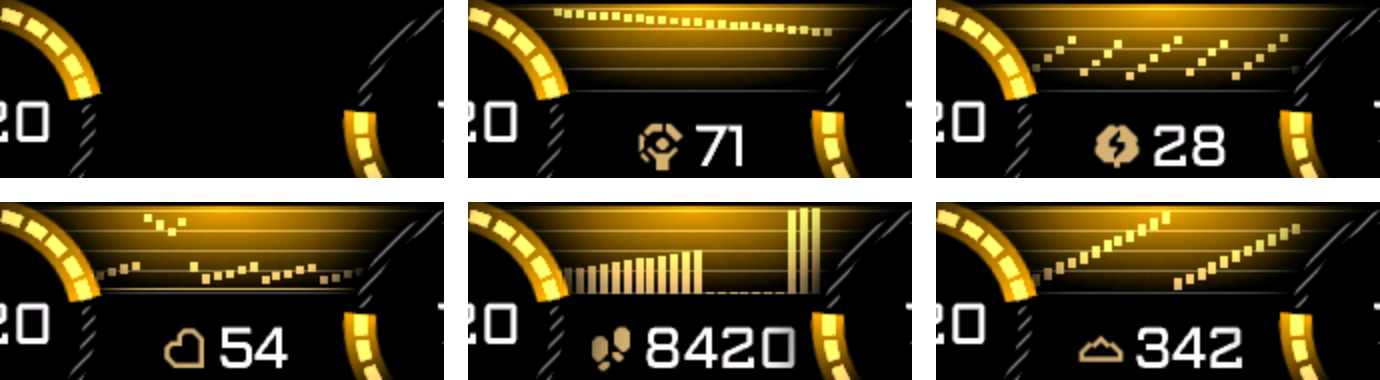
Choose Off, Body Battery, Stress, Heart Rate, Steps, or Elevation. Off hides the chart but does not stop hourly Steps collection.
4.2
Chart Style
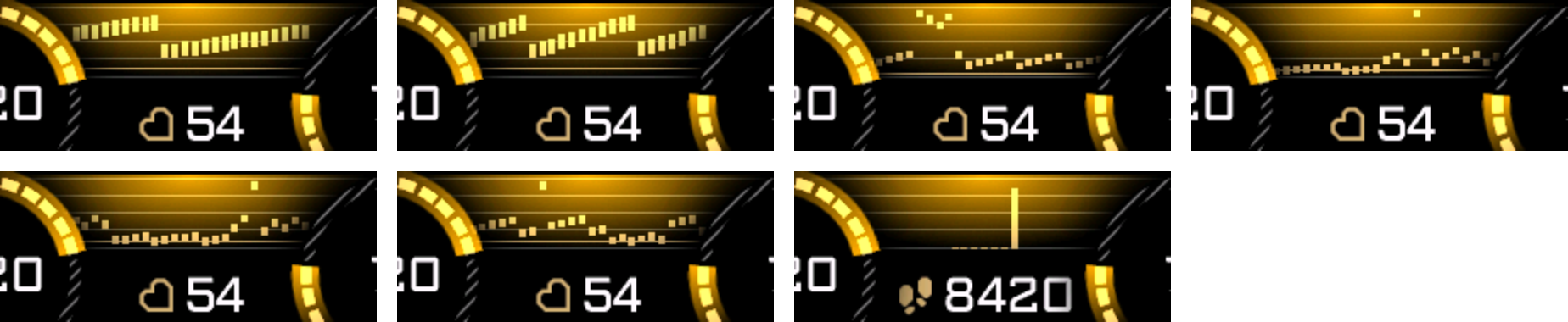
Choose Range or Line for Stress, Heart Rate, and Elevation. Body Battery and Steps use their metric-specific presentation.

4.3
Chart Range
Other metrics offer 1h, 2h, 4h, 8h, 12h and 24h. Steps uses only 24h or 7d.
Shorter choices are labelled not Steps, and 7d is labelled Steps only. An unsupported Steps choice is automatically saved as 24h.
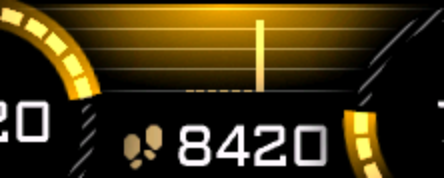
Hourly bars scale against the busiest visible hour, with a minimum scale of 100 steps. Seven daily bars are centered and represent each day’s progress against its own goal.
See the FAQ for checkpoint recovery, gap estimates and the midnight counter reset.
4.4
HR Value Below Chart
Choose Heart Rate or Resting Heart Rate; Resting Heart Rate is the default. This changes the value and icon below the plot, not the historical heart-rate samples.

On the watch
Status
Control the compact status row.
5.1
Bluetooth Status
Connected shows the connection icon only while connected. Disconnected shows a warning only while disconnected. Hidden suppresses both.

5.2
Alarm, notifications, and moon
Toggle these independently. The alarm icon requires an active alarm; notifications appear with a positive count. Inactive items leave no reserved gap.
5.3
Battery and Battery Days
Both are regular selectable metrics and can be placed in any compatible field, including Top Center.
In active mode, their battery icon fills to the current battery percentage. In AOD, it remains a static outline to keep low-power rendering predictable.
Battery displays percentage; Battery Days displays the estimated remaining days supplied by the watch.
On the watch
Date and time
Format the large clock, time-valued fields, date, and seconds independently.
6.1
Main Time Format and Data Time Format
Main Time Format selects 9:05 or 09:05. Data Time Format additionally offers Military for compact 24-hour time-valued fields.
Normal time formatting follows the watch’s 12/24-hour setting. AM/PM controls the suffix in 12-hour mode.

6.2
Date Format
Choose the offered numeric, month-name or weekday arrangement. It applies to selectable date metrics and Minimal AOD’s date; the fixed date rail keeps its weekday-letter and day-number layout.

6.3
Main Seconds and Seconds Field Format
Main Seconds toggles the dedicated seconds display. Seconds Field Format selects plain seconds or a leading colon for the seconds metric. AOD hides seconds.


6.4
Alt Time Zone 1 and 2
Choose two UTC offsets from UTC−12:00 to UTC+14:00 in half-hour steps, then select the corresponding metric in a data field.
On the watch
Always-On Display
Choose how much information remains when the watch enters low-power display mode.
7.1
AOD Layout
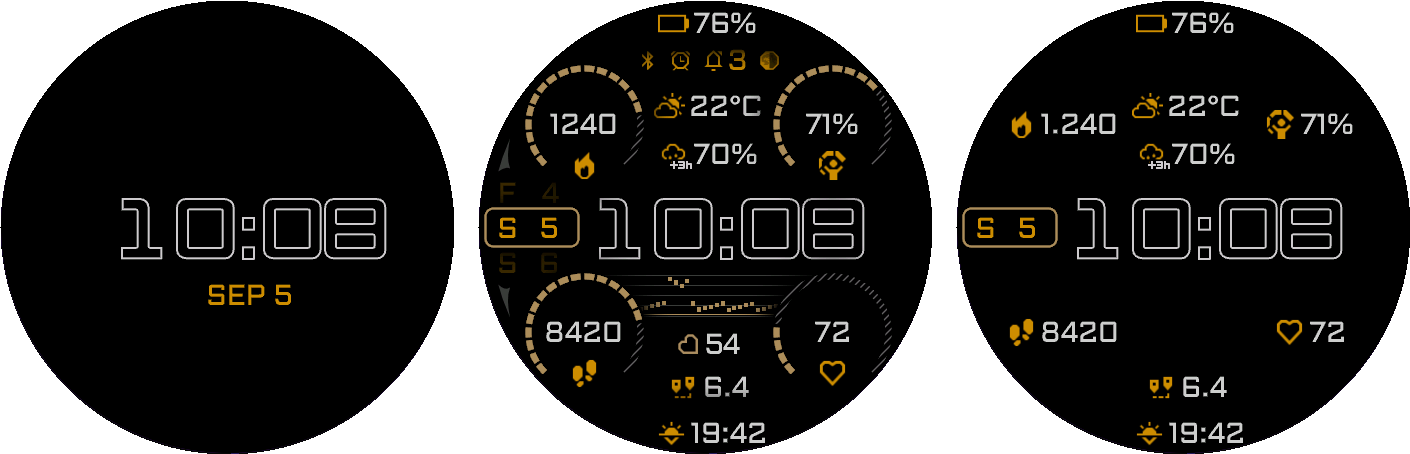
Full retains the information layout. Reduced keeps outline time, all nine fields as icon and text, and the current date. Minimal keeps outline time, optional AM/PM and one date.
Reduced and Minimal hide progress indicators, the chart, decorative frame, adjacent dates and status icons. Minimal also hides all nine fields.
Battery and Battery Days use a static outline icon in AOD; their dynamic percentage fill is active-mode only.
7.2
Colored AOD, Day Brightness, and Night Brightness
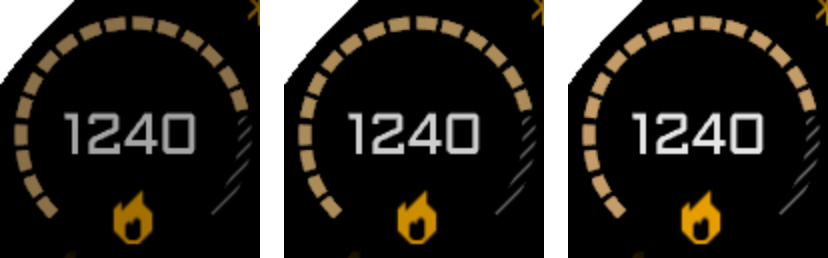
Choose colored or monochrome AOD. Day and Night brightness can each be set independently to Low, Medium, or High, corresponding to 65%, 80%, and 90% RGB intensity.
Day Brightness defaults to High. Night Brightness defaults to Medium.
Brightness changes the intensity of the rendered watch-face colors; it does not change the watch hardware brightness setting.

7.3
Day/night brightness schedule
Choose when AOD switches from Day Brightness to Night Brightness: Profile Sleep / Wake, Profile Sleep / Wake −2h, Sunrise / Sunset, or Never.
Never is the default. Outside the selected night interval, AOD uses Day Brightness.
Profile Sleep / Wake −2h starts Night Brightness two hours before the planned sleep time. Sunrise / Sunset uses Night Brightness from sunset until sunrise.
If the selected profile or sunrise/sunset times are unavailable, AOD retains Day Brightness.
7.4
Pixel Shift
Enable the small nine-position shift used by the AOD layout.
On the watch
Battery saver
Control the low-battery trigger and simplified decoration.
8.1
Low Battery Trigger and Simplify Graphics
Choose Off or a 5%, 10%, 15%, or 20% battery trigger. With Simplify Graphics enabled at the threshold, active arcs use the simple continuous style and decorative overlays are omitted.
While the configured Battery Saver state is active, AOD uses Low brightness regardless of the current Day or Night brightness setting.
Field values and chart data remain visible; this option simplifies decoration rather than replacing your selected metrics.
On the watch
Weather
Upcoming detects changes; Smart prioritizes warnings.
9.1
Forecast Range and precipitation threshold
Choose a 1, 3, or 6-hour horizon and a minimum precipitation chance of 30%, 40%, 50%, or 60%. Defaults are 3 hours and 50%.
Upcoming looks for precipitation starting, ending, changing type, or a storm/tornado. Storm and tornado transitions bypass the precipitation threshold.
The lead-time badge rounds to hours with a minimum 1h. An ending event uses a localized end marker.
9.2
Upcoming fallback
Choose Forecast at End of Range, Tomorrow, or Current Weather. The default is Forecast at End of Range.
The end-of-range choice uses the valid future hourly row nearest the end of the selected horizon. If tomorrow’s data is incomplete, another valid future row is preferred before current weather.
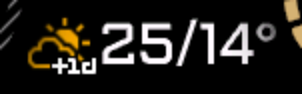
Daily +1, +2 and +3 forecasts use exact local calendar days and show high/low. Missing Garmin coverage remains unavailable.
9.3
Smart Weather checks
Independently enable weather changes, high UV, strong wind, pressure drop, and extreme actual or feels-like temperature.
Priority is storm/tornado, pressure drop, strong wind, extreme temperature, high UV, an ordinary upcoming change, then current weather.
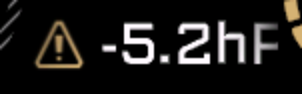
Fixed thresholds are a pressure drop of at least 4 hPa, wind at least 17 m/s, temperature at or below −10°C or at or above 35°C, and UV 8 or higher.
Future warnings show the warning value with a lead-time badge. Thresholds are fixed; the switches control which categories are considered.
On the watch
Custom goals
Set targets used by corresponding metrics and their progress indicators.
10.1
Daily targets
Configure total calories, active calories, distance, intensity minutes, floors descended, meters climbed and meters descended.
10.2
Weekly running and cycling targets
Configure weekly running distance, cycling distance, running time and cycling time. Distance inputs use kilometers; time inputs use minutes.
These settings do not replace Garmin’s own daily step goal. The seven-day Steps chart uses the goal supplied for each day.
On the watch
System and reset
Version, data refresh, and reset.
11.1
Version and User Guide
User Guide displays a QR code for this product page.
11.2
Refresh data
System → Refresh data requests fresh field and history readings. It does not start GPS or provide unavailable Garmin data.
11.3
Reset Defaults and Factory reset
Reset Defaults restores watch-face settings. The phone’s Factory reset is a one-shot action that discards the configuration.
11.4
Trial version
The Trial provides the complete watch face and settings for 24 hours after installation.
After expiry, it shows the current time, a localized expiration message, and the purchase QR code. Buy Full Version is the first on-watch settings item.
In the Connect IQ app
FAQ — start here
Chart history, unavailable values, Steps estimation, weather, and AOD.
1.1
Why does a chart fill gradually after a restart?
Non-Steps charts use Garmin sensor history. After a device restart, the available window may begin empty and fill as new samples are collected.
Restarting only the watch face does not erase Garmin sensor history. Hourly Steps history uses its own saved checkpoint.
Week covers Monday through today. 7 Day covers today and the previous six days. Incomplete required days produce -- for history-backed totals or averages.
Locally accumulated elevation gain/loss history starts at installation and cannot reconstruct earlier days.
1.2
What does -- mean?
The selected value is unavailable, unsupported on the device, or missing required history. It does not mean zero.
Check whether the measurement is available in Garmin on the watch. Golf, sleep, and training metrics require a corresponding recorded Garmin value.
The chart and current value are independent, so bars can remain visible while the current value is --.
Barometric Trend needs separated pressure samples: at least 2 hours 45 minutes between two usable samples for the current change, and another similarly separated older sample for the full two-part icon.
1.3
What should I check when weather or other Garmin data is missing?
Weather can be missing when Garmin has no data for the area, the watch has no usable location, or data cannot be transferred to the watch.
To update the location, start an outdoor activity, remain outside until GPS is ready, then return to the watch face with the watch connected to Garmin Connect. Weather may take several minutes to appear.
Weather is read when the watch face becomes active and every 15 minutes afterward. System → Refresh data requests an immediate read; unavailable Garmin weather or forecast data remains --.
Upcoming Weather shows a qualifying change or the selected fallback. Current Weather uses current conditions; the other modes prefer applicable future data.
1.4
Why did my chart range change when I selected Steps?
Steps supports only 24h and 7d. Selecting Steps with a shorter range automatically changes and saves the range as 24h, on the watch and when phone settings are applied.
24h shows hourly step increments, including the current partial hour. 7d shows daily progress against each day’s step goal.
The 7d option is only effective for Steps; other chart metrics use 24h if 7d is selected.
The number below either Steps chart is today’s total, not the sum of the visible hourly bars.
1.5
Are missing Steps bars measured or estimated?
Hourly Steps collection continues while another chart metric or Chart Off is selected. Missing intervals are estimated linearly from changes in the daily step counter.
A first daily estimate starts at the planned wake time in your Garmin profile. Missing or invalid wake time, or steps already recorded before wake time, makes the estimate start at local midnight.
Midnight resets the daily counter. Yesterday’s missing tail is estimated from its final total; today starts separately from zero.
After longer inactivity, the visible part of yesterday can be estimated from its daily total and wake anchor. Missing or inconsistent daily totals leave that part unknown until a later retry succeeds.
The planned wake time is not a detected wake event. Estimated hourly timing is approximate; Garmin does not expose retrospective intraday Steps history for this chart.
1.6
Does hourly Steps history survive a restart?
A valid saved checkpoint is restored and the missing remainder is estimated when the required data becomes available.
Changed history is saved when the face is hidden or stops normally, with a backup checkpoint at most every 30 minutes during normal updates.
An abrupt termination or long suspension can lose the exact timing since the last successful save. The resulting gap can be estimated; it is not a recovered measurement.
Invalid or missing saved history falls back to estimation. The 7d chart uses Garmin daily history independently of the hourly ring.
1.7
Why do the chart, arcs, or seconds disappear in AOD?
Reduced AOD hides the chart, progress indicators, decorative frame, and status icons. Minimal AOD also hides all nine configured fields. Full AOD retains the information layout.
Seconds and animation are absent in every AOD layout. The Comet glow and decorative chart overlay are also omitted, including in Full AOD.
The main clock becomes an outline. Day and Night brightness are configured independently from the colored/monochrome AOD appearance.
In the Connect IQ app
Appearance
Set the clock, interface colors, data font, and progress style.
2.1
Colors and custom HEX colors
Choose Text, Primary, Secondary, Clock Gradient Top, Clock Gradient Bottom, Seconds, Date, and Date Frame independently. The background stays black.
The shared palette contains 49 choices, including darker colors, Forest, Khaki, Coyote, and two custom HEX colors.
Enter custom colors in phone settings as six RRGGBB hexadecimal digits, optionally beginning with #. Select Custom HEX color 1 or 2 in any color role that should use it.
Invalid custom values use a fallback color. Yesterday and tomorrow use a dimmed Date color.
Gallery names label example color combinations, not selectable presets.
2.2
Progress Style
Choose Simple, Segments, Gradient Segments, or Comet where supported.
Simple uses one continuous Secondary-color arc. Segments uses complete segments; Gradient Segments adds a Secondary-to-Primary-influenced ramp. Comet adds a glow at the active segment head.
The inactive remainder is a continuous track. Enhanced-graphics devices use a Text-color texture at 50% intensity; non-enhanced devices use a solid 30% gray track.
Non-enhanced devices offer Simple, Segments, and Gradient Segments. Comet decoration is hidden in every AOD layout and while Simplify Graphics is active.
Primary and Secondary progress colors use full RGB, so white remains visible.
Steps can exceed the daily goal while the completed progress arc stays full. Long circular values use compact count formatting, such as 10.2k.
2.3
Frame and chart overlays
The frame follows the native layout for each supported display size.
On enhanced-graphics devices, the chart overlay is tinted with Primary color and composed additively. The frame decoration is tinted from Date color at 30% intensity.
On non-enhanced devices, the frame keeps its original RGB colors while Floyd–Steinberg dithering reduces only its alpha channel to fully transparent or opaque pixels. These devices omit the decorative chart overlay.
Chart and Comet overlays are omitted in every AOD layout and when low-battery Simplify Graphics is active.
2.4
Data Font
Data Font affects non-clock text: Default uses Aldrich and System uses the device’s small font. The clock uses Elevon.
In the Connect IQ app
Data fields and touch
Nine positions are configurable in the same order on phone and watch.
3.1
Choose a position
Progress fields come first: Upper Left, Upper Right, Lower Left, and Lower Right. Center fields follow: Top Center, Upper Center 1, Upper Center 2, Lower Center, and Bottom Center.
All five center positions offer the complete catalog of 100 metrics. The four circular positions offer the curated 51 metrics with a supported progress scale.
Top Center replaces the former fixed battery position and defaults to Battery. It has the same horizontal space as Bottom Center before marquee starts, so values such as Sunrise / Sunset and Last Round fit normally.
Activity, Health, Time, Training, Weather, and System categories organize the watch selector. Move through the permitted choices in a category and press Back to commit the pending selection.
3.2
Available data families
Select activity counters and goals; current, Week, 7 Day, and average totals; health and training values; time, date and solar information; weather and forecasts; or system status.
Activity includes Steps, calories, distance, floors, elevation gain/loss, intensity minutes and Move Bar, with historical variants where offered.
Health includes heart rate, resting heart rate, Body Battery, stress, Pulse Ox, respiration and sleep score. Training includes recovery, VO2 Max, training status, running and cycling values, and Last Round.
Running and cycling time each offer Week, 7 Day, and 7-Day Average. Week runs from local Monday through now; 7 Day includes today and the previous six local calendar days; 7-Day Average divides that total by seven.
Run and bike time count complete saved activities whose start falls inside the selected calendar window. Their distance counterparts come from Garmin weekly-distance complications and can differ.
Time includes alternate zones, calendar values, sunrise/sunset, dawn/dusk and moon phase. Weather includes Current, Upcoming, Smart and daily forecasts. System includes battery, notifications, alarms, altitude and solar input.
3.3
Touch launch
Enable Touch launch to open the relevant Garmin glance from a supported touchscreen region.
Top Center and the other fields open the glance matching their selected metric. The date rail opens Calendar, and the chart opens the glance matching its metric.
Launch actions follow the selected fields automatically. Alarm Count has no launch action.
Instinct 3 uses physical controls and does not expose these touch regions.
In the Connect IQ app
Chart
Choose the plotted metric, style, range, and value below the Heart Rate chart.
4.1
Chart Metric
Choose Off, Body Battery, Stress, Heart Rate, Steps, or Elevation. Off hides the chart but does not stop hourly Steps collection.
4.2
Chart Style
Choose Range or Line for Stress, Heart Rate, and Elevation. Body Battery and Steps use their metric-specific presentation.
4.3
Chart Range
Other metrics offer 1h, 2h, 4h, 8h, 12h and 24h. Steps uses only 24h or 7d.
Shorter choices are labelled not Steps, and 7d is labelled Steps only. An unsupported Steps choice is automatically saved as 24h.
Hourly bars scale against the busiest visible hour, with a minimum scale of 100 steps. Seven daily bars are centered and represent each day’s progress against its own goal.
See the FAQ for checkpoint recovery, gap estimates and the midnight counter reset.
4.4
HR Value Below Chart
Choose Heart Rate or Resting Heart Rate; Resting Heart Rate is the default. This changes the value and icon below the plot, not the historical heart-rate samples.
In the Connect IQ app
Status
Control the compact status row.
5.1
Bluetooth Status
Connected shows the connection icon only while connected. Disconnected shows a warning only while disconnected. Hidden suppresses both.
5.2
Alarm, notifications, and moon
Toggle these independently. The alarm icon requires an active alarm; notifications appear with a positive count. Inactive items leave no reserved gap.
5.3
Battery and Battery Days
Both are regular selectable metrics and can be placed in any compatible field, including Top Center.
In active mode, their battery icon fills to the current battery percentage. In AOD, it remains a static outline to keep low-power rendering predictable.
Battery displays percentage; Battery Days displays the estimated remaining days supplied by the watch.
In the Connect IQ app
Date and time
Format the large clock, time-valued fields, date, and seconds independently.
6.1
Main Time Format and Data Time Format
Main Time Format selects 9:05 or 09:05. Data Time Format additionally offers Military for compact 24-hour time-valued fields.
Normal time formatting follows the watch’s 12/24-hour setting. AM/PM controls the suffix in 12-hour mode.
6.2
Date Format
Choose the offered numeric, month-name or weekday arrangement. It applies to selectable date metrics and Minimal AOD’s date; the fixed date rail keeps its weekday-letter and day-number layout.
6.3
Main Seconds and Seconds Field Format
Main Seconds toggles the dedicated seconds display. Seconds Field Format selects plain seconds or a leading colon for the seconds metric. AOD hides seconds.
6.4
Alt Time Zone 1 and 2
Choose two UTC offsets from UTC−12:00 to UTC+14:00 in half-hour steps, then select the corresponding metric in a data field.
In the Connect IQ app
Always-On Display
Choose how much information remains when the watch enters low-power display mode.
7.1
AOD Layout
Full retains the information layout. Reduced keeps outline time, all nine fields as icon and text, and the current date. Minimal keeps outline time, optional AM/PM and one date.
Reduced and Minimal hide progress indicators, the chart, decorative frame, adjacent dates and status icons. Minimal also hides all nine fields.
Battery and Battery Days use a static outline icon in AOD; their dynamic percentage fill is active-mode only.
7.2
Colored AOD, Day Brightness, and Night Brightness
Choose colored or monochrome AOD. Day and Night brightness can each be set independently to Low, Medium, or High, corresponding to 65%, 80%, and 90% RGB intensity.
Day Brightness defaults to High. Night Brightness defaults to Medium.
Brightness changes the intensity of the rendered watch-face colors; it does not change the watch hardware brightness setting.
7.3
Day/night brightness schedule
Choose when AOD switches from Day Brightness to Night Brightness: Profile Sleep / Wake, Profile Sleep / Wake −2h, Sunrise / Sunset, or Never.
Never is the default. Outside the selected night interval, AOD uses Day Brightness.
Profile Sleep / Wake −2h starts Night Brightness two hours before the planned sleep time. Sunrise / Sunset uses Night Brightness from sunset until sunrise.
If the selected profile or sunrise/sunset times are unavailable, AOD retains Day Brightness.
7.4
Pixel Shift
Enable the small nine-position shift used by the AOD layout.
In the Connect IQ app
Battery saver
Control the low-battery trigger and simplified decoration.
8.1
Low Battery Trigger and Simplify Graphics
Choose Off or a 5%, 10%, 15%, or 20% battery trigger. With Simplify Graphics enabled at the threshold, active arcs use the simple continuous style and decorative overlays are omitted.
While the configured Battery Saver state is active, AOD uses Low brightness regardless of the current Day or Night brightness setting.
Field values and chart data remain visible; this option simplifies decoration rather than replacing your selected metrics.
In the Connect IQ app
Weather
Upcoming detects changes; Smart prioritizes warnings.
9.1
Forecast Range and precipitation threshold
Choose a 1, 3, or 6-hour horizon and a minimum precipitation chance of 30%, 40%, 50%, or 60%. Defaults are 3 hours and 50%.
Upcoming looks for precipitation starting, ending, changing type, or a storm/tornado. Storm and tornado transitions bypass the precipitation threshold.
The lead-time badge rounds to hours with a minimum 1h. An ending event uses a localized end marker.
9.2
Upcoming fallback
Choose Forecast at End of Range, Tomorrow, or Current Weather. The default is Forecast at End of Range.
The end-of-range choice uses the valid future hourly row nearest the end of the selected horizon. If tomorrow’s data is incomplete, another valid future row is preferred before current weather.
Daily +1, +2 and +3 forecasts use exact local calendar days and show high/low. Missing Garmin coverage remains unavailable.
9.3
Smart Weather checks
Independently enable weather changes, high UV, strong wind, pressure drop, and extreme actual or feels-like temperature.
Priority is storm/tornado, pressure drop, strong wind, extreme temperature, high UV, an ordinary upcoming change, then current weather.
Fixed thresholds are a pressure drop of at least 4 hPa, wind at least 17 m/s, temperature at or below −10°C or at or above 35°C, and UV 8 or higher.
Future warnings show the warning value with a lead-time badge. Thresholds are fixed; the switches control which categories are considered.
In the Connect IQ app
Custom goals
Set targets used by corresponding metrics and their progress indicators.
10.1
Daily targets
Configure total calories, active calories, distance, intensity minutes, floors descended, meters climbed and meters descended.
10.2
Weekly running and cycling targets
Configure weekly running distance, cycling distance, running time and cycling time. Distance inputs use kilometers; time inputs use minutes.
These settings do not replace Garmin’s own daily step goal. The seven-day Steps chart uses the goal supplied for each day.
In the Connect IQ app
System and reset
Version, data refresh, and reset.
11.1
Version and User Guide
User Guide displays a QR code for this product page.
11.2
Refresh data
System → Refresh data requests fresh field and history readings. It does not start GPS or provide unavailable Garmin data.
11.3
Reset Defaults and Factory reset
Reset Defaults restores watch-face settings. The phone’s Factory reset is a one-shot action that discards the configuration.
11.4
Trial version
The Trial provides the complete watch face and settings for 24 hours after installation.
After expiry, it shows the current time, a localized expiration message, and the purchase QR code. Buy Full Version is the first on-watch settings item.
The FAQ covers unavailable data, graph history, Steps estimation, and AOD.