
7 configurable data positions with activity, health, training, history, time, weather and system metrics.
← All watch faces
Watch face for Garmin
Trinity
Tactical Dashboard
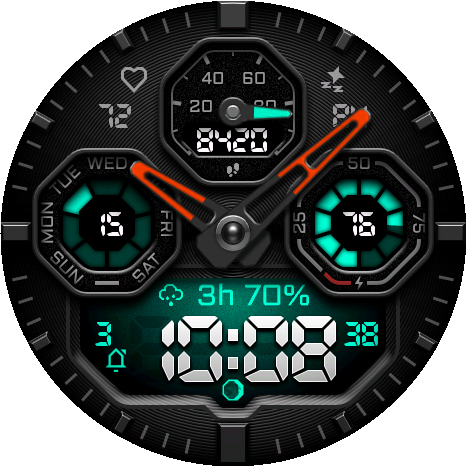
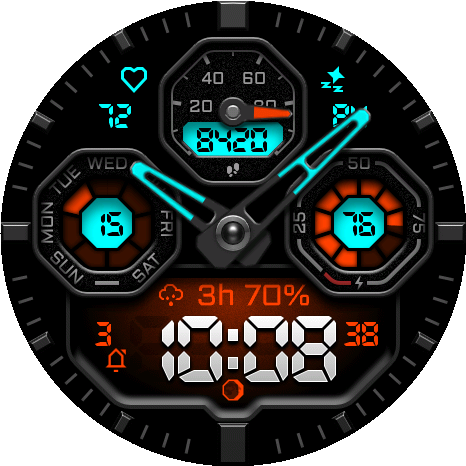
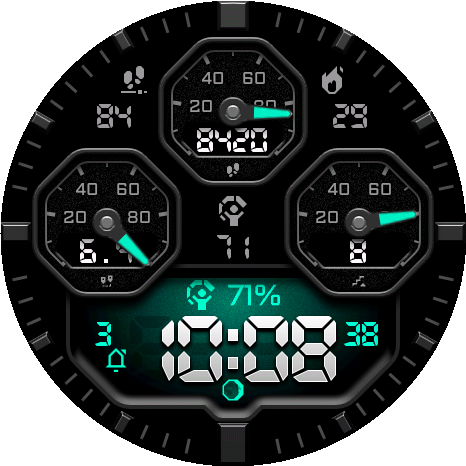
Tactical data at a glance.
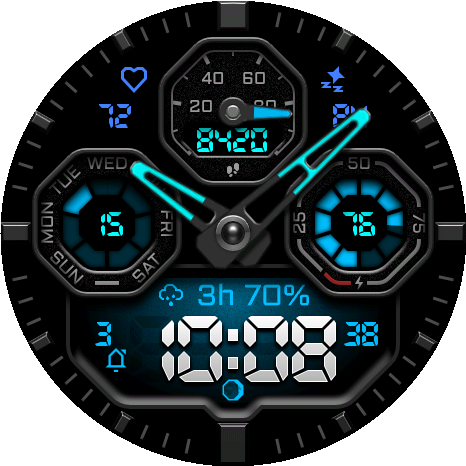
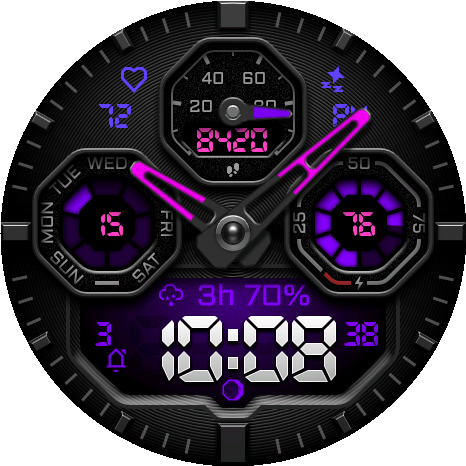
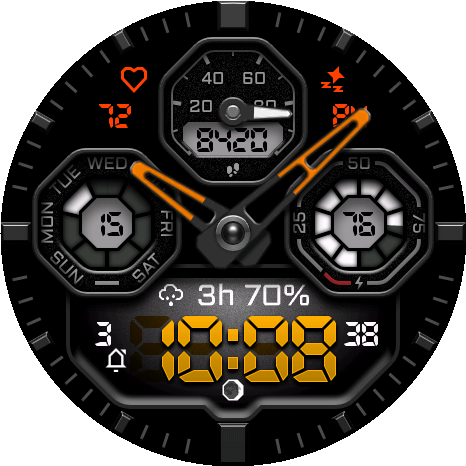
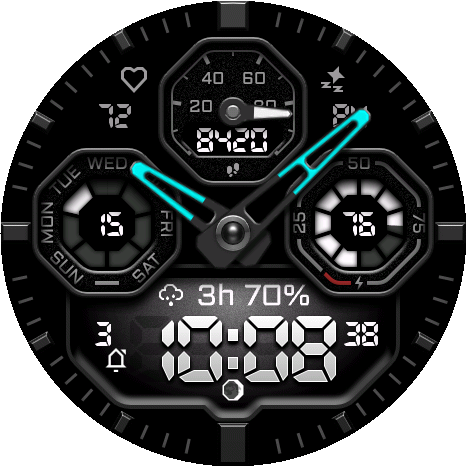
A high-density tactical dashboard with seven configurable data positions, coordinated color schemes, analog and digital time, smart weather, history metrics, touch previews, and Full or Minimal AMOLED always-on display.
Supported devices65
 Approach® S50AMOLED · 390 × 390
 Approach® S70 42mmAMOLED · 390 × 390
 Approach® S70 47mmAMOLED · 454 × 454
 D2™ Air X15AMOLED · 454 × 454
 D2™ Mach 1AMOLED · 416 × 416
 D2™ Mach 1 ProAMOLED · 454 × 454
 D2™ Mach 2AMOLED · 454 × 454
 D2™ Mach 2 ProAMOLED · 454 × 454
 Descent™ G2AMOLED · 390 × 390
 Descent™ Mk3 43mmAMOLED · 390 × 390Descent™ Mk3i 43mmAMOLED · 390 × 390
 Descent™ Mk3i 51mmAMOLED · 454 × 454
 epix™ (Gen 2)AMOLED · 416 × 416
 epix™ Pro (Gen 2) 42mmAMOLED · 390 × 390
 epix™ Pro (Gen 2) 47mmAMOLED · 416 × 416epix™ Pro (Gen 2) 51mmAMOLED · 454 × 454
 fēnix® 8 43mmAMOLED · 416 × 416
 fēnix® 8 47mmAMOLED · 454 × 454fēnix® 8 51mmAMOLED · 454 × 454
 fēnix® 8 Pro 47mmAMOLED · 454 × 454fēnix® 8 Pro 51mmAMOLED · 454 × 454fēnix® 8 Pro MicroLEDAMOLED · 454 × 454
 fēnix® 9 43mmAMOLED · 416 × 416
 fēnix® 9 47mmAMOLED · 454 × 454fēnix® 9 51mmAMOLED · 454 × 454
 fēnix® 9 Pro 43mmAMOLED · 416 × 416
 fēnix® 9 Pro 47mmAMOLED · 454 × 454
 fēnix® 9 Pro 51mmAMOLED · 466 × 466
 fēnix® EAMOLED · 416 × 416
 Forerunner® 70AMOLED · 390 × 390
 Forerunner® 165AMOLED · 390 × 390
 Forerunner® 165 MusicAMOLED · 390 × 390
 Forerunner® 170AMOLED · 390 × 390
 Forerunner® 170 MusicAMOLED · 390 × 390
 Forerunner® 265AMOLED · 416 × 416
 Forerunner® 570 42mmAMOLED · 390 × 390
 Forerunner® 570 47mmAMOLED · 454 × 454
 Forerunner® 965AMOLED · 454 × 454
 Forerunner® 970AMOLED · 454 × 454
 Instinct® 3 AMOLED 45mmAMOLED · 390 × 390
 Instinct® 3 AMOLED 50mmAMOLED · 416 × 416
 Instinct® Crossover AMOLEDAMOLED · 390 × 390
 MARQ® (Gen 2) AdventurerAMOLED · 390 × 390MARQ® (Gen 2) AthleteAMOLED · 390 × 390
 MARQ® (Gen 2) AviatorAMOLED · 390 × 390MARQ® (Gen 2) CaptainAMOLED · 390 × 390MARQ® (Gen 2) Carbon EditionAMOLED · 390 × 390MARQ® (Gen 2) Commander – Carbon EditionAMOLED · 390 × 390MARQ® (Gen 2) GolferAMOLED · 390 × 390quatix® 7 ProAMOLED · 416 × 416quatix® 7 SapphireAMOLED · 416 × 416quatix® 8 47mmAMOLED · 454 × 454quatix® 8 51mmAMOLED · 454 × 454quatix® 8 Pro 47mmAMOLED · 454 × 454quatix® 8 Pro 51mmAMOLED · 454 × 454tactix® 7 – AMOLED EditionAMOLED · 454 × 454tactix® 8 47mmAMOLED · 454 × 454tactix® 8 51mmAMOLED · 454 × 454
 Venu® 3AMOLED · 454 × 454
 Venu® 3SAMOLED · 390 × 390
 Venu® 4 41mmAMOLED · 390 × 390Venu® 4 45mmAMOLED · 454 × 454
 Venu® X1AMOLED · 448 × 486
 vívoactive® 5AMOLED · 390 × 390
 vívoactive® 6AMOLED · 390 × 390
10 coordinated color schemes on Black or Brushed Steel, plus 6 independently configurable color roles and 2 custom HEX colors.
Full and Minimal AMOLED AOD, analog and digital time, touch-and-hold previews, battery saver and Smart or Upcoming Weather.
User guide
Make it yours
Choose where you want to configure the watch face, then jump directly to any setting.
On the watch
Appearance
Choose the surface, a coordinated scheme, individual color roles, hands and typography.
1.1
Background and color schemes
Background Type selects Black or Brushed Steel. Color scheme applies one coordinated combination and overwrites all six color roles.
The gallery contains every scheme on both backgrounds. Select a background and then a scheme in settings; Select a scheme is only the menu prompt.
Full AOD retains the selected background. Minimal AOD omits it.
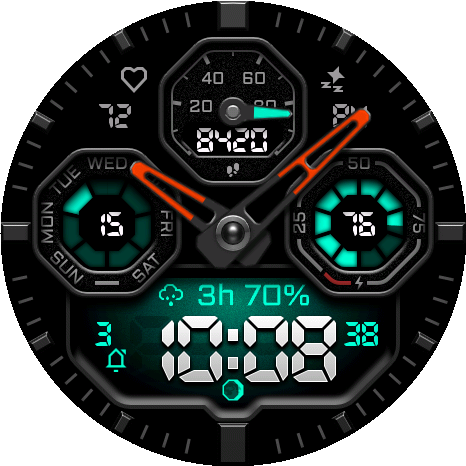
Cyber Mint — Black1 / 20
Cyber Mint color scheme on the Black background.
1.2
Individual colors and custom HEX
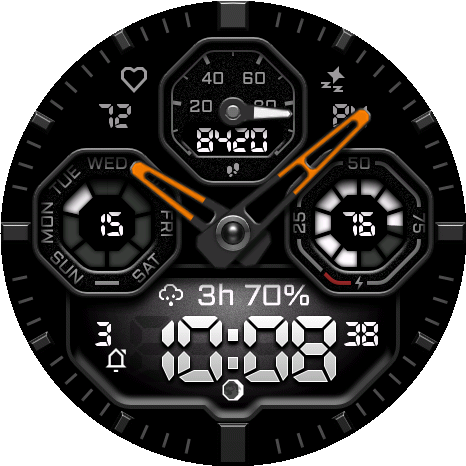
Accent, Main Digital Time, Analog Hand Lume, Small Fields, Slot Value Background and Slot Value Color all use this shared palette.
Changing an individual role does not change the other roles. Custom HEX Color 1 and 2 accept six RRGGBB digits, optionally prefixed by #.
Accent also colors the lume on the three slot hands. The main hour and minute hand lume uses its own color.
White1 / 21
The shared palette is available for every semantic color role.
1.3
Analog hands and clock ghosts
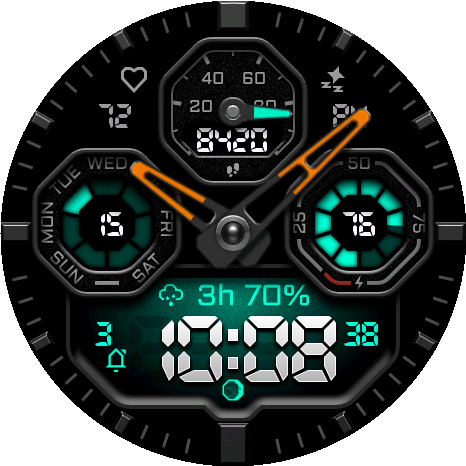
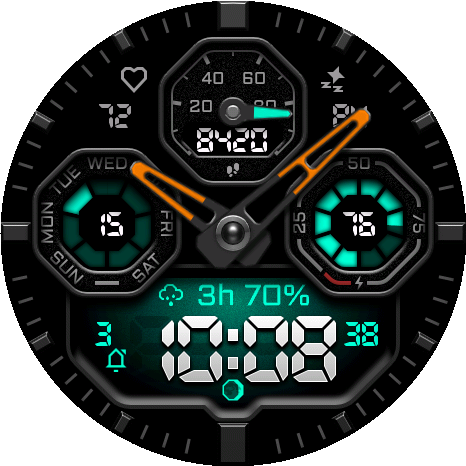
Show analog hands controls the main hour and minute hands. Clock ghosts control inactive digital segments.
When analog hands are visible, the Center data field is reserved and hidden. Touch center to hide analog hands can temporarily clear the hands and active slot hands for two seconds.
Clock ghosts use multiply blending on enhanced-graphics devices and are omitted on the compatible non-enhanced backend.
On1 / 2
On1 / 2
1.4
Data font
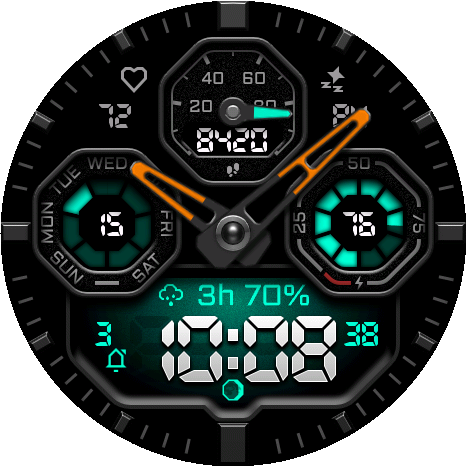
Default uses Aldrich; System uses the Garmin system font for non-clock text.
The custom main clock and compact numeric glyphs do not change.
Default1 / 2
On the watch
Data fields
Configure seven visible positions and the information shown beside the main time.
2.1
Field positions and representative layouts
Top Left, Top Right and Center use compact values. Top, Left and Right use circular progress indicators. Above time supports descriptive text.
The three compact positions offer None plus activity, health, time, weather and system values. Center hides while analog hands are enabled.
Top, Left and Right provide the full metric catalogue and automatically choose the correct ring mask. Above time adds Month, Day, Calendar, Training Status, forecasts, Smart and Upcoming Weather, Last Round and External complication.
A missing source displays --. None intentionally draws no icon or value. Compact positive values wider than five characters display 99999.
Activity1 / 6
2.2
Available metric families
Select daily activity and goals, Week / 7 Day / 7-Day Average history, health and training, time and solar data, weather and forecasts, or system status.
Activity choices are Steps, Steps To Goal, Step Goal Progress, Steps (Week / 7 Day / 7-Day Average), Calories, Active Calories, Active Cal. %, Calories (Week / 7 Day / 7-Day Average), Distance and its three history variants, Floors Ascended, Floors Descended, Floors (Week / 7 Day / 7-Day Average), Meters Climbed, Elevation Gain (Yesterday / Week / 7 Day / 7-Day Average), Meters Descended, Elevation Loss (Yesterday / Week / 7 Day / 7-Day Average), Intensity Minutes (Day / Week / 7 Day / 7-Day Average), Moderate Minutes (Day / Week / 7 Day), Vigorous Minutes (Day / Week / 7 Day) and Move Bar.
Health and training choices are Heart Rate, Resting HR, Body Battery, Stress, Blood Oxygen, Respiration, Sleep Score, Recovery Time, VO2 Max (Run), VO2 Max (Bike), Training Status, Week Run Distance, Week Run Time, Run Time (7 Day / 7-Day Average), Week Bike Distance, Week Bike Time, Bike Time (7 Day / 7-Day Average) and Last Round.
Time choices are Month, Date, Day, Week of the Year, Year, Day of the Year, Time, Seconds, Alt Time Zone 1, Alt Time Zone 2, Sunrise / Sunset, Dawn / Dusk and Remaining Sun / Dark. Weather choices are Weather, Upcoming Weather, Smart Weather, Forecast Weather +1 / +2 / +3 Day, Feels Like, Temperature Min/Max, Precip Chance, Humidity, Wind, UV, Pressure, Barometric Trend, Cloud Cover, Visibility and Dew Point. System choices are Battery Level In Percent, Battery Level In Days, Notifications, Alarm Count, Altitude and Solar Input.
History-backed totals require complete Garmin daily history. Locally accumulated elevation history begins at installation. Weekly running and cycling values use Monday through today.
Battery percent and Battery Days use a dynamically filled battery icon in compact fields and Above time. Top, Left and Right use a circular battery indicator.
Moon phase has its own Status switch and is intentionally absent from field menus.
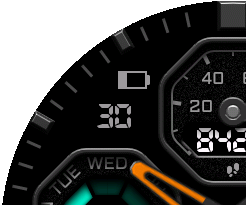
Battery Percent1 / 2
2.3
Touch Shortcuts
A touch shortcut opens the Garmin glance assigned to the pressed field. Touch Preview is different: press and hold directly on the hour digits or minute digits to replace the main clock with the configured preview for two seconds.
Touch Hours controls a hold on the hour digits. Touch Minutes controls a hold on the minute digits. Releasing your finger does not cancel the two-second preview.
Touch Preview choices are Do nothing, two alternate time zones, the next sunrise/sunset or dawn/dusk, remaining sun/dark, recovery and Week / 7 Day / 7-Day Average running or cycling time.
Digital display selects the persistent content: Local time or the same alternate, solar and duration choices. Durations use H:MM, stop at 99:59 and never use 12-hour wrapping.
When analog hands are visible, press and hold the center of the display to hide every hand for two seconds. This clears the main hour and minute hands plus the three interactive slot hands, making the preview and surrounding values easier to read.
External complication can be selected only on the watch for Above time. The phone reuses the last saved provider. Unsupported launches return to the face.
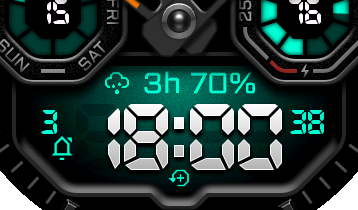
Hold hours1 / 2
Press and hold the hour digits to show the Touch Hours preview for two seconds.
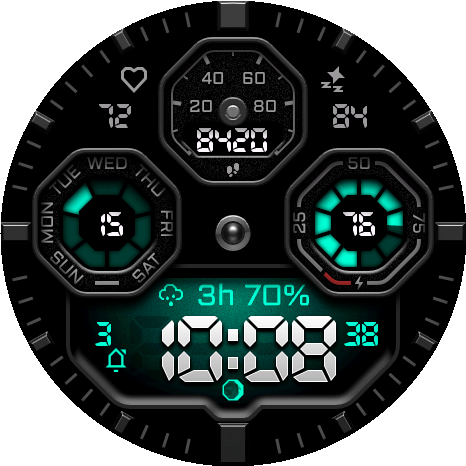
Hold center1 / 1
With analog hands visible, press and hold the center to hide all hands for two seconds.
On the watch
Date and time
Format the main clock, data times, date and seconds independently.
3.1
Main and data time formats
Main time offers 9:05, 09:05 and Military. Data time uses the same choices for time-valued fields.
Military always uses four 24-hour digits, a leading zero and no colon. AM/PM is hidden in 24-hour mode and with Military.
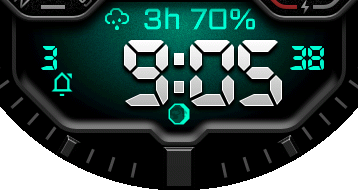
9:051 / 3
3.2
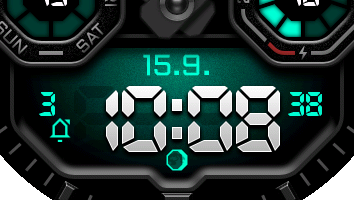
Date format
The twelve formats cover numeric, month-name and weekday arrangements.
5.7.1 / 12
3.3
Seconds format
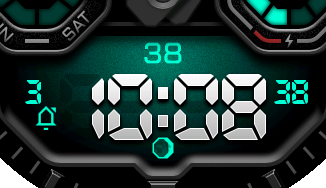
Choose plain seconds or a leading colon for a Seconds field.
The side status can also show Seconds. All seconds and animation disappear in AOD.
361 / 2
3.4
Alternate time zones
Alternate timezone 1 and 2 each cover UTC−12:00 through UTC+14:00 in 30-minute steps.
These fixed UTC offsets do not apply daylight-saving changes automatically.
On the watch
Status
Control the side items, moon and low-battery indications.
4.1
Left and right of time
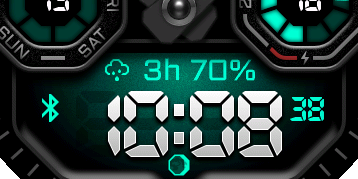
Each side independently offers Bluetooth, Seconds, AM/PM, Notifications or Alarms.
The defaults are Notifications on the left and Seconds on the right. Icons appear only when their condition is active.
Bluetooth1 / 5
4.2
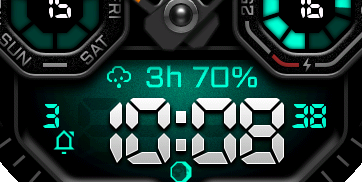
Moon phase
Moon phase occupies the clock status position and can be disabled.
On1 / 2
4.3
6h battery marker
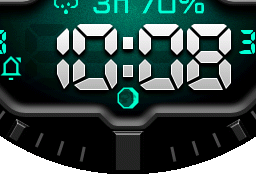
A bolt above six o’clock can be Off, Always, or appear at or below 10%, 20%, 30% or 50%. Its color follows battery level: gray above 50%, yellow through 50%, orange through 20%, and red through 10%.
Off1 / 5
On the watch
Weather
Configure forecast search and Smart Weather warnings.
5.1
Upcoming Weather
Forecast range offers 1h, 3h or 6h. Minimum precipitation chance offers 30%, 40%, 50% or 60%.
Fallback is Forecast end, Tomorrow or Current weather. Start events prefer precipitation chance; ending events show the following weather icon and temperature.
Future results begin with a rounded 1h–6h prefix. Missing forecast values remain -- rather than inventing data.
5.2
Smart Weather
Enable Weather changes, High UV, Strong wind, Pressure drop and Extreme temperature independently.
Priority is storm/tornado, pressure drop, strong wind, extreme temperature, high UV, ordinary upcoming change and then current weather.
Fixed thresholds are a 4 hPa pressure drop, 17 m/s wind, temperature ≤−10°C or ≥35°C, and UV 8 or higher.
On the watch
Battery saver
Choose when the simplified low-power presentation activates and how it is signalled.
6.1
Trigger and indicator
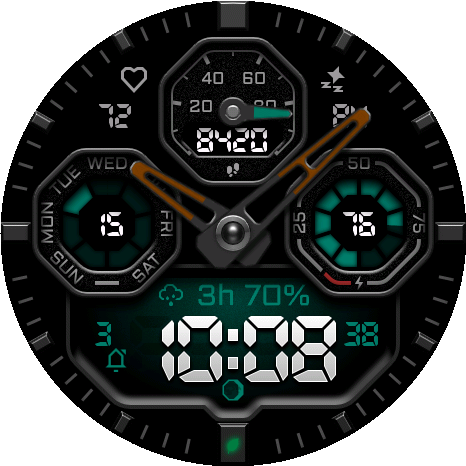
Activate battery saver offers Off, Always, or thresholds of 5%, 10%, 15%, 20%, 30% and 50%. Indicator offers Leaf, Red bolt or None.
Leaf1 / 3
6.2
Simplify graphics
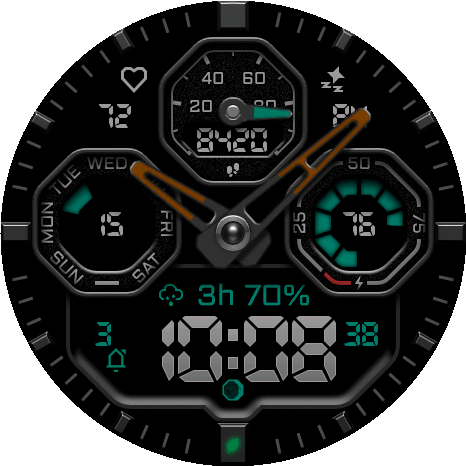
When enabled at the selected threshold, active arcs use a continuous style and decorative layers are omitted.
Data fields remain available. Battery saver also forces Low AOD brightness.
Simplified1 / 2
On the watch
Always-On Display
Choose Full or Minimal layout, time content and independent day/night intensity.
7.1
Full and Minimal
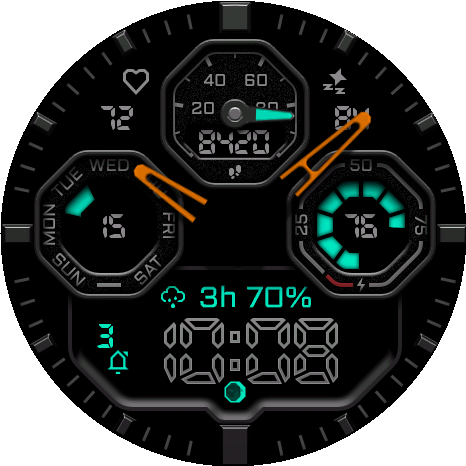
Full retains the simplified dashboard. Minimal shows only the selected clock content and a date when digital content is visible.
Full removes ghosts, inactive tracks, seconds indicators and scrolling. Minimal also removes fields, battery and the background overlay.
AOD cancels any temporary two-second preview. Waking does not restore it.
Full1 / 2
7.2
AOD time display
Same as Wake inherits the analog-hands switch and persistent digital display. Analog, Digital and Both explicitly show local time.
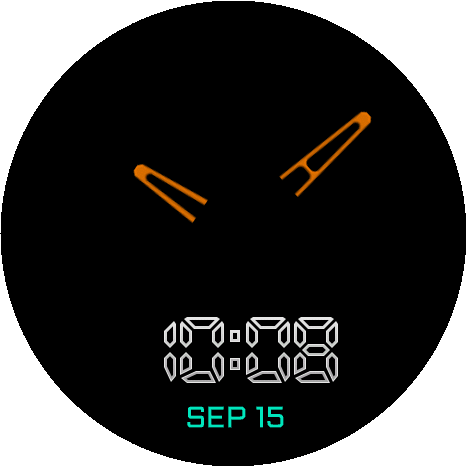
Same as Wake1 / 4
7.3
Brightness and schedule
Day and Night brightness independently offer Low, Medium and High at 65%, 80% and 90% rendered RGB intensity.
Schedule offers Profile Sleep / Wake, Profile Sleep / Wake −2h, Sunrise / Sunset and Never. Missing schedule data leaves Day brightness active.
Non-enhanced products use fixed Medium AOD and therefore omit the dynamic brightness controls.
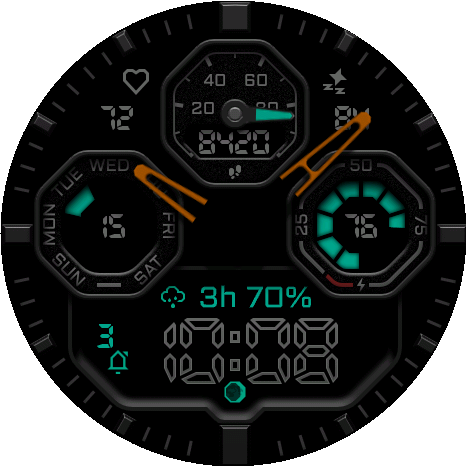
Low1 / 3
On the watch
Goals
Set the targets used by matching values and progress indicators.
8.1
Daily goals
Configure Total calories, Active calories, Distance, Intensity minutes, Floors down, Meters up and Meters down.
8.2
Weekly sport goals
Configure weekly run and bike distance plus weekly run and bike time.
Distance inputs use kilometres and time inputs use minutes. These settings do not replace Garmin’s daily step goal.
On the watch
System, support and reset
Check version, refresh cached data, open the guide or restore defaults.
9.1
Version, User Guide and Refresh data
Version is read-only. User Guide displays a QR code for this page. Refresh data requests fresh values without starting GPS.
Weather may need a valid outdoor GPS location and a Garmin Connect sync. Source availability on a simulator does not prove physical-watch availability.
9.2
Reset to defaults
Reset requires confirmation on the watch. The phone’s reset is a one-shot action.
Reset restores Black background, Cyber Mint colors, default fields and the Full AOD layout.
9.3
Display support
Trinity uses native 390×390, 416×416, 454×454, 466×466 and 448×486 resources across 44 supported AMOLED products.
Non-enhanced devices use final-size binary-alpha artwork and a compatible graphics path. The rectangular branch has independent horizontal and vertical centres.
On the watch
FAQ
Quick answers for missing values, history, hands, touch and AOD.
10.1
Why do I see --?
The Garmin source is unavailable, unsupported, incomplete or cannot fit the compact character set. It is not zero.
10.2
When are history values complete?
Week means Monday through today; 7 Day means today and the previous six days. Required incomplete days keep a total or average unavailable.
10.3
Why did Center disappear?
Center is reserved while analog hands are enabled. Disable the hands to use it, or press and hold the center to hide hands temporarily when that option is enabled.
10.5
Why did content disappear in AOD?
Seconds, animation and temporary previews are always removed. Minimal intentionally keeps only its selected clock presentation and optional date.
In the Connect IQ app
Appearance
Choose the surface, a coordinated scheme, individual color roles, hands and typography.
1.1
Background and color schemes
Background Type selects Black or Brushed Steel. Color scheme applies one coordinated combination and overwrites all six color roles.
The gallery contains every scheme on both backgrounds. Select a background and then a scheme in settings; Select a scheme is only the menu prompt.
Full AOD retains the selected background. Minimal AOD omits it.
Cyber Mint — Black1 / 20
Cyber Mint color scheme on the Black background.
1.2
Individual colors and custom HEX
Accent, Main Digital Time, Analog Hand Lume, Small Fields, Slot Value Background and Slot Value Color all use this shared palette.
Changing an individual role does not change the other roles. Custom HEX Color 1 and 2 accept six RRGGBB digits, optionally prefixed by #.
Accent also colors the lume on the three slot hands. The main hour and minute hand lume uses its own color.
White1 / 21
The shared palette is available for every semantic color role.
1.3
Analog hands and clock ghosts
Show analog hands controls the main hour and minute hands. Clock ghosts control inactive digital segments.
When analog hands are visible, the Center data field is reserved and hidden. Touch center to hide analog hands can temporarily clear the hands and active slot hands for two seconds.
Clock ghosts use multiply blending on enhanced-graphics devices and are omitted on the compatible non-enhanced backend.
On1 / 2
On1 / 2
1.4
Data font
Default uses Aldrich; System uses the Garmin system font for non-clock text.
The custom main clock and compact numeric glyphs do not change.
Default1 / 2
In the Connect IQ app
Data fields
Configure seven visible positions and the information shown beside the main time.
2.1
Field positions and representative layouts
Top Left, Top Right and Center use compact values. Top, Left and Right use circular progress indicators. Above time supports descriptive text.
The three compact positions offer None plus activity, health, time, weather and system values. Center hides while analog hands are enabled.
Top, Left and Right provide the full metric catalogue and automatically choose the correct ring mask. Above time adds Month, Day, Calendar, Training Status, forecasts, Smart and Upcoming Weather, Last Round and External complication.
A missing source displays --. None intentionally draws no icon or value. Compact positive values wider than five characters display 99999.
Activity1 / 6
2.2
Available metric families
Select daily activity and goals, Week / 7 Day / 7-Day Average history, health and training, time and solar data, weather and forecasts, or system status.
Activity choices are Steps, Steps To Goal, Step Goal Progress, Steps (Week / 7 Day / 7-Day Average), Calories, Active Calories, Active Cal. %, Calories (Week / 7 Day / 7-Day Average), Distance and its three history variants, Floors Ascended, Floors Descended, Floors (Week / 7 Day / 7-Day Average), Meters Climbed, Elevation Gain (Yesterday / Week / 7 Day / 7-Day Average), Meters Descended, Elevation Loss (Yesterday / Week / 7 Day / 7-Day Average), Intensity Minutes (Day / Week / 7 Day / 7-Day Average), Moderate Minutes (Day / Week / 7 Day), Vigorous Minutes (Day / Week / 7 Day) and Move Bar.
Health and training choices are Heart Rate, Resting HR, Body Battery, Stress, Blood Oxygen, Respiration, Sleep Score, Recovery Time, VO2 Max (Run), VO2 Max (Bike), Training Status, Week Run Distance, Week Run Time, Run Time (7 Day / 7-Day Average), Week Bike Distance, Week Bike Time, Bike Time (7 Day / 7-Day Average) and Last Round.
Time choices are Month, Date, Day, Week of the Year, Year, Day of the Year, Time, Seconds, Alt Time Zone 1, Alt Time Zone 2, Sunrise / Sunset, Dawn / Dusk and Remaining Sun / Dark. Weather choices are Weather, Upcoming Weather, Smart Weather, Forecast Weather +1 / +2 / +3 Day, Feels Like, Temperature Min/Max, Precip Chance, Humidity, Wind, UV, Pressure, Barometric Trend, Cloud Cover, Visibility and Dew Point. System choices are Battery Level In Percent, Battery Level In Days, Notifications, Alarm Count, Altitude and Solar Input.
History-backed totals require complete Garmin daily history. Locally accumulated elevation history begins at installation. Weekly running and cycling values use Monday through today.
Battery percent and Battery Days use a dynamically filled battery icon in compact fields and Above time. Top, Left and Right use a circular battery indicator.
Moon phase has its own Status switch and is intentionally absent from field menus.
Battery Percent1 / 2
2.3
Touch Shortcuts
A touch shortcut opens the Garmin glance assigned to the pressed field. Touch Preview is different: press and hold directly on the hour digits or minute digits to replace the main clock with the configured preview for two seconds.
Touch Hours controls a hold on the hour digits. Touch Minutes controls a hold on the minute digits. Releasing your finger does not cancel the two-second preview.
Touch Preview choices are Do nothing, two alternate time zones, the next sunrise/sunset or dawn/dusk, remaining sun/dark, recovery and Week / 7 Day / 7-Day Average running or cycling time.
Digital display selects the persistent content: Local time or the same alternate, solar and duration choices. Durations use H:MM, stop at 99:59 and never use 12-hour wrapping.
When analog hands are visible, press and hold the center of the display to hide every hand for two seconds. This clears the main hour and minute hands plus the three interactive slot hands, making the preview and surrounding values easier to read.
External complication can be selected only on the watch for Above time. The phone reuses the last saved provider. Unsupported launches return to the face.
Hold hours1 / 2
Press and hold the hour digits to show the Touch Hours preview for two seconds.
Hold center1 / 1
With analog hands visible, press and hold the center to hide all hands for two seconds.
In the Connect IQ app
Date and time
Format the main clock, data times, date and seconds independently.
3.1
Main and data time formats
Main time offers 9:05, 09:05 and Military. Data time uses the same choices for time-valued fields.
Military always uses four 24-hour digits, a leading zero and no colon. AM/PM is hidden in 24-hour mode and with Military.
9:051 / 3
3.2
Date format
The twelve formats cover numeric, month-name and weekday arrangements.
5.7.1 / 12
3.3
Seconds format
Choose plain seconds or a leading colon for a Seconds field.
The side status can also show Seconds. All seconds and animation disappear in AOD.
361 / 2
3.4
Alternate time zones
Alternate timezone 1 and 2 each cover UTC−12:00 through UTC+14:00 in 30-minute steps.
These fixed UTC offsets do not apply daylight-saving changes automatically.
In the Connect IQ app
Status
Control the side items, moon and low-battery indications.
4.1
Left and right of time
Each side independently offers Bluetooth, Seconds, AM/PM, Notifications or Alarms.
The defaults are Notifications on the left and Seconds on the right. Icons appear only when their condition is active.
Bluetooth1 / 5
4.2
Moon phase
Moon phase occupies the clock status position and can be disabled.
On1 / 2
4.3
6h battery marker
A bolt above six o’clock can be Off, Always, or appear at or below 10%, 20%, 30% or 50%. Its color follows battery level: gray above 50%, yellow through 50%, orange through 20%, and red through 10%.
Off1 / 5
In the Connect IQ app
Weather
Configure forecast search and Smart Weather warnings.
5.1
Upcoming Weather
Forecast range offers 1h, 3h or 6h. Minimum precipitation chance offers 30%, 40%, 50% or 60%.
Fallback is Forecast end, Tomorrow or Current weather. Start events prefer precipitation chance; ending events show the following weather icon and temperature.
Future results begin with a rounded 1h–6h prefix. Missing forecast values remain -- rather than inventing data.
5.2
Smart Weather
Enable Weather changes, High UV, Strong wind, Pressure drop and Extreme temperature independently.
Priority is storm/tornado, pressure drop, strong wind, extreme temperature, high UV, ordinary upcoming change and then current weather.
Fixed thresholds are a 4 hPa pressure drop, 17 m/s wind, temperature ≤−10°C or ≥35°C, and UV 8 or higher.
In the Connect IQ app
Battery saver
Choose when the simplified low-power presentation activates and how it is signalled.
6.1
Trigger and indicator
Activate battery saver offers Off, Always, or thresholds of 5%, 10%, 15%, 20%, 30% and 50%. Indicator offers Leaf, Red bolt or None.
Leaf1 / 3
6.2
Simplify graphics
When enabled at the selected threshold, active arcs use a continuous style and decorative layers are omitted.
Data fields remain available. Battery saver also forces Low AOD brightness.
Simplified1 / 2
In the Connect IQ app
Always-On Display
Choose Full or Minimal layout, time content and independent day/night intensity.
7.1
Full and Minimal
Full retains the simplified dashboard. Minimal shows only the selected clock content and a date when digital content is visible.
Full removes ghosts, inactive tracks, seconds indicators and scrolling. Minimal also removes fields, battery and the background overlay.
AOD cancels any temporary two-second preview. Waking does not restore it.
Full1 / 2
7.2
AOD time display
Same as Wake inherits the analog-hands switch and persistent digital display. Analog, Digital and Both explicitly show local time.
Same as Wake1 / 4
7.3
Brightness and schedule
Day and Night brightness independently offer Low, Medium and High at 65%, 80% and 90% rendered RGB intensity.
Schedule offers Profile Sleep / Wake, Profile Sleep / Wake −2h, Sunrise / Sunset and Never. Missing schedule data leaves Day brightness active.
Non-enhanced products use fixed Medium AOD and therefore omit the dynamic brightness controls.
Low1 / 3
In the Connect IQ app
Goals
Set the targets used by matching values and progress indicators.
8.1
Daily goals
Configure Total calories, Active calories, Distance, Intensity minutes, Floors down, Meters up and Meters down.
8.2
Weekly sport goals
Configure weekly run and bike distance plus weekly run and bike time.
Distance inputs use kilometres and time inputs use minutes. These settings do not replace Garmin’s daily step goal.
In the Connect IQ app
System, support and reset
Check version, refresh cached data, open the guide or restore defaults.
9.1
Version, User Guide and Refresh data
Version is read-only. User Guide displays a QR code for this page. Refresh data requests fresh values without starting GPS.
Weather may need a valid outdoor GPS location and a Garmin Connect sync. Source availability on a simulator does not prove physical-watch availability.
9.2
Reset to defaults
Reset requires confirmation on the watch. The phone’s reset is a one-shot action.
Reset restores Black background, Cyber Mint colors, default fields and the Full AOD layout.
9.3
Display support
Trinity uses native 390×390, 416×416, 454×454, 466×466 and 448×486 resources across 44 supported AMOLED products.
Non-enhanced devices use final-size binary-alpha artwork and a compatible graphics path. The rectangular branch has independent horizontal and vertical centres.
In the Connect IQ app
FAQ
Quick answers for missing values, history, hands, touch and AOD.
10.1
Why do I see --?
The Garmin source is unavailable, unsupported, incomplete or cannot fit the compact character set. It is not zero.
10.2
When are history values complete?
Week means Monday through today; 7 Day means today and the previous six days. Required incomplete days keep a total or average unavailable.
10.3
Why did Center disappear?
Center is reserved while analog hands are enabled. Disable the hands to use it, or press and hold the center to hide hands temporarily when that option is enabled.
10.5
Why did content disappear in AOD?
Seconds, animation and temporary previews are always removed. Minimal intentionally keeps only its selected clock presentation and optional date.