
Retro industrial-inspired design
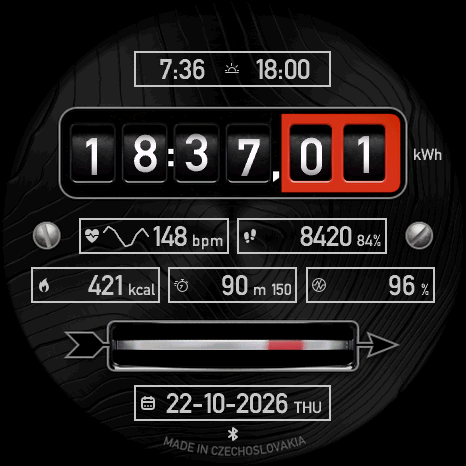
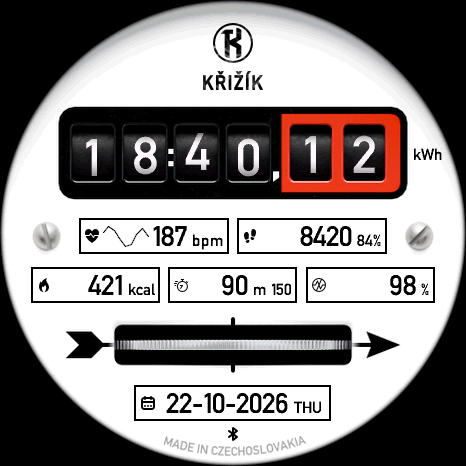
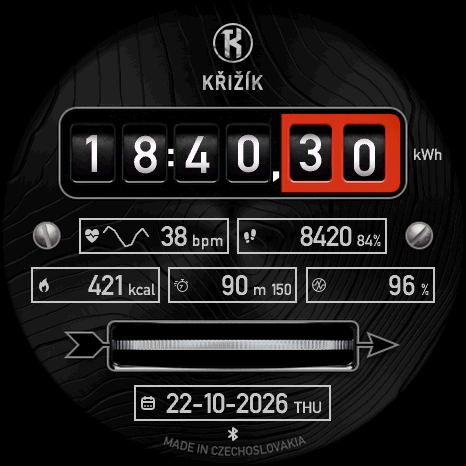
Supported devices57
 Approach® S70 42mmAMOLED · 390 × 390
 Approach® S70 47mmAMOLED · 454 × 454
 D2™ Air X15AMOLED · 454 × 454
 D2™ Mach 1AMOLED · 416 × 416
 D2™ Mach 1 ProAMOLED · 454 × 454
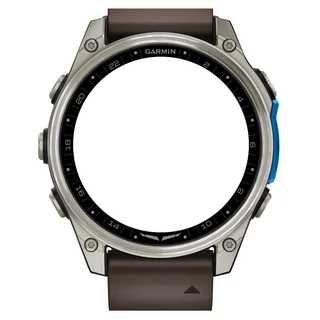 D2™ Mach 2AMOLED · 454 × 454
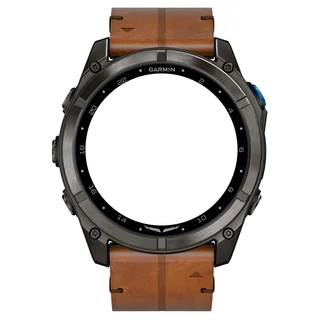 D2™ Mach 2 ProAMOLED · 454 × 454
 Descent™ Mk3 43mmAMOLED · 390 × 390Descent™ Mk3i 43mmAMOLED · 390 × 390
 Descent™ Mk3i 51mmAMOLED · 454 × 454
 epix™ (Gen 2)AMOLED · 416 × 416
 epix™ Pro (Gen 2) 42mmAMOLED · 390 × 390
 epix™ Pro (Gen 2) 47mmAMOLED · 416 × 416epix™ Pro (Gen 2) 51mmAMOLED · 454 × 454
 fēnix® 8 43mmAMOLED · 416 × 416
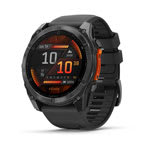 fēnix® 8 47mmAMOLED · 454 × 454fēnix® 8 51mmAMOLED · 454 × 454
 fēnix® 8 Pro 47mmAMOLED · 454 × 454fēnix® 8 Pro 51mmAMOLED · 454 × 454fēnix® 8 Pro MicroLEDAMOLED · 454 × 454
 fēnix® 9 43mmAMOLED · 416 × 416
 fēnix® 9 47mmAMOLED · 454 × 454fēnix® 9 51mmAMOLED · 454 × 454
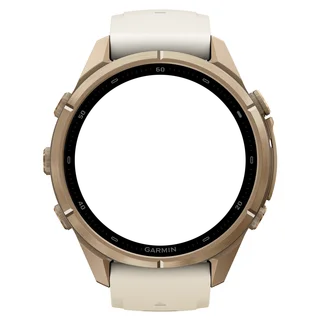 fēnix® 9 Pro 43mmAMOLED · 416 × 416
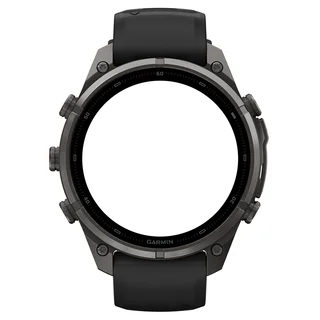 fēnix® 9 Pro 47mmAMOLED · 454 × 454
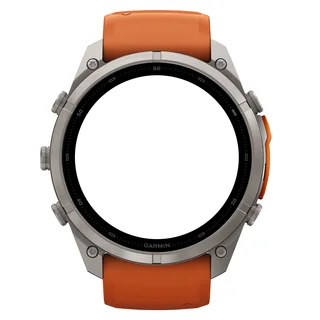 fēnix® 9 Pro 51mmAMOLED · 466 × 466
 fēnix® EAMOLED · 416 × 416
 Forerunner® 170AMOLED · 390 × 390
 Forerunner® 170 MusicAMOLED · 390 × 390
 Forerunner® 265AMOLED · 416 × 416
 Forerunner® 570 42mmAMOLED · 390 × 390
 Forerunner® 570 47mmAMOLED · 454 × 454
 Forerunner® 965AMOLED · 454 × 454
 Forerunner® 970AMOLED · 454 × 454
 Instinct® 3 AMOLED 45mmAMOLED · 390 × 390
 Instinct® 3 AMOLED 50mmAMOLED · 416 × 416
 MARQ® (Gen 2) AdventurerAMOLED · 390 × 390MARQ® (Gen 2) AthleteAMOLED · 390 × 390
 MARQ® (Gen 2) AviatorAMOLED · 390 × 390MARQ® (Gen 2) CaptainAMOLED · 390 × 390MARQ® (Gen 2) Carbon EditionAMOLED · 390 × 390MARQ® (Gen 2) Commander – Carbon EditionAMOLED · 390 × 390MARQ® (Gen 2) GolferAMOLED · 390 × 390quatix® 7 ProAMOLED · 416 × 416quatix® 7 SapphireAMOLED · 416 × 416quatix® 8 47mmAMOLED · 454 × 454quatix® 8 51mmAMOLED · 454 × 454quatix® 8 Pro 47mmAMOLED · 454 × 454quatix® 8 Pro 51mmAMOLED · 454 × 454tactix® 7 – AMOLED EditionAMOLED · 454 × 454tactix® 8 47mmAMOLED · 454 × 454tactix® 8 51mmAMOLED · 454 × 454
 Venu® 3AMOLED · 454 × 454
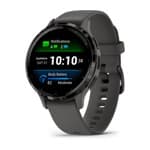 Venu® 3SAMOLED · 390 × 390
 Venu® 4 41mmAMOLED · 390 × 390Venu® 4 45mmAMOLED · 454 × 454
 vívoactive® 6AMOLED · 390 × 390
Light and dark theme
Full AOD mode
Optional analog or digital indicators
Complication launch support via touch and hold
Arrow Bar shows goal progress, health and battery metrics, a heart-rate slider or animation
Status row with date and status icons, inactive icons dimmed or hidden
On the wrist
Photos from TIKKS fans. Share how Retro Watt looks on your watch.
Retro Watt
User guide
Theme
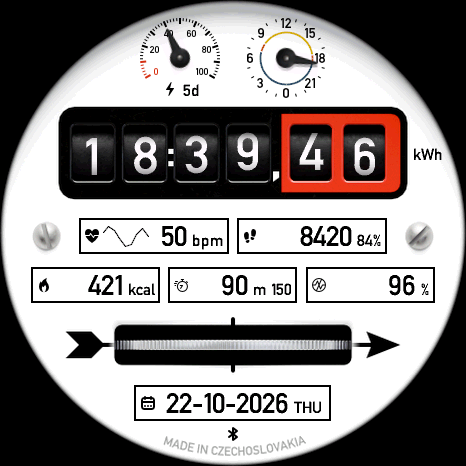
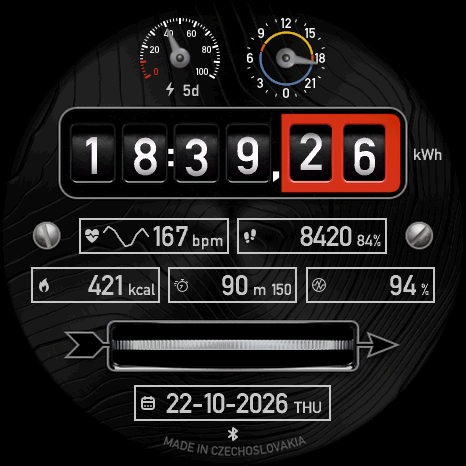
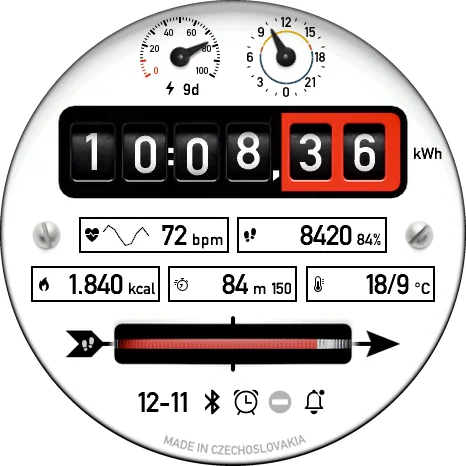
A white meter dial or a dark one. Options: Light (default), Dark, Auto: Sun, Auto: Twilight.
Watch: Settings › Appearance › Theme · Phone: Connect IQ app › Appearance
Light1 / 2
Auto: Sun shows Light from sunrise to sunset and Dark otherwise; Auto: Twilight uses dawn and dusk instead. Sun times come from the weather source and the watch position; without them Light runs from 06:00 to 18:00. The face switches within a minute of the change.
With Tap Shortcuts set to Complications & Theme, touching and holding the clock switches to the other fixed theme and leaves the automatic mode.
Top and middle sections
The face has three areas around the clock: a top section, a middle section and the bottom slot under the arrow bar.
Watch: Settings › Appearance › Top Section, Middle Section · Phone: Connect IQ app › Appearance
Analog1 / 5
Digital1 / 3
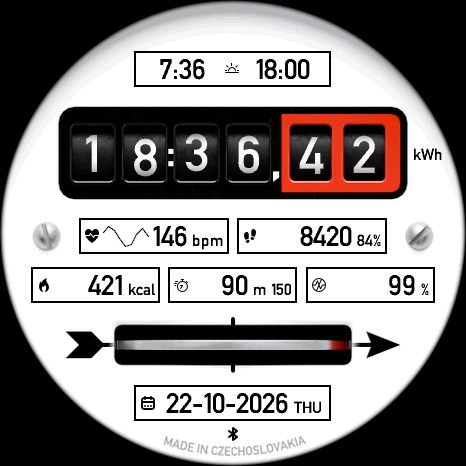
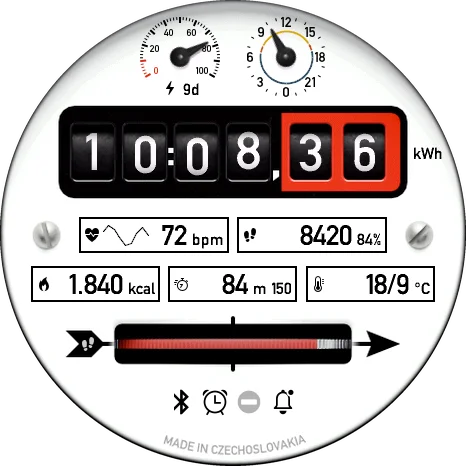
Top Section: Logo, Analog (two gauges, default), Digital (one wide field) or Empty. Middle Section: Analog (three gauges) or Digital (five fields, default).
Logo Text replaces the logo with your own text of up to 11 characters, in the same place and colour. It is entered only in the Connect IQ app; leave it empty for the logo.
The Data group on the watch lists only the slots the chosen sections show; the phone lists every slot.
Data fields and gauges
Up to five gauges and seven digital fields, each set to one of 45 metrics.
Watch: Settings › Data · Phone: Connect IQ app › Data (rows marked ★)
Date + Status Icons1 / 5
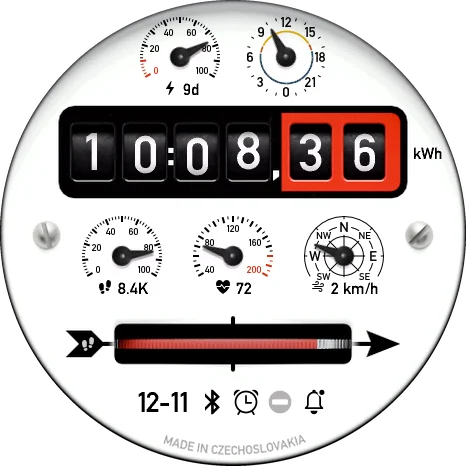
Bottom Slot default: the short date, then Bluetooth, alarm and 3 notifications; Do Not Disturb is off and dimmed.
Default1 / 5
Default1 / 5
A shows a value with its needle; metrics with a goal fill toward that goal. Digital fields show the value with its unit; the heart-rate field adds a short graph of the last readings.
The wide top slot and the bottom slot take date and time-like metrics: Date, Sunrise / Sunset, Dawn / Dusk and Event. Battery shows days left as a gauge and follows Battery Format (50%, 5d, 5d 50% or 50% 5d) as a digital field.
The same two slots can show a instead: Status Icons, or Date + Status Icons (the Bottom Slot default). On the watch pick it under Top Slot or Bottom Slot; on the phone under ★ Top Section · Digital or ★ Bottom Slot.
Touch and hold a field to open the Garmin view behind it when Tap Shortcuts is on. Touching the status row does nothing.
All data fields
Activity
- Steps
- Steps To Goal
- Calories
- Distance
- Floors
- Move Bar
- Active Day
- Active Week
- Altitude
Health
- Heart Rate
- Body Battery
- Stress
- Pulse Ox
- Respiration
- Sleep Score
Training & sport
- Recovery Time
- VO2 Max (Run)
- VO2 Max (Bike)
- Training Status
- Week Run Dist
- Week Bike Dist
- Week Run Time
- Week Bike Time
Time & calendar
- Date
- Seconds
- 24h
- Week Number
- Alt Time Zone
- Calendar
- Event
- Alarms
- Notifications
Weather & sky
- Temperature
- Feels Like
- Precip Chance
- Humidity
- Wind
- UV
- Pressure
- Sunrise / Sunset
- Dawn / Dusk
- Moon Phase
Battery
- Battery
- Battery Percent
- Solar Input
Arrow bar
The bar under the clock shows progress toward a goal, a health or watch value, or plays the animation. Default: Steps Bar.
Watch: Settings › Appearance › Arrow Bar Mode · Phone: Connect IQ app › Appearance

Steps1 / 7
8420 of 10000 steps.

Week Run Dist1 / 5
18.4 of 30 km this week.

Heart Rate1 / 8
72 bpm between a resting 60 and a maximum 185 bpm.
Steps, Floors and Active Minutes fill toward your goals from Garmin Connect; Calories, Distance, Active Day and the four weekly sport bars fill toward the goals you set in Goals. Every bar works whatever the data fields show.
Pulse Ox fills from 80 to 100 % and Move Bar in five steps. When the watch cannot supply a metric, for example Solar Input without solar charging, the bar stays empty and shows only its icon.
Heart Rate is a slider: a short lit segment marks your heart rate between your resting heart rate (left) and the top of your heart-rate zones (right); without a profile it uses 40–200 bpm. It is hidden in always-on mode, where heart rate is not refreshed.
Event fills over the last 30 days before your and is full once it is reached; it stays empty while no event is set.
- Garmin Connect goals
- Steps Bar (default), Floors Bar, Active Minutes Bar
- Your goals
- Calories, Distance, Active Day, Week Run Dist, Week Bike Dist, Week Run Time, Week Bike Time
- Health and watch
- Heart Rate Bar, Body Battery, Stress, Sleep Score, Pulse Ox, Battery Percent, Solar Input, Move Bar
- Other
- Event Bar, Animation Loop, Animation on Wake, Off
Goals and event countdown
Goals set the full scale of seven gauges; the event countdown shows the time left to a date and hour you choose.
Watch: Settings › Goals · Phone: Connect IQ app › Goals
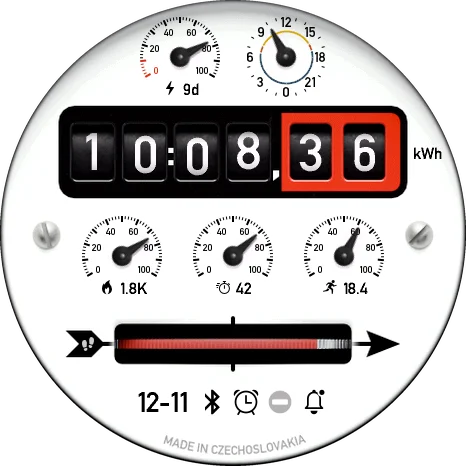
Goal gauges1 / 2
Calories, Active Day and Week Run Dist with custom goals.
On the watch a goal opens a list of values in fixed steps with the current one highlighted; Start saves it, Back keeps the old value. Distance goals are entered in kilometres also when the watch shows miles.
Steps, Floors and Active Week keep the goals set in Garmin Connect.
Event: pick the day (Off, today and up to a year ahead) and then the hour; on the phone use Event Date and Event Hour. The field shows 12d 4h, under a day 4h 20m, and 0m once reached. The hour follows the watch’s local time.
- Calories
- Default 1500 kcal, 1–9999
- Distance
- Default 5 km, 0.1–999.9 km
- Active Day
- Default 20 min, 1–1440
- Week Run Dist / Week Bike Dist
- Default 15 km / 50 km
- Week Run Time / Week Bike Time
- Default 120 min / 180 min
- Event Date, Event Hour
- Off by default; hour 00:00–23:00 (default 09:00)
Date, time and status icons
The clock reads like an electricity meter, with the seconds in the red drums. Date Format: DD-MM (default) or MM-DD.
Watch: Settings › Appearance · Phone: Connect IQ app › Appearance
DD-MM1 / 2

Date + Status Icons1 / 3
Bluetooth connected, alarm set, 3 notifications; Do Not Disturb is off and dimmed.
On1 / 2
On1 / 2
Clock Suffix shows AM or PM in 12-hour mode: Show (default), AM/PM Only or Off. Display Time Offset runs the face up to 60 minutes ahead (phone only). Alt Time Zone sets the Alt Time Zone field from UTC−12 to UTC+14 in half hours.
Status icons: Bluetooth, Alarm, Do Not Disturb (all on by default) and Notifications (off). Without a they show small under the bottom slot (above the clock on 390 and 416 px screens), each only while its state is active; with a row they show only there, larger.
Dim Inactive Icons (default On) keeps an icon whose state is off in the row, dimmed, so every icon stays in its place. Off hides it and centres the rest; the short date in the row follows Date Format.
Bottom Text shows or hides MADE IN CZECHOSLOVAKIA under the bottom slot.
Always-on display
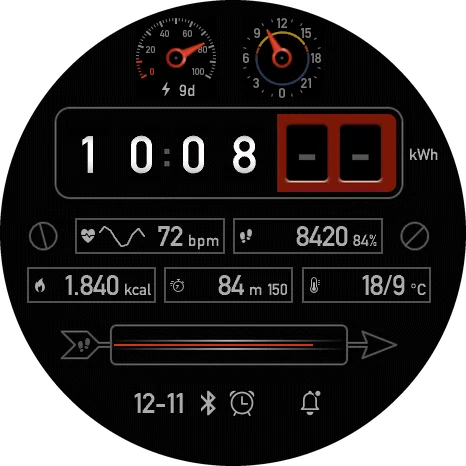
In always-on mode the meter stays on a black dial with dimmed parts and no seconds.
Watch: Settings › Appearance › AOD Pixel Shift · Phone: Connect IQ app › Appearance
Light theme1 / 2
The status row shows only the three active icons.
AOD Pixel Shift (default On) moves the picture slightly every minute to protect the screen. The arrow bar becomes a thin line, the Heart Rate bar is hidden and Bottom Text is not shown.
A shows only the active icons; dimmed icons are not drawn. With Dim Inactive Icons on the active ones keep their places, with it off they stay centred.
Steps and other data refresh once a minute in always-on mode.
Weather
Weather fields use Garmin weather or OpenWeatherMap. Weather Source: Garmin (default), OWM.
Watch: Settings › Weather · Phone: Connect IQ app › Weather
OpenWeatherMap needs your own API key, entered in the Connect IQ app; OWM Refresh sets how often it updates (15, 30 or 60 min). The watch shows OWM Status and OWM Last Sync.
Pressure Unit sets the Pressure field: hPa (default), mbar, mmHg or inHg.
Touch shortcuts
Touch and hold a field to open its Garmin view, or the clock to switch the theme. Options: Complications & Theme (default), Complications Only, Off.
Watch: Settings › Appearance › Tap Shortcuts · Phone: Connect IQ app › Appearance
Available on touch watches; Instinct 3 AMOLED has no touch screen and skips the row.
Sunrise / Sunset, Dawn / Dusk and 24h open the sunrise or sunset view, whichever comes next.
Watch settings and system
The watch settings follow the phone groups: Appearance, Data, Goals, Weather and the version.
Watch: Settings · Phone: Connect IQ app › System
Up and Down move the red highlight, Start opens a group or switches the highlighted value, Back returns. On touch watches tap a row.
Refresh Data reads all displayed values again. Clear Storage removes the stored weather and keeps your settings.
Questions
Why does a field show -- right after the face starts?
The watch has not delivered that value yet. Most fields fill within a minute; weekly sport totals and VO2 max can take longer after a restart.
Why does Sleep Score show --?
The watch’s firmware does not provide the sleep score to watch faces, or there is no score for last night yet.
Why is the Heart Rate bar empty in always-on mode?
Heart rate is not refreshed in always-on mode, so the bar is hidden there instead of showing an old value.
Why does a value stay after the sensor stops reporting?
Body Battery, stress, Pulse Ox, altitude, solar input, respiration and notifications keep their last value for an hour; Calendar, training status, recovery, VO2 max and Sleep Score until the day changes; weekly run and bike distance until the week changes.
My distance goal is in km but the watch shows miles. Is that right?
Yes. Goals are always entered in kilometres; the gauge converts them when the watch shows miles.
The event countdown is an hour off. Why?
Event Hour uses the watch’s local time on the event day. Check the time zone on the watch; the countdown also follows a daylight saving change.
Why does the arrow bar stay empty?
The watch does not supply that metric: Sleep Score needs firmware that shares it, Solar Input a solar watch and Pulse Ox the sensor. The bar does not need a matching data field on the face.
Where are the small status icons?
While the top or bottom slot shows Status Icons or Date + Status Icons, the icons appear only in that row. After an update the face keeps your Bottom Slot; pick Date + Status Icons in Data to get the row.
Changelog1.7.0
1.7.0
- Added a status row for the wide data slots: status icons alone or together with a short date.
- Added a Dim Inactive Icons setting: show inactive status icons dimmed or hide them.
- Added progress bar modes for Body Battery, Stress, Sleep Score, Pulse Ox, Battery, Solar Input, Move Bar, Calories, Distance, Active Minutes and weekly Run and Bike.
- Improved the Heart Rate bar: a slider now marks your current heart rate.
- Improved the reliability of OpenWeatherMap weather updates.
- Changed the default bottom slot to Date + Status Icons for new installations.
1.6.0
- Added a Sleep Score data field.
- Added Heart Rate and Event modes for the progress bar.
- Added custom goals for calories, distance, active minutes and weekly run and bike, set on the phone or in the new Goals menu on the watch.
- Added an event countdown: set a date and hour on the phone or with a short wizard on the watch.
- Improved colour gradients on AMOLED displays and reduced memory use.
- Fixed the steps bar staying empty when no data field showed steps.
1.5.0
- Added Logo Text: show your own short text instead of the logo.
- Added an Alarms data field and status icons for Bluetooth, alarms, Do Not Disturb and notifications.
- Added an automatic theme that follows sunrise and sunset, or dawn and dusk.
- Added Battery Days and Battery Percent gauges and a Battery Format setting.
- Added a Pressure Unit setting: hPa, mbar, mmHg or inHg.
- Improved the on-watch settings menu, data refresh and the shading of the clock digits, plus smaller fixes.