Clear time and date
← All watch faces
Watch face for Garmin
Horizon
A calm watch face for every day
A demonstration product you can use to refine the design and content before adding your real Garmin watch faces.
SUN · 19 JUL10:42
♥ 628 420
Customizable data complications
Battery-friendly always-on mode
User guide
Make it yours
Choose where you want to configure the watch face, then jump directly to any setting.
On the watch
Open the settings
Start directly on your watch. The exact button name can differ slightly between Garmin models.
Keep the watch face visible while opening the menu. Changes are applied immediately, so you can return to the watch face after every adjustment and check the result.
- Press and hold MENU on your watch.
- Select Watch Face, choose Horizon, and open Settings.
- Select a category to change its options.
On the watch
Accent color
Pick the highlight color used for progress arcs, separators, and selected data.
Bright accents offer the best glanceability. Darker colors create a more subtle look and may be more comfortable at night.
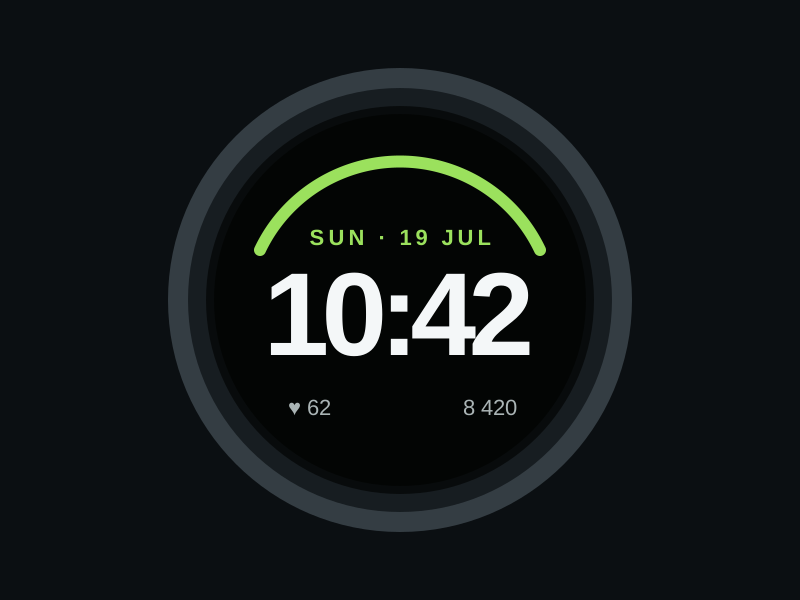
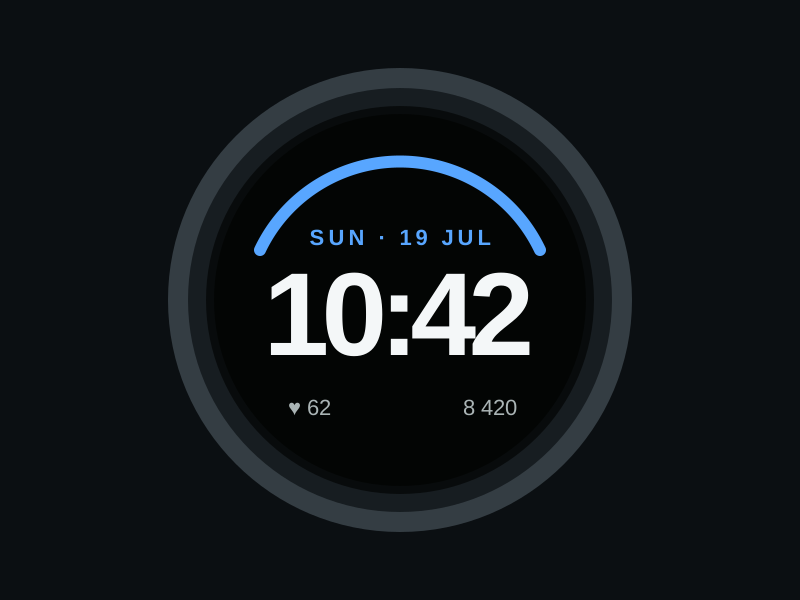
The examples below show the same layout with two different accent colors.
- Open Colors and select Accent.
- Scroll through the available colors.
- Press START to apply your selection.
2.1
Bright colors
Use a vivid accent when maximum readability is the priority.
Lime stays highly visible against the dark background and works especially well for progress indicators.
2.2
Cool colors
Choose a cooler accent for a more understated appearance.
Blue preserves clear contrast while making the watch face feel calmer and less vivid.
On the watch
Data fields
Choose which information appears below the time and assign a metric to each available position.
Available metrics depend on the permissions granted to the watch face and on the capabilities of your Garmin device.
- Open Data Fields and choose Left or Right.
- Select a metric such as heart rate, steps, battery, or weather.
- Return to the watch face to verify the new layout.
On the watch
Always-on display
Configure the simplified AMOLED layout that remains visible when the watch is inactive.
The always-on version deliberately displays fewer elements to reduce power use and prevent screen burn-in.
- Enable Always On in your watch display settings.
- Open Horizon settings and choose the low-power layout.
- Check the dimmed preview after the watch becomes inactive.
In the Connect IQ app
Find the watch face
Open Horizon from the list of installed apps in Garmin Connect IQ.
Your phone must be paired with the watch and connected to the internet before settings can be synchronized.
- Open the Connect IQ Store app on your phone.
- Tap My Device and select your Garmin watch.
- Open My Watch Faces and choose Horizon.
In the Connect IQ app
Appearance
Change colors and layout options on a larger screen, then send them to your watch.
Connect IQ may group several options into expandable sections. Save your changes before leaving the settings screen.
- Open Settings on the Horizon product screen.
- Choose an accent color and preferred time layout.
- Tap Save and wait for synchronization to finish.
2.1
Color presets
Start with a ready-made color combination, then adjust individual colors if needed.
Presets update the background, accent, and text colors together while keeping a readable contrast ratio.
- Open the Preset list.
- Select a combination and check its preview.
- Save the settings to synchronize the preset.
In the Connect IQ app
Complications
Assign data sources to the available positions and control how much information is shown.
If a metric is unavailable, check that the required sensor, permission, or phone connection is enabled.
- Find the Data Fields section.
- Select a metric for each position.
- Save and confirm the values appear on the watch.
In the Connect IQ app
Sync and troubleshooting
Use these checks if a saved setting does not appear on your watch.
Most synchronization issues are temporary and disappear after Connect IQ reconnects to the watch.
- Keep the watch close to your phone and verify Bluetooth is enabled.
- Open Garmin Connect and perform a manual synchronization.
- Restart the watch face or the watch if the change is still missing.
This is a demonstration watch face. Replace it with real product information and screenshots.