
28 color schemes: monochrome LCDs with neutral or colored backlight, early color displays, neon cyberpunk palettes and restrained modern tones, plus six adjustable color roles and two custom HEX colors.
Supported devices85
 Approach® S50AMOLED · 390 × 390
 Approach® S70 42mmAMOLED · 390 × 390
 Approach® S70 47mmAMOLED · 454 × 454
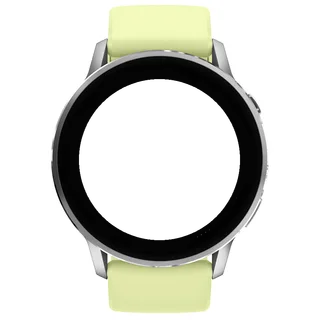 D2™ Air X15AMOLED · 454 × 454
 D2™ Mach 1AMOLED · 416 × 416
 D2™ Mach 1 ProAMOLED · 454 × 454
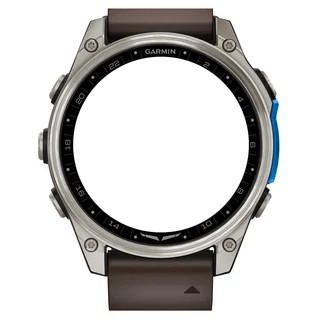 D2™ Mach 2AMOLED · 454 × 454
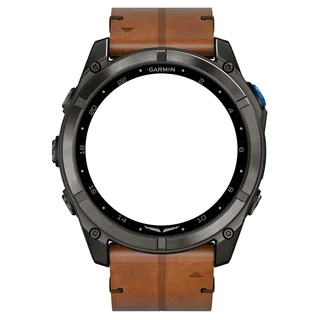 D2™ Mach 2 ProAMOLED · 454 × 454
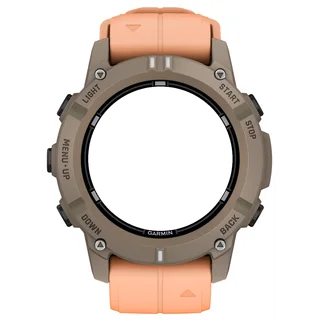 Descent™ G2AMOLED · 390 × 390
 Descent™ Mk3 43mmAMOLED · 390 × 390Descent™ Mk3i 43mmAMOLED · 390 × 390
 Descent™ Mk3i 51mmAMOLED · 454 × 454
 Enduro™ 2Memory-in-pixel · 280 × 280
 Enduro™ 3Memory-in-pixel · 280 × 280
 epix™ (Gen 2)AMOLED · 416 × 416
 epix™ Pro (Gen 2) 42mmAMOLED · 390 × 390
 epix™ Pro (Gen 2) 47mmAMOLED · 416 × 416epix™ Pro (Gen 2) 51mmAMOLED · 454 × 454
 fēnix® 7Memory-in-pixel · 260 × 260
 fēnix® 7 ProMemory-in-pixel · 260 × 260
 fēnix® 7 Pro - Solar Edition (no Wi-Fi)Memory-in-pixel · 260 × 260
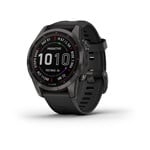 fēnix® 7SMemory-in-pixel · 240 × 240
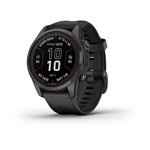 fēnix® 7S ProMemory-in-pixel · 240 × 240fēnix® 7XMemory-in-pixel · 280 × 280
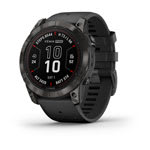 fēnix® 7X ProMemory-in-pixel · 280 × 280
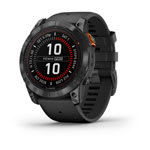 fēnix® 7X Pro - Solar Edition (no Wi-Fi)Memory-in-pixel · 280 × 280
 fēnix® 8 43mmAMOLED · 416 × 416
 fēnix® 8 47mmAMOLED · 454 × 454fēnix® 8 51mmAMOLED · 454 × 454
 fēnix® 8 Pro 47mmAMOLED · 454 × 454fēnix® 8 Pro 51mmAMOLED · 454 × 454fēnix® 8 Pro MicroLEDAMOLED · 454 × 454
 fēnix® 8 Solar 47mmMemory-in-pixel · 260 × 260
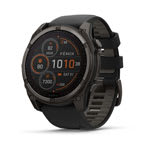 fēnix® 8 Solar 51mmMemory-in-pixel · 280 × 280
 fēnix® 9 43mmAMOLED · 416 × 416
 fēnix® 9 47mmAMOLED · 454 × 454fēnix® 9 51mmAMOLED · 454 × 454
 fēnix® 9 Pro 43mmAMOLED · 416 × 416
 fēnix® 9 Pro 47mmAMOLED · 454 × 454
 fēnix® 9 Pro 51mmAMOLED · 466 × 466
 fēnix® 9 Pro Solar 47mmMemory-in-pixel · 260 × 260
 fēnix® 9 Pro Solar 51mmMemory-in-pixel · 280 × 280
 fēnix® EAMOLED · 416 × 416
 Forerunner® 70AMOLED · 390 × 390
 Forerunner® 165AMOLED · 390 × 390
 Forerunner® 165 MusicAMOLED · 390 × 390
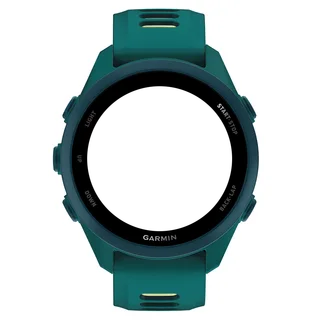 Forerunner® 170AMOLED · 390 × 390
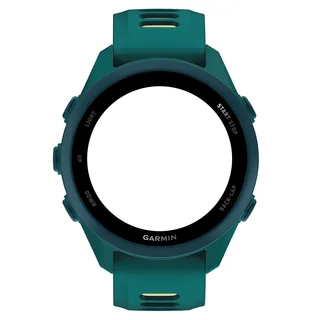 Forerunner® 170 MusicAMOLED · 390 × 390
 Forerunner® 255Memory-in-pixel · 260 × 260
 Forerunner® 255 MusicMemory-in-pixel · 260 × 260
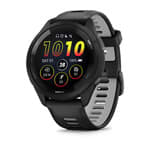 Forerunner® 265AMOLED · 416 × 416
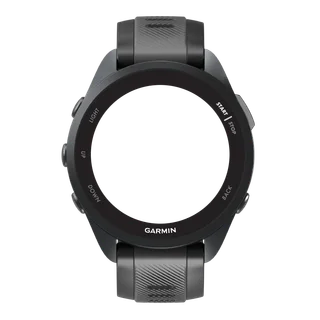 Forerunner® 570 42mmAMOLED · 390 × 390
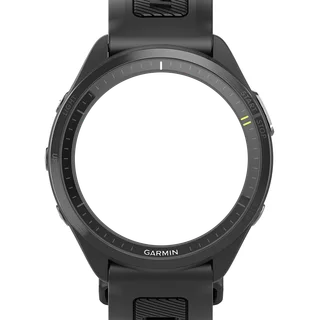 Forerunner® 570 47mmAMOLED · 454 × 454
 Forerunner® 955Memory-in-pixel · 260 × 260Forerunner® 955 SolarMemory-in-pixel · 260 × 260
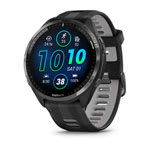 Forerunner® 965AMOLED · 454 × 454
 Forerunner® 970AMOLED · 454 × 454
 Instinct® 3 AMOLED 45mmAMOLED · 390 × 390
 Instinct® 3 AMOLED 50mmAMOLED · 416 × 416
 MARQ® (Gen 2) AdventurerAMOLED · 390 × 390MARQ® (Gen 2) AthleteAMOLED · 390 × 390
 MARQ® (Gen 2) AviatorAMOLED · 390 × 390MARQ® (Gen 2) CaptainAMOLED · 390 × 390MARQ® (Gen 2) Carbon EditionAMOLED · 390 × 390MARQ® (Gen 2) Commander – Carbon EditionAMOLED · 390 × 390MARQ® (Gen 2) GolferAMOLED · 390 × 390quatix® 7Memory-in-pixel · 260 × 260quatix® 7 ProAMOLED · 416 × 416quatix® 7 SapphireAMOLED · 416 × 416quatix® 7X SolarMemory-in-pixel · 280 × 280quatix® 8 47mmAMOLED · 454 × 454quatix® 8 51mmAMOLED · 454 × 454quatix® 8 Pro 47mmAMOLED · 454 × 454quatix® 8 Pro 51mmAMOLED · 454 × 454tactix® 7Memory-in-pixel · 280 × 280tactix® 7 – AMOLED EditionAMOLED · 454 × 454tactix® 8 47mmAMOLED · 454 × 454tactix® 8 51mmAMOLED · 454 × 454tactix® 8 Solar 51mmMemory-in-pixel · 280 × 280
 Venu® 3AMOLED · 454 × 454
 Venu® 3SAMOLED · 390 × 390
 Venu® 4 41mmAMOLED · 390 × 390Venu® 4 45mmAMOLED · 454 × 454
 vívoactive® 5AMOLED · 390 × 390
 vívoactive® 6AMOLED · 390 × 390
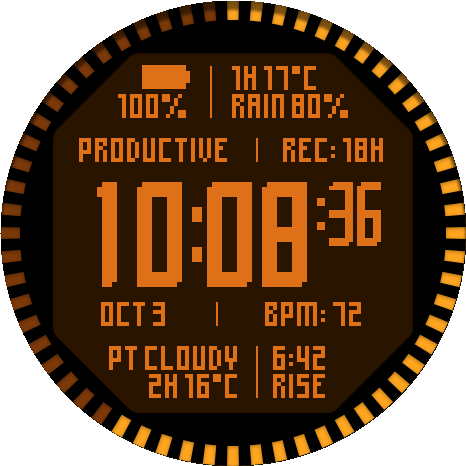
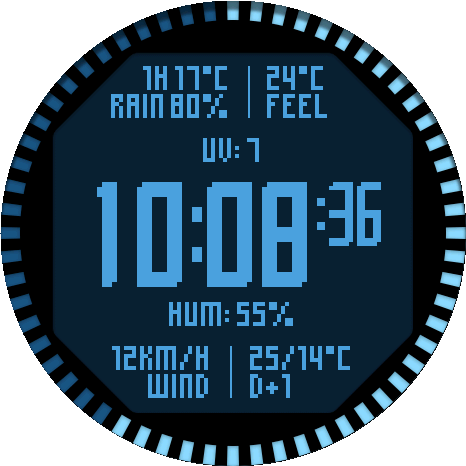
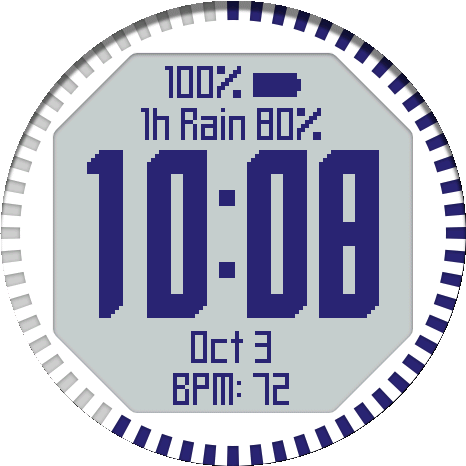
Big or Medium clock with up to eight data fields from 99 metrics, plus any installed Garmin complication.
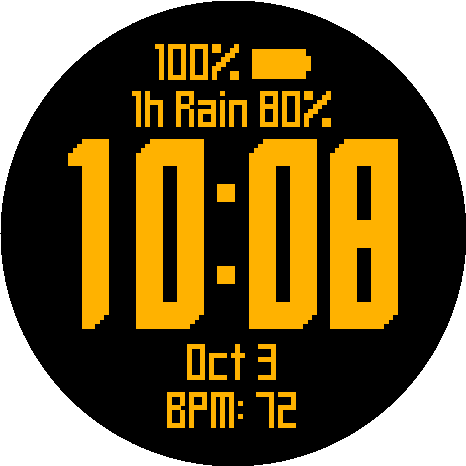
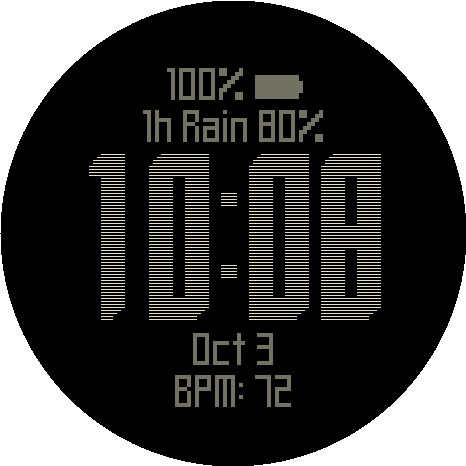
Bezel progress, touch-and-hold info screens, Full or Minimal AMOLED always-on and a guided setup wizard.
Ashborn Origin
User guide
Color schemes
All 28 color schemes, rendered exactly as on the watch, with bezel progress and the polygon switchable for each.
Watch: Settings › Appearance › Color scheme · Phone: Connect IQ app › Appearance
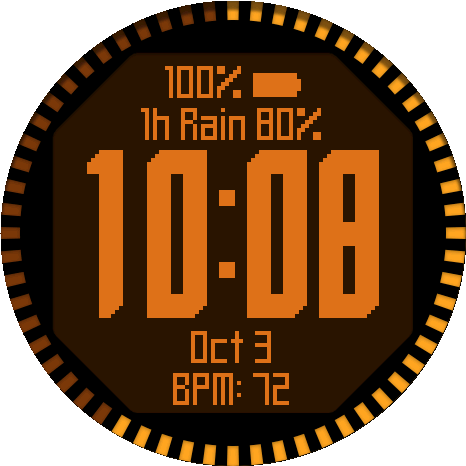
04 / 28 · Siemens Orange Dark
- Background
#000000- Polygon
#2B1403- Bezel track
#7A3B08- Bezel progress
#FFA526- Clock
#D9731A- Data
#D9731A
This scheme's polygon matches its background.
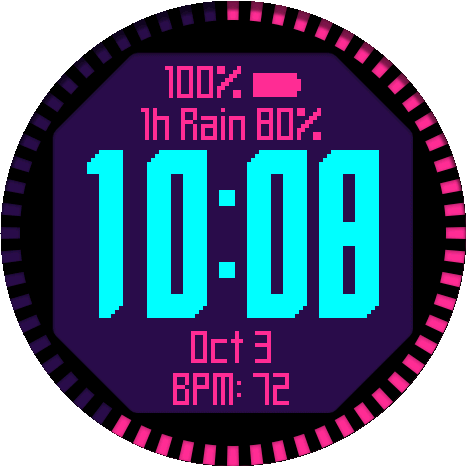
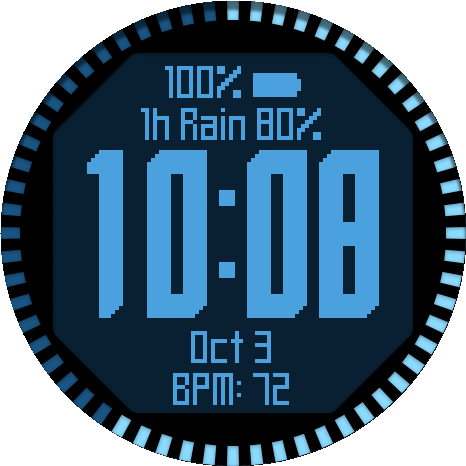
Four families: monochrome LCD and terminal displays with neutral or colored backlight (Light and Dark LCD, Siemens Orange, Nokia Green, Ice Blue, Pearl White, Fenix Red, Amber Terminal, Green Terminal), early color displays (Early Color, Program Manager, Turbo IDE, CGA), neon cyberpunk palettes (Neon Noir, Synthwave, Toxic Neon, Electric Blue, Neon Sunset) and restrained modern tones (Ocean, Desert, Rose Gold, Forest, Slate).
A scheme changes the background, , bezel track, , clock and data colors. You can then adjust each color individually; selecting another scheme replaces those adjustments.
Two additional colors can be entered as Custom HEX Color 1 and 2 (#RRGGBB) in the Connect IQ app › Appearance and then selected as Custom 1 or Custom 2 for any role. The TIKKS color picker provides HEX codes and previews the 64 colors MIP displays can show.
The bezel track is the unfilled part of the ring. Colors may look slightly different on MIP watches.
Clock layouts
Big Clock gives most of the display to the time; Medium Clock makes room for up to eight data fields. Fields rearrange automatically when some are set to None.
Watch: Settings › Data fields › Layout, Top 1–4, Bottom 1–4 · Phone: Connect IQ app › Data fields
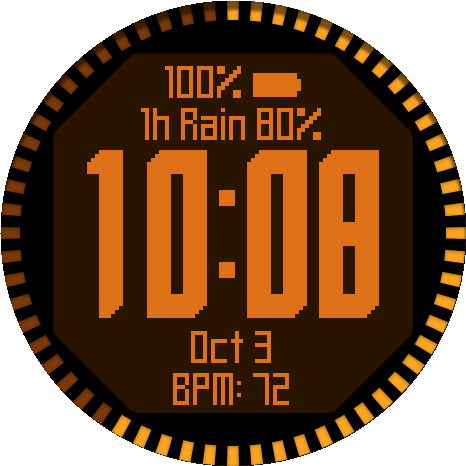
Top fields
Bottom fields
2 top · 2 bottom fields
Big: up to four fields. Medium: up to eight fields, with numeric seconds.Big Clock shows up to four fields; Medium Clock shows up to eight. Select None in a field to hide it.
Seconds size (Medium Clock): Small shows seconds beside the minutes; Large shows one continuous HH:MM:SS and hides am/pm.
Example setups
Six combinations from a clean clock to a full dashboard, each shown in two or three color schemes.
Settings › Data fields › Layout and field slots · Appearance › Show polygon · Data fields › Bezel progress
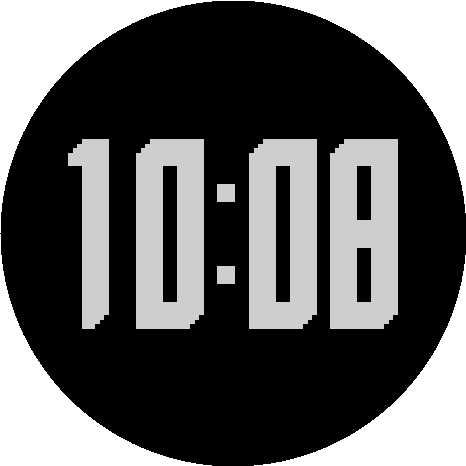
Clean minimalist
Big clock · 0 data fields · polygon off · bezel off
Each example combines clock size, data fields, polygon and bezel. Recreate it with the settings above or with the , using any metrics.
Data fields
99 built-in metrics for activity, health, weather, time and training, plus any installed Garmin complication.
Watch: Settings › Data fields › Top 1–4 / Bottom 1–4 · Phone: Connect IQ app › Data fields
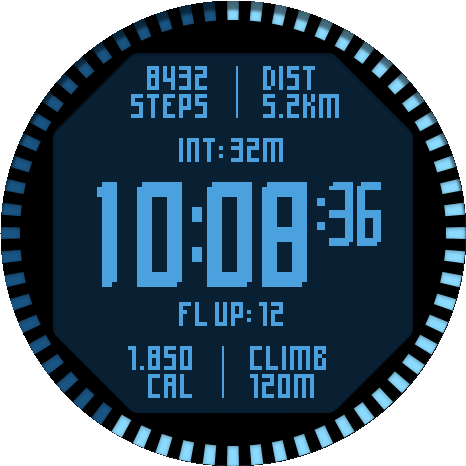
Activity1 / 4
Steps, distance, intensity minutes, floors, calories and elevation.
An field shows any Garmin complication installed on the watch. shows Garmin's assessment of recent training load.
highlights the next notable change; looks ahead within the Forecast range. Both are configured in Settings › Weather.
With on, holding a field opens its Garmin app when the metric offers one. Scroll long text scrolls values that do not fit, Show units shows or hides unit symbols, and Data font switches between the pixel font (Default) and the watch's System font.
Units follow the watch's system settings; Wind unit in Settings › Weather changes wind speed only.
All data fields
Activity
- Steps
- Steps To Goal
- Step Goal Progress
- Steps (Week)
- Steps (7d)
- Steps (7d avg)
- Calories
- Active Calories
- Active Cal. %
- Calories (Week)
- Calories (7d)
- Calories (7d avg)
- Distance
- Distance (Week)
- Distance (7d)
- Distance (7d avg)
- Floors Ascended
- Floors Descended
- Floors (Week)
- Floors (7d)
- Floors (7d avg)
- Meters Climbed
- Elevation Gain (Yesterday)
- Elevation Gain (Week)
- Elevation Gain (7d)
- Elevation Gain (7d avg)
- Meters Descended
- Elevation Loss (Yesterday)
- Elevation Loss (Week)
- Elevation Loss (7d)
- Elevation Loss (7d avg)
- Intensity Minutes (Day)
- Intensity Minutes (Week)
- Intensity Minutes (7d)
- Intensity Minutes (7d avg)
- Moderate Minutes (Day)
- Moderate Minutes (Week)
- Moderate Minutes (7d)
- Vigorous Minutes (Day)
- Vigorous Minutes (Week)
- Vigorous Minutes (7d)
- Move Bar
Health
- Heart Rate
- Resting HR
- Body Battery
- Stress
- Blood Oxygen
- Respiration
- Sleep Score
Calendar & time
- Month
- Date
- Day
- Week of the Year
- Year
- Day of the Year
- Calendar
- Time
- Seconds
- Alt Time Zone 1
- Alt Time Zone 2
- Sunrise / Sunset
- Dawn / Dusk
- Remaining Sun / Dark
Training
- Recovery Time
- VO2 Max (Run)
- VO2 Max (Bike)
- Training Status
- Week Run Distance
- Week Run Time
- Run Time (7d)
- Run Time (7d avg)
- Week Bike Distance
- Week Bike Time
- Bike Time (7d)
- Bike Time (7d avg)
- Last Round
Weather
- Weather
- Upcoming Weather
- Smart Weather
- Forecast Weather +1 Day
- Forecast Weather +2 Days
- Forecast Weather +3 Days
- Feels Like
- Temperature Min/Max
- Precip Chance
- Humidity
- Wind
- UV
- Pressure
- Barometric Trend
- Cloud Cover
- Visibility
- Dew Point
System
- Battery Level In Percent
- Battery Level In Days
- Notifications
- Alarm Count
- Altitude
- Solar Input
- External (any installed complication)
Bezel progress
The bezel ring shows progress at a glance; without it, the face grows to full size.
Watch: Settings › Data fields › Bezel progress · Phone: Connect IQ app › Data fields
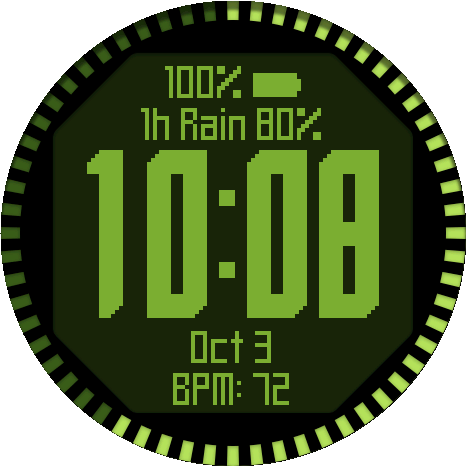
Seconds1 / 5
A ring that moves with the seconds.
can follow seconds, the steps goal, battery or another metric. None removes the ring and enlarges the clock and fields.
Without the bezel, the background is always black. With the polygon hidden too, the face adjusts clock and data colors if needed to keep them readable.
Bezel seconds mode offers Fill / unfill, Fill and reset, or Single segment. Bezel seconds marker adds the current second when the ring follows another metric.
Info screens
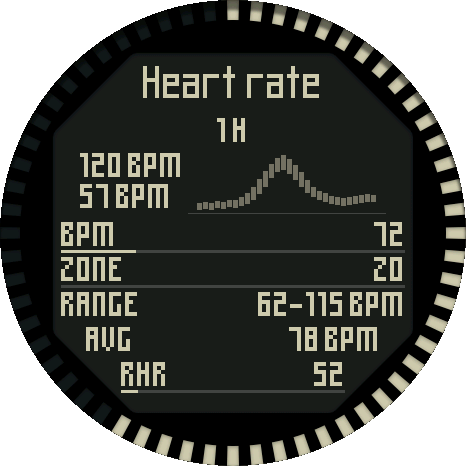
Touch and hold the hours or minutes for a detailed screen with a graph.
Watch: Settings › Data fields › Hour hold screen / Minute hold screen · Phone: Connect IQ app › Data fields
Heart rate1 / 8
One-hour heart-rate ranges, current pulse and resting heart rate.
Enable and keep the face awake. Hours default to Heart rate and minutes to Steps; choose None to disable either hold screen.
The graph and five rows show your data when you open the screen. Available history varies by watch. Hold anywhere to close it, or set how long it stays open with Info screen time (2–10 seconds, default 4 seconds).
Date and time
Time and date formats, two alternate time zones and seconds display.
Watch: Settings › Date and time · Phone: Connect IQ app › Date and time
Alternate time zones appear in data fields selected as Alt Time Zone 1 or 2. Their default labels, TZ1 and TZ2, can be changed in the Connect IQ app › Date and time to custom text of up to 5 characters, such as LON or NY.
- Main time format
- 9:05 (default), 09:05, Military
- Data time format
- 9:05 (default), 09:05, Military
- Date format
- 12 formats from 5.7. to Wed 5 Jul; default Wed 5
- Seconds format
- 36 (default), :36. Applies only to seconds in data fields, not to the main clock.
- Alternate timezone 1 and 2
- UTC−12:00 to UTC+14:00 in 30-minute steps; default UTC+00:00
- Always-On Seconds (MIP only)
- On (default), Off
Weather
Smart Weather and Upcoming weather choose what to show from Garmin's hourly forecast.
Watch: Settings › Weather · Phone: Connect IQ app › Weather
Smart Weather shows the next enabled event within the Forecast range and current weather otherwise. Rain counts once its chance reaches Minimum precipitation chance.
- Smart: Weather changes
- On (default), Off
- Smart: High UV
- Off (default), On
- Smart: Strong wind
- Off (default), On
- Smart: Pressure drop
- Off (default), On
- Smart: Extreme temperature
- On (default), Off
- Forecast range
- 1 h, 3 h (default), 6 h
- Minimum precipitation chance
- 30%, 40%, 50% (default), 60%
- Upcoming weather fallback
- Forecast end (default), Tomorrow, Current weather
- Wind unit
- Auto (default), km/h, m/s, mph, kn
Goals
Custom goals for progress bars and percentages of metrics without a Garmin goal; steps and floors climbed use the goals set on the watch.
Watch: Settings › Goals · Phone: Connect IQ app › Goals
- Total calories
- 1500 (1–9999)
- Active calories
- 300 (1–9999)
- Distance (km)
- 5.0 (0.1–999.9)
- Intensity minutes (day)
- 20 (1–1440)
- Floors down
- 5 (1–999)
- Meters up
- 50 (1–9999)
- Meters down
- 50 (1–9999)
- Weekly run distance (km)
- 15.0 (0.1–9999.9)
- Weekly bike distance (km)
- 50.0 (0.1–9999.9)
- Weekly run time (min)
- 120 (1–10080)
- Weekly bike time (min)
- 180 (1–10080)
Always-on display
Between wrist raises, the face shows either a full dashboard or only the clock and date.
Watch: Settings › Always-On Display · Phone: Connect IQ app › Always-On Display
Full1 / 3
Clock and configured fields, with no seconds.
On AMOLED, Full keeps the clock layout and fields; Minimal shows the clock and date. Both have a black background with no polygon, seconds or animation.
Colored AOD uses your selected colors; turn it off for grayscale. Choose Low, Medium or High for Day brightness and Night brightness, then select when they change: Profile Sleep / Wake, Profile Sleep / Wake -2h, Sunrise / Sunset or Never (default). Data brightness (25–100%, default 50%) dims the data fields without changing the clock or bezel.
watches keep the full face in low power, with optional Always-On Seconds. AMOLED never shows seconds in always-on mode.
Battery saver and system
Battery saver dims the face when the battery runs low; System resets all settings.
Watch: Settings › Battery saver, System · Phone: Connect IQ app › Battery saver, System
dims the face's colors at or below the selected level. The Connect IQ app also shows the installed version under System.
- Activate battery saver
- Off, Always, 5% or less (default), 10%, 15%, 20%, 30%, 50% or less
- Reset to defaults
- Restores every setting, including colors and data fields
Set up in a minute
The sets up layout, fields, bezel, background and colors step by step and saves only at the end.
Watch: Settings › Start appearance wizard
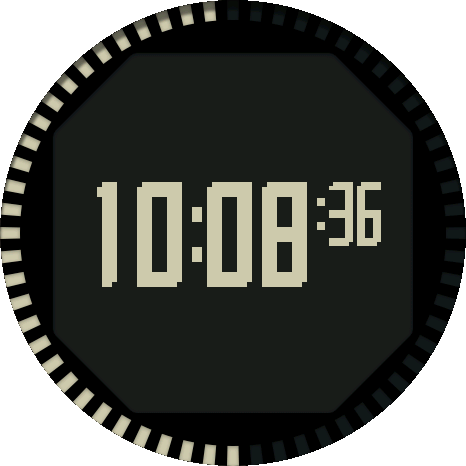
Clock size1 / 8
Up and Down choose an option, Select continues and Back returns to the previous step. Leaving from the first step cancels all changes.
Medium Clock adds the Seconds size step. After the field counts, one metric is chosen for each field; the bezel step shows or hides the configured progress.
On-watch settings
Every setting is available on the watch except HEX colors and time zone labels, which are entered in the Connect IQ app.
Watch: open the watch face settings · Phone: Connect IQ app › Ashborn Origin › Settings
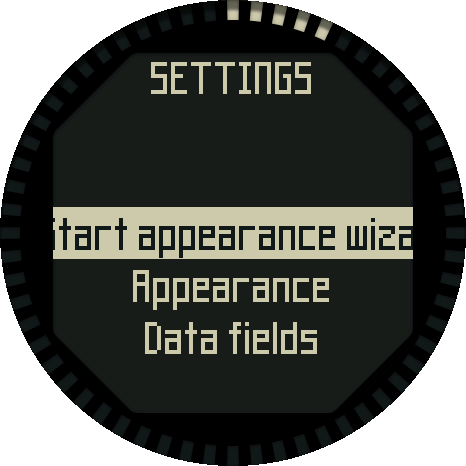
Settings1 / 4
The list contains Start appearance wizard, Appearance, Data fields, Date and time, Always-On Display (AMOLED only), Weather, Goals, Battery saver, User Guide and System. User Guide shows a QR code that opens this page.
Up and Down wrap around the list; Select opens the highlighted middle row and Back returns. Color rows preview while scrolling, and selecting a row confirms the color.
On watches, the default scheme is Dark LCD. Colors may look slightly different, and AMOLED-only always-on style and brightness controls are not shown.
Questions
Why are elevation yesterday, week and 7-day values incomplete?
Elevation history builds up only while Ashborn Origin is your active watch face. Keep it selected through midnight for complete daily totals. Days spent using another watch face may be missing or incomplete.
Why does a field show --?
The watch has not supplied the value, the required history is unavailable, or the metric is not supported on the device. Weather fields need Garmin weather data, and External fields need an installed complication.
Why are there no seconds in always-on mode?
AMOLED watches do not show seconds in always-on mode. On MIP watches, enable Always-On Seconds to keep them visible; the watch may stop them to save power.
Where did the bezel go?
Bezel progress is set to None, which removes the ring and enlarges the face. Select Seconds or another metric to restore it.
Why did choosing a scheme change the custom colors?
A color scheme replaces all six colors. Choose the scheme first, then adjust individual colors.
Why does holding the clock do nothing?
Touch shortcuts must be on, the hold screen must not be None and the face must be awake. Short taps do not open info screens, and watches without a touchscreen do not offer them.